Risks
Introduction
What is the tab?
The Risks tab lets you record and manage all project risks in one place. You decide per project which information to store and show. Risks can be followed up with tasks (which appear on the project's Kanban board) and can be made visible at portfolio level by reporting or synchronising them.
Who uses it?
Project managers and team members who register and update risks. Portfolio managers consult the reported or synchronised risks at portfolio level.
What value does it deliver?
A single list with the columns you choose, quick filtering, reusable views, follow-up via tasks on the Kanban board, and a controlled way to make the relevant risks visible in the portfolio.
What is the goal of the Risks tab?
The Risks tab makes it easy to keep track of project risks and to decide which details you want to register. Typical fields include status, probability (chance), impact, owner, and created date. You can export the list to a spreadsheet or print it to share with people who don’t have access to the project.
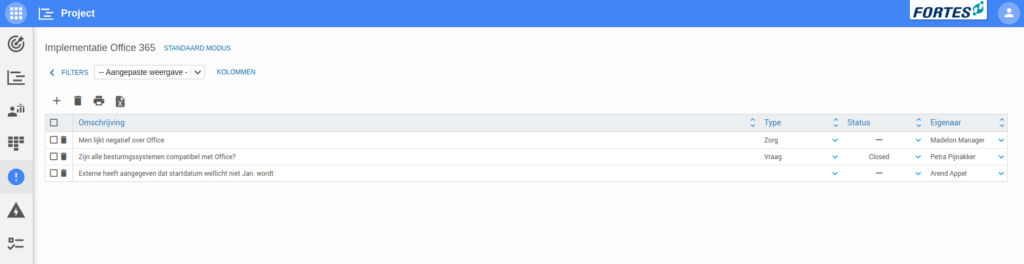
How do I use the Risks tab?
-
Choose which information to show and add it as columns. Click COLUMNS and select the columns you need.
Examples:- Status: whether a risk is solved or not.
- Chance: the probability that the risk occurs.
- Impact: the effect if the risk occurs.
- Owner: the person responsible for the risk.
- Last edited on: shows when the risk was last updated.
-
Add a risk with +, enter a description, and fill the remaining columns.
-
Use a filter when the list grows and you need focus (e.g., highest probability). Save a view if you want to reuse a filter or set of filters.
-
Export the risks to a spreadsheet to share them outside the project, or print the list.
Following up risks with tasks
Tasks can be added to a risk on its detail page (via the Tasks segment). Every task added to a log item automatically appears as a card on the project's Kanban board, so follow-up actions for risks are managed in the same flow as the rest of the project work.
Linking project risks to the portfolio
Project risks can be made visible at portfolio level in two ways:
- Reporting: the project reports risks to the portfolio. You control which risks are reported. For example, add a custom field such as 'Report to portfolio' and report only the risks where this field is set. This way only the important risks reach the portfolio, while the project keeps its full register.
- Synchronising: the risks of the project are synchronised with the portfolio, so the portfolio always shows the current state of the project's risk log.
Choose reporting when the portfolio should only see a curated subset; choose synchronising when the portfolio should follow the complete log. The same two routes apply to other log types, such as Issues.
Customizing the risk detail page
The detail page of a risk can be tailored with segments (fields, tasks, documents), in the same way as for all log items. See Customize the log item detail page in the Issues article.
Best practices
- Keep the column set short and relevant; add only what you really track.
- Use filters to focus on high-probability or high-impact risks; save views you’ll reuse.
- Record an Owner for each risk so responsibility is clear.
- Give follow-up actions a task, so they are visible on the Kanban board with an owner.
- Use reporting with a custom field to keep the portfolio focused on the risks that matter.
- Use Export (or print) to share the register with stakeholders who don’t have project access.
FAQ
Where do I choose which fields are visible?
Open COLUMNS on the Risks tab and select the columns you need.
How do I add a new risk?
Click +, give it a clear description, and fill the relevant columns (owner, chance, impact, status).
How do I focus on the most important risks?
Apply a filter (e.g., highest chance), and save it as a view if you want to reuse it.
What happens when I add a task to a risk?
The task automatically appears as a card on the project's Kanban board.
How does the portfolio see my risks?
Either by reporting (you decide which risks are reported, e.g. via a custom field) or by synchronising (the portfolio follows the complete log).
How do I share the risks with people who don’t have project access?
Use Export to a spreadsheet or print the list.
Need more support?
Contact your Fortes Change Cloud administrator or consult the online knowledge base for more step-by-step configuration guides.