Portfolio reporting
Introduction
What is the tab?
The Portfolio reporting tab lets a project report important information (for example milestones or status) back to the portfolio it belongs to. It is a quick way to keep portfolio stakeholders up to date.
Who uses it?
- Portfolio managers send report requests from the Portfolio app.
- Project managers fill the requested report in the Project and publish it to the portfolio.
What value does it deliver?
- Clear request → fill → publish flow.
- Portfolio data stays current without manual copy/paste.
- Works together with milestone synchronisation.
What is the goal of the portfolio reporting tab?
A portfolio manager can send a report request to a project from the portfolio. When they do this, they request the project manager to fill in a report, for example about the progress or the cost incurred. When the report is filled, the project manager can publish it to the portfolio. This causes the information in the portfolio to be updated with the most recent information from the report. In short, the portfolio reporting tab enables the project manager to report to the portfolio the project belongs to in an easy way.
Reporting log items (Risks, Issues, and other logs)
Besides fields and milestones, a report can also include log items such as Risks and Issues. Because a project's log is usually larger than what the portfolio needs to see, reporting supports filtering which lines are included. For example, add a custom checkbox field such as "Report to portfolio" to the log item, and configure the report to only include lines where that field is checked. This way you control exactly which log lines reach the portfolio, while the project keeps its own complete log. See Linking project risks to the portfolio for the full explanation; the same approach applies to Issues and other log types.
How do I create a portfolio report?
A portfolio report is created in the reporting tab in the Portfolio app. The portfolio manager can send a report request for one or more portfolio-items, so the relevant people can update the information in the report model. In other words, a portfolio manager can send a report request to a project, so the project manager has to update the information in the report. This causes the information to stay up-to-date.
Since this functionality is part of the Portfolio app, more information will be provided in the texts on the Portfolio app.
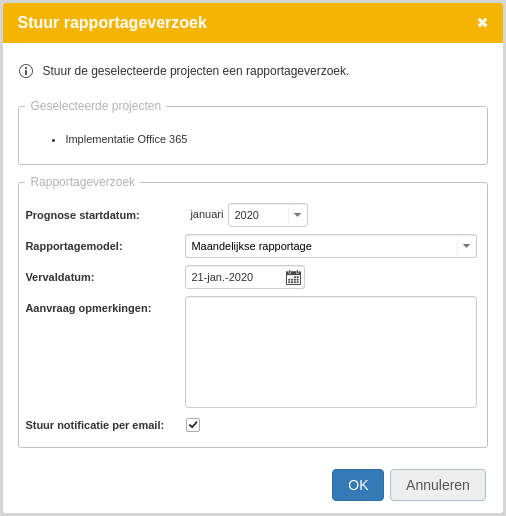
How do I fill in a portfolio report?
- Check for a request
New requests show an hourglass as the report status. You may also receive an email request.
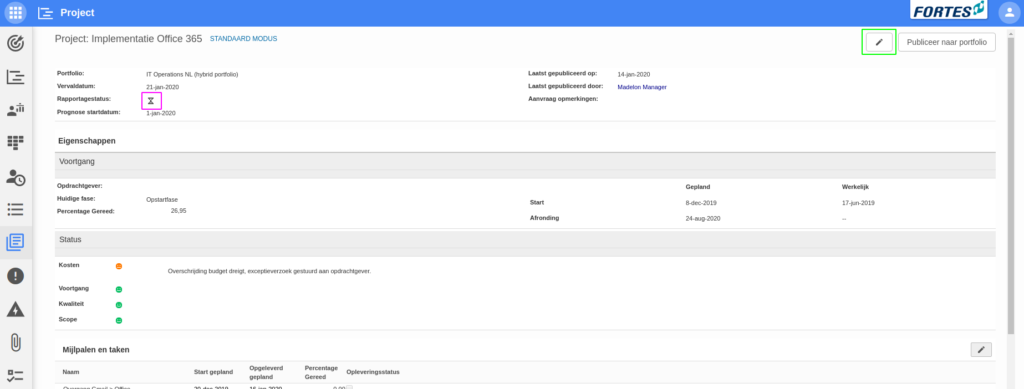
- Edit the report
Click Edit and enter the requested information. The portfolio manager has chosen what information they want you to update.
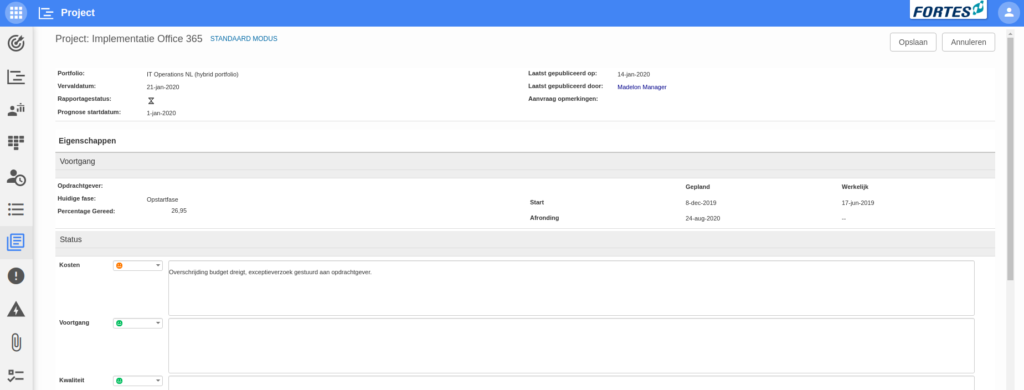
- Publish to the portfolio
When you are done, click Publish to portfolio to pass the information to the portfolio so it stays up to date.

Synchronising milestones (Portfolio ↔ Project)
What does synchronisation do?
Milestones created in Portfolio Planning can be included in the Project Planning. Once included, their planning data (such as start/end date and percent complete) can be automatically synchronised from Project back to Portfolio with each periodic report. The portfolio planning is then updated to reflect the most recent project planning.
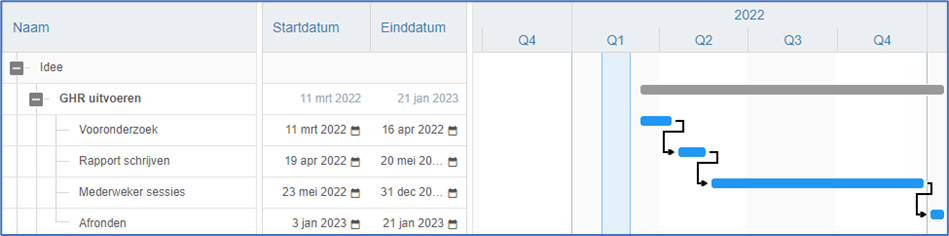
Include portfolio milestones in a Project Schedule
Please note that the synchronisation of Milestones between a Portfolio and a Project is done using the ‘Milestone Segment’ that can be included in the Portfolio reporting. Ask the Portfolio administrator to add this.
Steps:
- In the Portfolio, send a report request to the project. This must be done by the Portfolio Manager/Support Person.
- In the Project, open the Portfolio reporting tab.
- Add the Portfolio Milestones to the Project Schedule by doing the following:

- The report states the above. Press the text ‘NO SYSNCHRONISATION WITH PROJECT PLANNING’. The following pop-up is displayed:
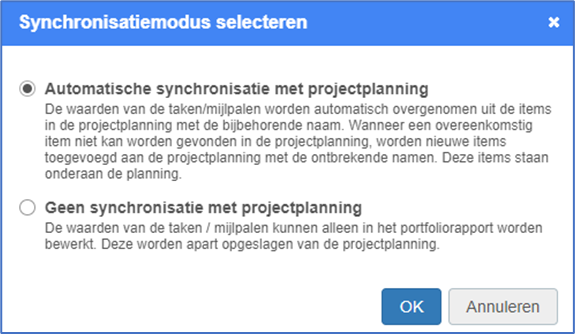
- Choose the option ‘Automatic synchronisation with project planning’. It now checks whether there are already plan items in the Project Planning with the same name. These are then automatically linked to the Portfolio Milestones of the same name. For the milestones that are missing in Project Planning, the following dialogue will be established:
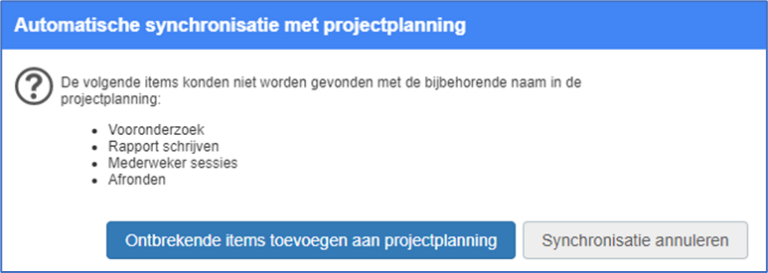
- To include the Portfolio milestones in the Project planning click on ‘Add missing items to project planning’. The milestones have now been added to the bottom of the Project Schedule. The Project Manager can now move them to his desired place in his Project Planning.
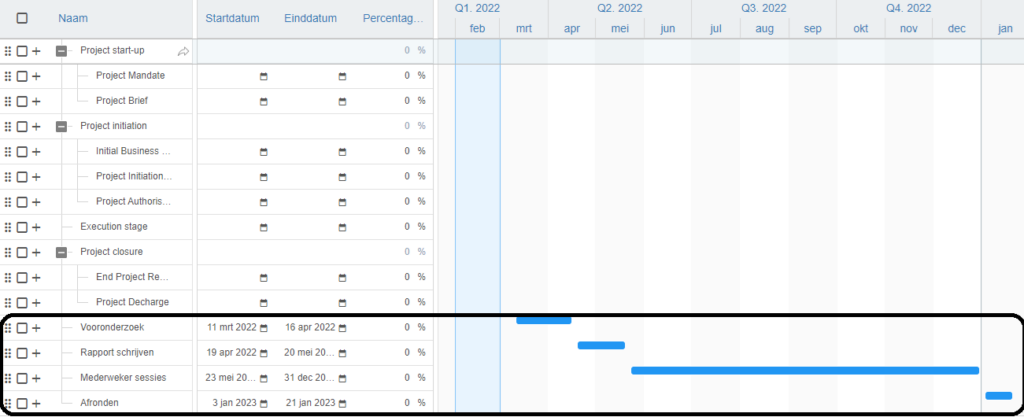
If this is done, synchronisation will be automatic from now on.
Important: synchronisation is by name. Keep milestone names identical in Portfolio and Project.
Best practices
- Agree on a report cadence (for example monthly) so requests are predictable.
- Keep the report model short: only fields the portfolio actually uses.
- Always Publish to portfolio after editing; drafts do not update the portfolio.
- For milestones, standardise names and use Automatic synchronisation with project planning to avoid manual fixes.
FAQ
Where do I send report requests from?
From the Portfolio app, by selecting portfolio items and sending a report request.
How do I know there is a request to fill?
Look for the hourglass report status in the project. You may also receive an email.
Who chooses the fields in the report?
The portfolio manager defines the report model and which fields must be updated.
When is the portfolio updated?
When the project clicks Publish to portfolio after filling the report.
How do I include portfolio milestones in my project plan?
Use the Milestone segment in Portfolio reporting, enable Automatic synchronisation with project planning, and if needed click Add missing items to project planning. Keep milestone names identical.
Need more support?
Contact your Fortes Change Cloud administrator or consult the online knowledge base for more step-by-step configuration guides.