My Projects
Introduction
What is the My Projects page? The My Projects page is your personal starting point in the Project app. It shows all projects for which you are assigned as a manager. From here you can open a project, or archive it when it is no longer active.
Who uses it? Project managers who need a quick overview of the projects they are responsible for.
What value does it deliver? A filtered, personal view of only your projects, so you can navigate directly to the right project without searching through the full list.
Your projects
The My Projects page lists all projects where you are assigned as manager. Each project shows key information such as name, status, and dates.
Click a project to open it and access its planning, logs, and settings.
Creating a project
Projects are created from a Project Model, which defines the project's default tabs, Canvases, and Kanban lists. Project Models come in two modes, classic and standard, matching the two versions of the Project app. For how a Model's settings are copied to a new project and how permissions work, see Use of Models.
Classic and standard Project Models
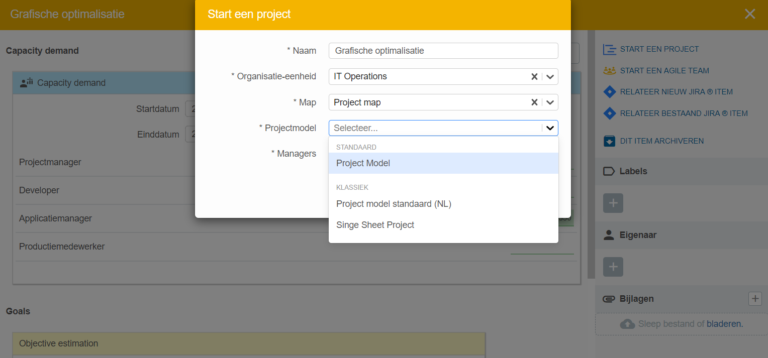
If a Project Model was created for classic projects, it opens in classic mode by default. Use the mode switcher on the Model to convert it to a standard Project Model. After switching, the Model appears in the standard list and opens in the new Project app by default.
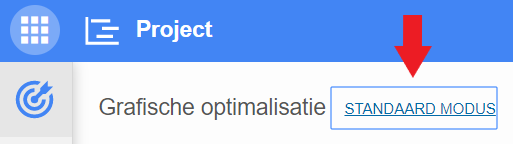
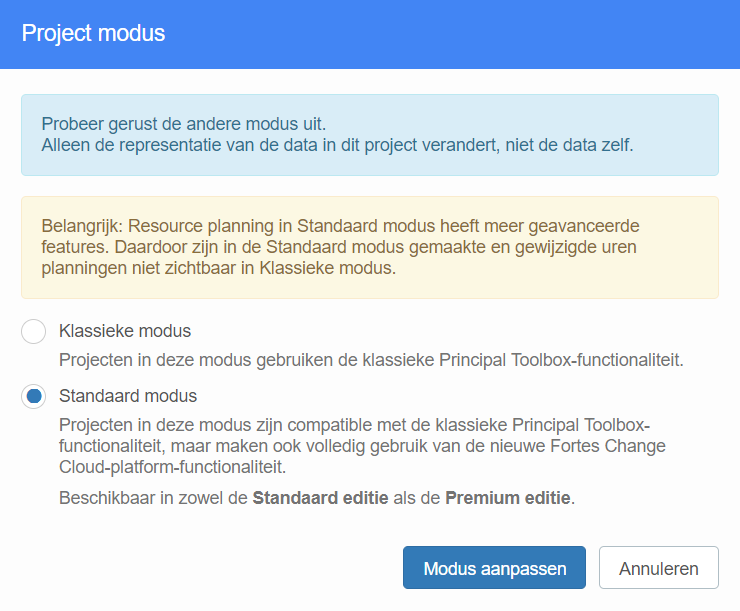
When you start a project, only the relevant Models appear: classic projects show classic Project Models, and standard projects show standard Project Models.
From the Project app
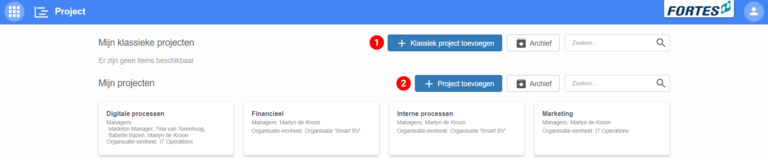
- Go to the Project app and click + Add project.
- Choose to create a classic project or a standard project. Depending on the type, you see the matching Project Models to choose from.
From the Portfolio app
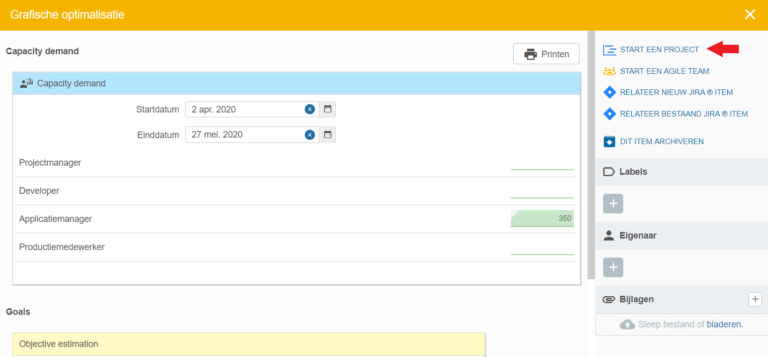
- Go to the Portfolio app and open a canvas (card) in the Portfolio Funnel.
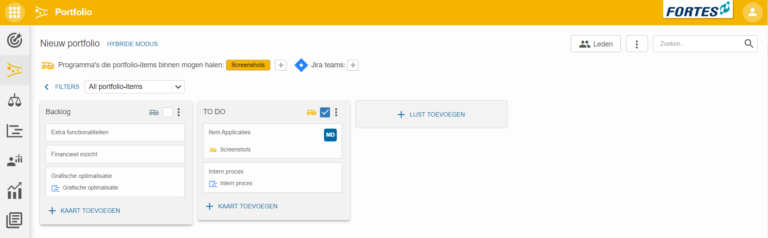
- Click Start a project.
- Fill in all the details. When selecting a Project Model, you see all existing Models split into classic and standard.
- After creation, the data from the chosen Project Model is copied (once) to the new project.
Archiving a project
When a project is finished or no longer active, you can archive it to keep your overview clean.
- Click the
⋮menu next to the project. - Select Archive.
Archived projects are removed from the active list. They can be found again via the archive filter. For more information on archiving and restoring items, see Archive and remove.
Need more support?
Contact your Fortes Change Cloud administrator or consult the online knowledge base for more step-by-step guides.