Issues
Introduction
What is the tab? The Issues tab lets you track all issues of a project in one place. You decide which information to record and display, and you can share the list with people who don’t have access to the project by exporting it. Issues can be followed up with tasks (which appear on the project's Kanban board) and can be made visible at portfolio level by reporting or synchronising them.
Who uses it?
Project managers and team members who register and maintain issues. Administrators/managers/support can also tailor the issue detail page layout.
What value does it deliver?
A single overview for issues with the columns you need, reusable filters/views, follow-up via tasks on the Kanban board, and the ability to export the list. You can also customize the issue detail page so the most relevant fields and segments are visible first.
What is the goal of the Issues tab?
The tab enables you to document all project issues and choose which information to store per project (for example, type, status, created date). Furthermore, the list of issues can be exported to a spreadsheet program or be printed, so it can be shared with people that don’t have access to the project.
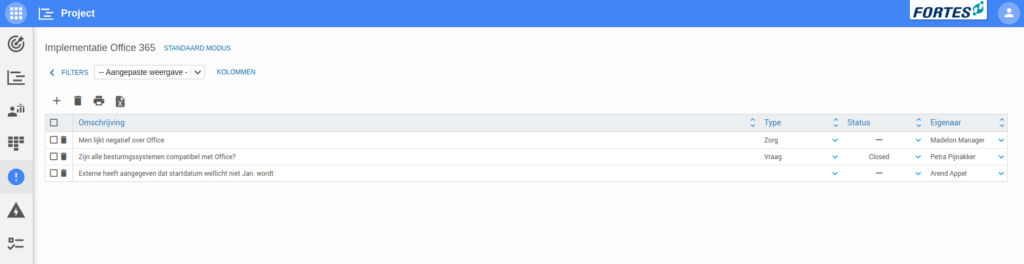
How to use the Issues tab
-
Decide which information you want to display and add it as columns (click COLUMNS and select the desired columns).
Examples:- Type shows the issue type (e.g., question or change request).
- Status shows whether the issue is solved.
- Owner lets you assign a person to the issue.
- Last edited on shows the most recent edit date.
-
Add an issue (click +), enter a description, and fill the remaining columns.
-
If needed, use a filter to show only the relevant issues. When you want to re-use filters, save a view.
-
Export the issues to a spreadsheet when you need to share them externally.
Following up issues with tasks
Tasks can be added to an issue on its detail page (via the Tasks segment). Every task added to a log item automatically appears as a card on the project's Kanban board, so follow-up actions for issues are managed in the same flow as the rest of the project work.
Linking project issues to the portfolio
Like risks, issues can be made visible at portfolio level in two ways: by reporting them (where you control which issues are reported, for example via a custom field) or by synchronising the complete log with the portfolio. See Linking project risks to the portfolio for an explanation of both routes. They work the same for issues.
Customize the log item detail page
You can configure the detail page of log items (issues, risks, quality reviews, changes, learning points) to fit your needs.
- Open a log item’s detail page and use the menu button Adjust Page to enter the canvas configuration mode.
- This feature is available to administrator, manager, and support roles.
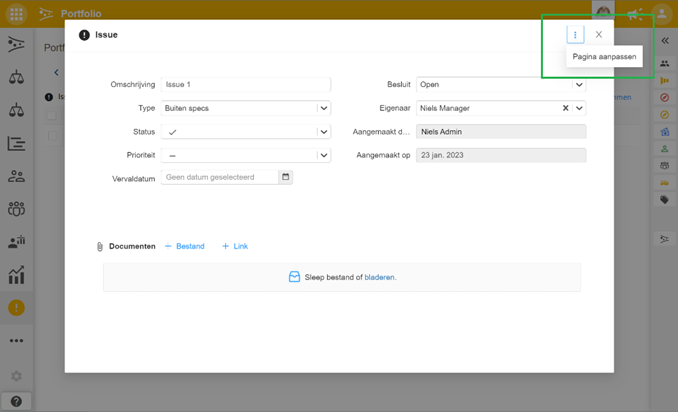
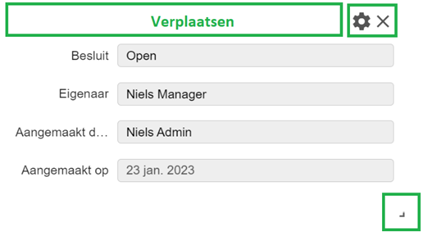
- Use the segment settings button to adjust a segment, the x to remove it, and + add segment at the bottom to add a new one.
- Reorder segments by dragging the header; resize with the corner handle.
- Click Reset to Default to restore the default layout.
Segment types you can add
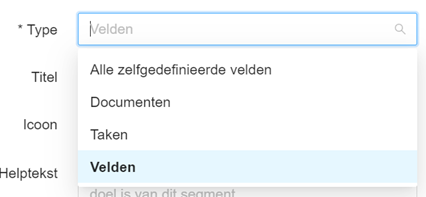
- Fields: select your own fields (this segment type can be added multiple times).
- All self-defined fields: shows all custom fields of the log item.
- Tasks: add tasks to the log item. These tasks automatically appear as cards on the project's Kanban board.
- Documents: add documents to the log item.
Where does a custom layout apply?
- You can set up a custom detail page per log item type in a project; that layout is available only in that project.
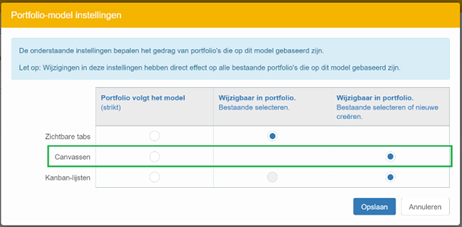
- To roll out custom detail pages across multiple or all projects, configure them in project models.
- In a model, you can choose to enforce the model strictly or allow projects to deviate from it.
Best practices
- Keep the column set lean; add only the fields your team actually uses.
- Save a view when you need the same filter/column setup again.
- Give follow-up actions a task, so they are visible on the Kanban board with an owner.
- Use export to spreadsheet to share with stakeholders who don’t have project access.
- On the detail page, put the most important segments at the top and use Reset to Default if the layout gets cluttered.
FAQ
Who can customize the issue detail page?
Users with administrator, manager, or support roles.
Can I add multiple “Fields” segments?
Yes. The Fields segment is the only segment type you can add more than once.
What happens when I add a task to an issue?
The task automatically appears as a card on the project's Kanban board.
How does the portfolio see my issues?
Either by reporting (you decide which issues are reported, e.g. via a custom field) or by synchronising (the portfolio follows the complete log).
Do custom detail pages apply to all projects automatically?
No. A layout made in a project is available only in that project. Configure layouts in project models to roll them out more widely.
How do I share the issues with people outside the project?
Use Export to create a spreadsheet, or print the list.
Need more support?
Contact your Fortes Change Cloud administrator or consult the online knowledge base for more step-by-step configuration guides.