Gantt
Introduction
What is the tab? The Gantt tab in Fortes Change Cloud is a visual planning tool within the Project functionality that allows users to create, manage, and monitor project timelines. It displays tasks, milestones, and dependencies in a clear, interactive timeline format, making it easy to understand the structure and flow of a project. The Gantt chart provides a real-time overview of progress, helping teams stay on track and adjust plans as needed.
Who uses it? The Gantt tab is primarily used by project managers, team leads, and planners who are responsible for scheduling and coordinating project activities. It is also valuable for stakeholders who need a high-level view of project timelines and dependencies. Anyone involved in project execution or oversight can benefit from the clarity and structure the Gantt view provides.
What value does it deliver? The Gantt tab delivers significant value by enhancing transparency, control, and collaboration. It helps users identify critical paths, manage dependencies, and anticipate potential delays. With drag-and-drop functionality and real-time updates, it supports agile adjustments and efficient resource planning. By aligning tasks with project goals and deadlines, the Gantt tab ensures that teams can deliver on time and within scope, making it a key enabler of successful project execution.
The Project Gantt shows your project timeline: tasks, milestones, and dependencies. By default the schedule is view-only to prevent accidental changes.
:::tip Edit mode Click Edit (above the schedule) to enable editing. You can still Save or Cancel your changes before leaving the page. :::
Features in the Gantt
Once in Edit mode the full set of planning functions is available.
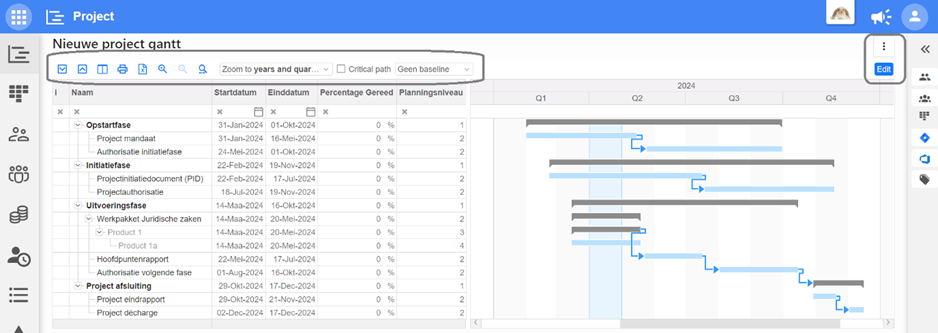
Features for looking at the Gantt
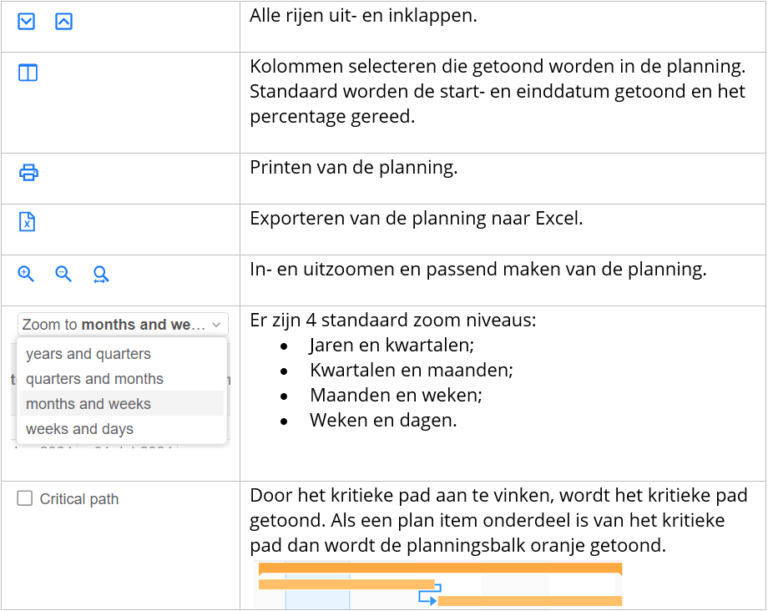
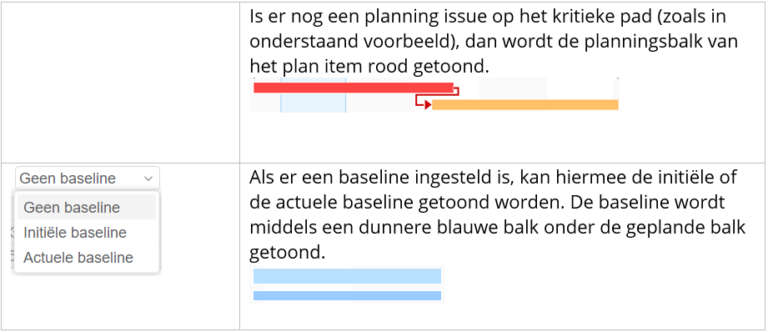
Zooming in and out of the timeline
Use the zoom controls or click in the Gantt header:
- Left-drag on the header: zoom to date range (fit to screen).
- Left-click on a period label (e.g. "Jan 2024"): zoom to that period.
- Right-click: zoom out.
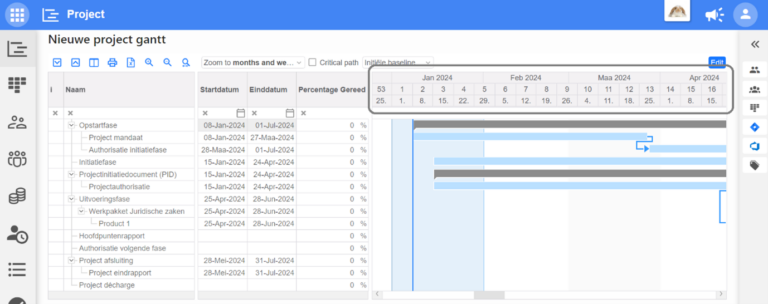
Signaling in planning
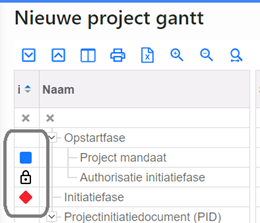
The first column shows status indicators to highlight issues and warnings.

Features for managing plan items
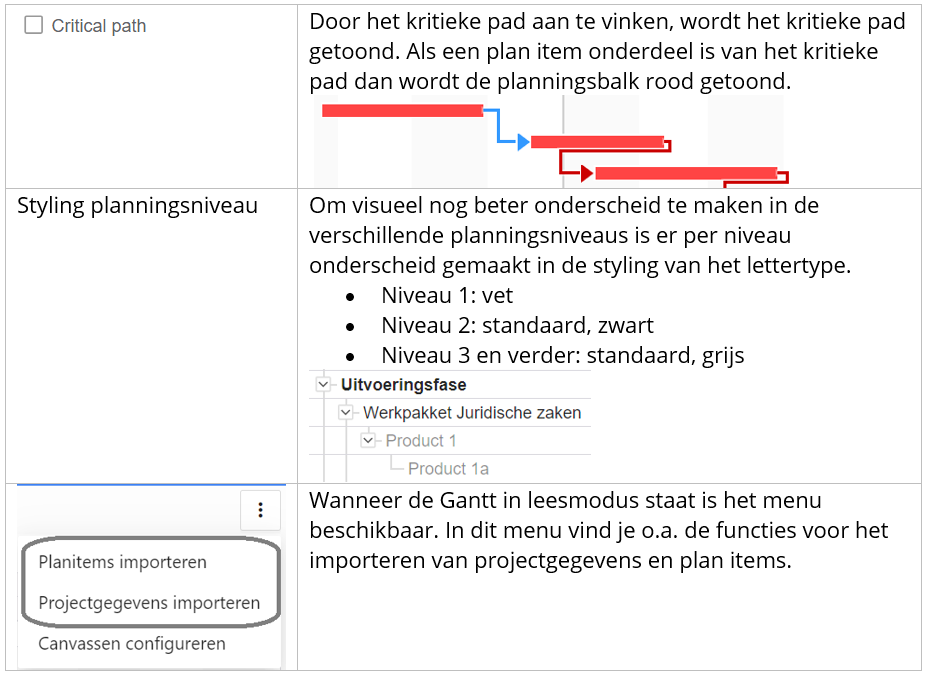
Mouse actions (Edit mode):
- Left-drag on a bar: move/resize.
- Right-drag between bars: create dependency.
- Ctrl + Left-click on a bar: clear schedule for that item.
- Ctrl + Left-click on a link: remove dependency.
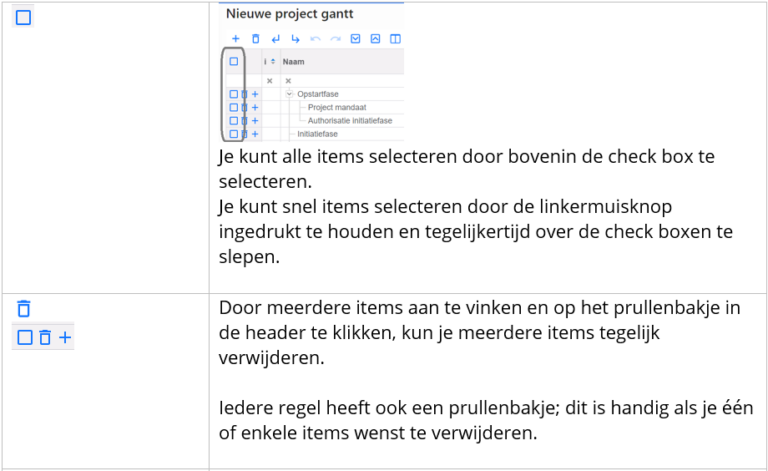
Structure (indent/outdent)
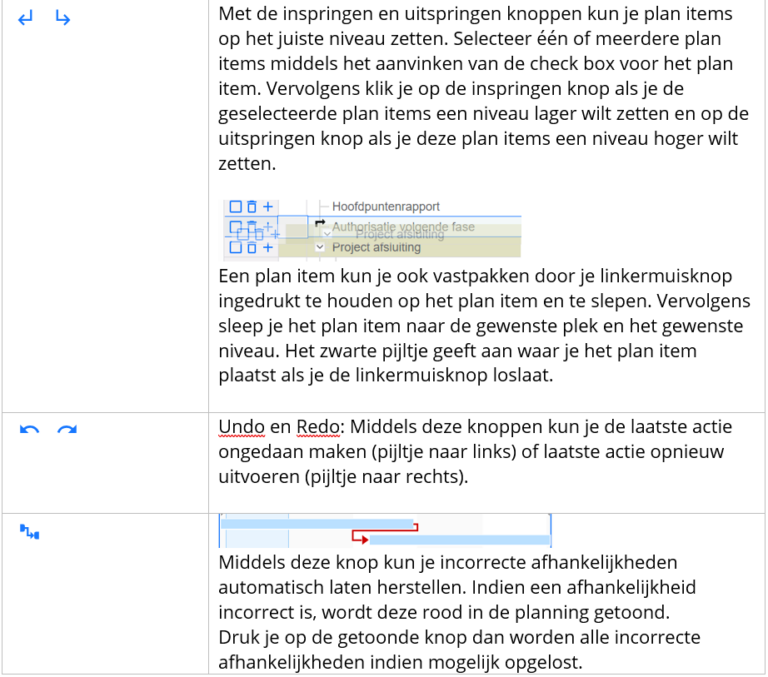
Working days & calendars
Dependencies in planning
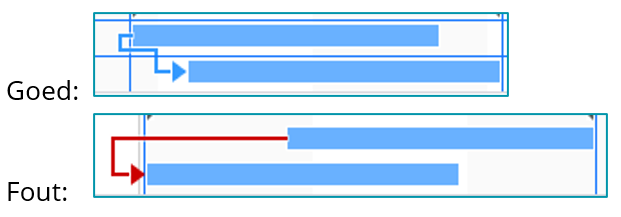
Supported dependency types:
Finish-to-Start (FS) B starts after A finishes.
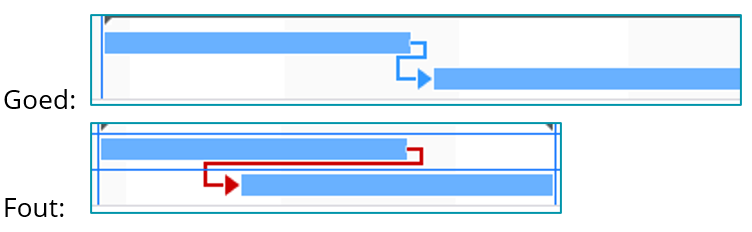
Finish-to-Finish (FF) B finishes when A finishes.

Start-to-Finish (SF) B finishes when A starts.

Start-to-Start (SS) B starts when A starts.
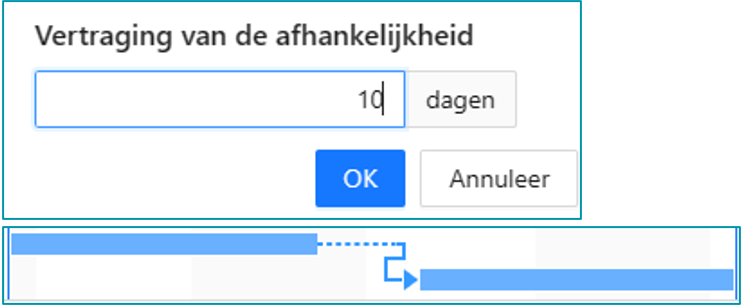
Delay (lag/lead) on a dependency
Double-click the dependency line to add a delay; the link shows a dotted section.
Example: an item may start 10 days after the predecessor finishes.
Add planning costs and hours to a plan item
Costs and hours are integrated in the new Gantt on the plan item detail page (the old Resource planning tab is deprecated). Hours from the former tab are migrated and shown in the Scheduled skill & resource hours segment. If hours were split previously, they appear as totals per item; capacity is distributed evenly across the items duration.

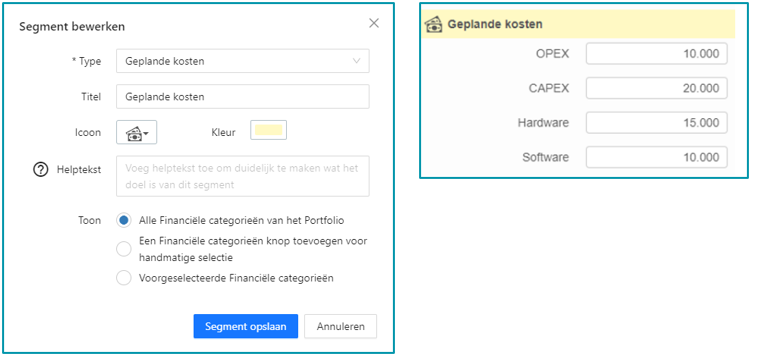
Planned cost segment
Explain costs per product using financial categories. Configuration options: all categories from portfolio, add categories button, or a preselected set.
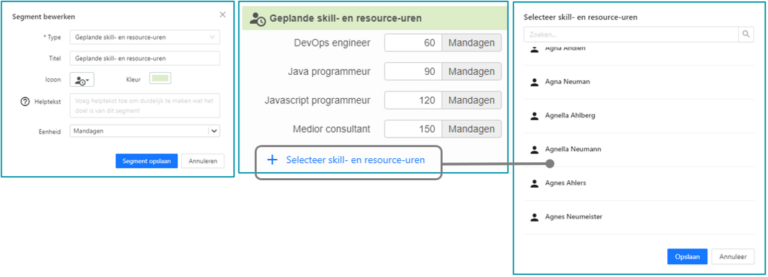
Planned skills and resources segment
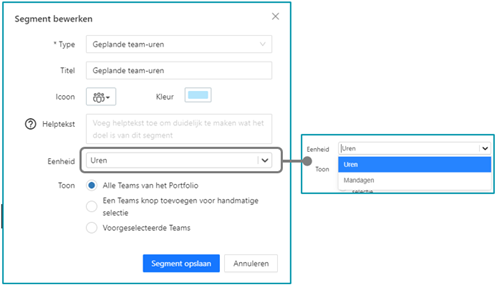
Choose entry unit (hours or man-days; stored as hours). Select skills/secondary skills/resources with + Select skill and resource hours. Conversion to man-days is defined in the portfolio. Resources selected here must come from a resource pool linked to the project; see Resource allocation.
Scheduled team hours
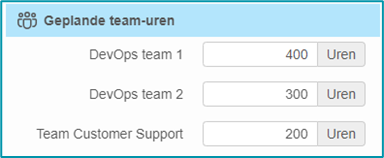
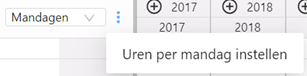
Record hours/man-days per team; units configurable. Choose available teams (all, add-button, or preselected set). Conversion to man-days set on the portfolios teams capacity tab.
Best practices
- Always use segments: Ensure all relevant segments (costs, skill hours, team hours) are properly configured in the canvas.
- Use detail pages: Plan hours and costs on the plan item detail page to take full advantage of visual scheduling.
- Standardize conversions: Align hours-to-man-days settings across teams and portfolios for consistency.
- Clean up old resource tabs: Once migrated, ensure users no longer rely on deprecated resource planning tabs.
- Train users in Gantt views: Make sure everyone understands critical path and styling features for effective visual planning.
FAQ
Can I still use the old resource planning tab?
No, this will expire after migrating to the new Gantt.
Are costs and hours split manually per day still possible?
No, hours are now evenly distributed across the plan item's duration.
Can I configure what financial categories users see?
Yes, the administrator can preselect or allow manual category selection.
What unit do I use for bookings?
You can use hours or man-days; conversion is handled within the portfolio settings.
Can I undo a Gantt migration?
No, but the migration button can be disabled beforehand to delay adoption.
Need more support?
Contact your Fortes Change Cloud administrator or consult the online knowledge base for more step-by-step configuration guides.