Custom page
Introduction
What is the tab?
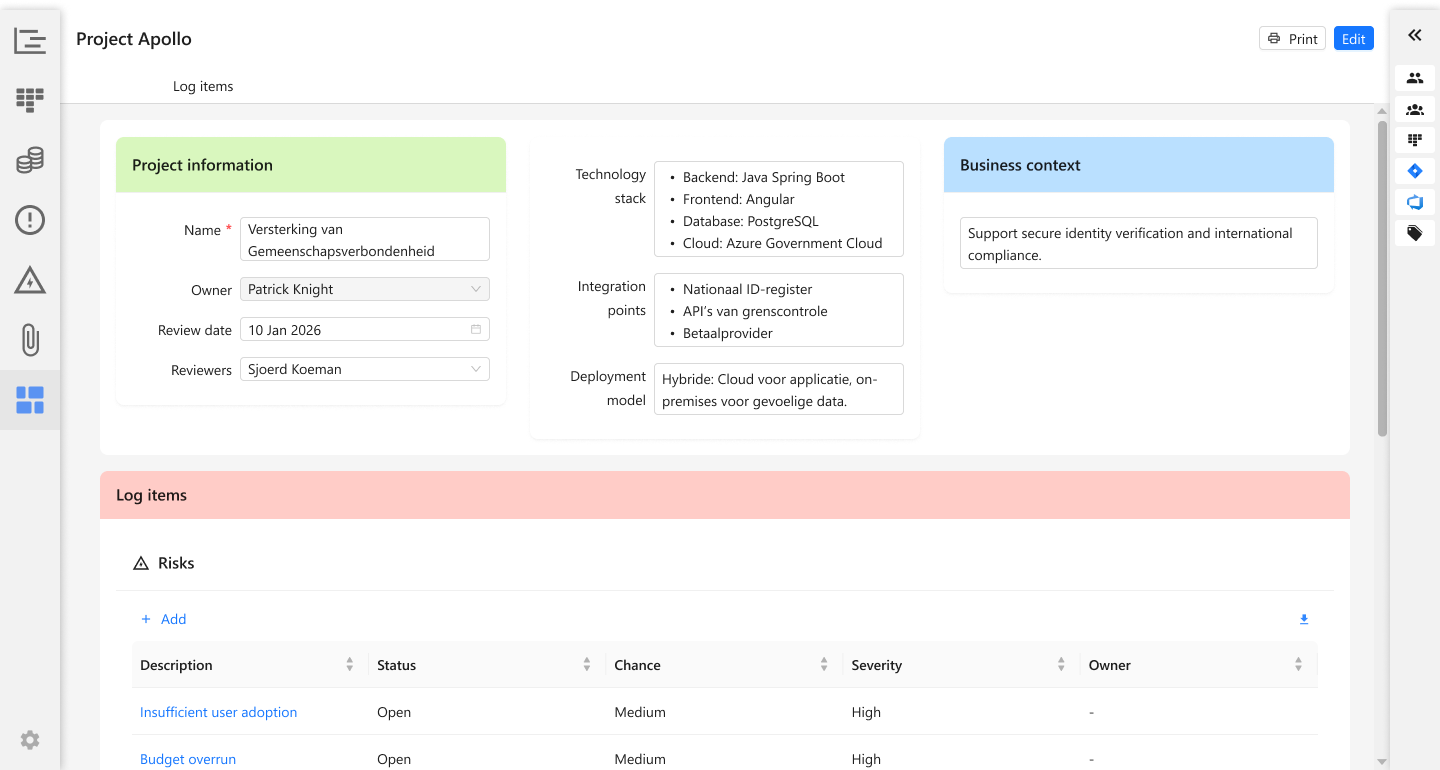
The Custom page tab lets you lay out project fields and item lists on one page, grouped into named sections. An anchor bar under the page header takes you straight to each section. This makes it possible to lay out a multi-step process on one page instead of spreading it over several tabs.
The page is built with the same page-layout editor that is used for workflows in the Portfolio app. On the project, the segments take their content from the project itself.
Who uses it?
Managers and Support build and maintain the page. All other project roles view the page and use the anchor bar to navigate it.
What value does it deliver?
- One page that follows the steps of your process, section by section.
- Direct links to a specific section, so you can point people to exactly the right place.
- Lists of risks, issues, plan items, and other items next to the project fields they relate to.
The Custom page tab is a separate tab from the Custom layout tab. Both can be used side by side.
Turning the tab on
The Custom page tab is an option in the project's Visible tabs configuration in the model and is off by default. Switch it on and the tab appears in the project's left-hand tab rail. See Use of Models for how Visible tabs are configured.
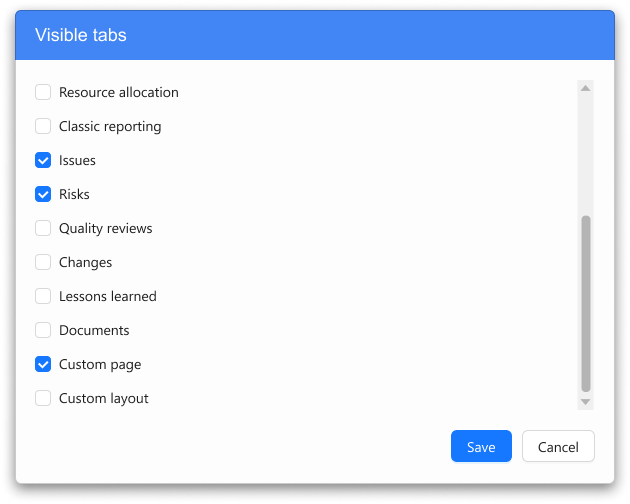
Configuring the tab and its layout is limited to Managers and Support. All other project roles can view the page and use the anchor bar, but are offered no editing.
Building the page
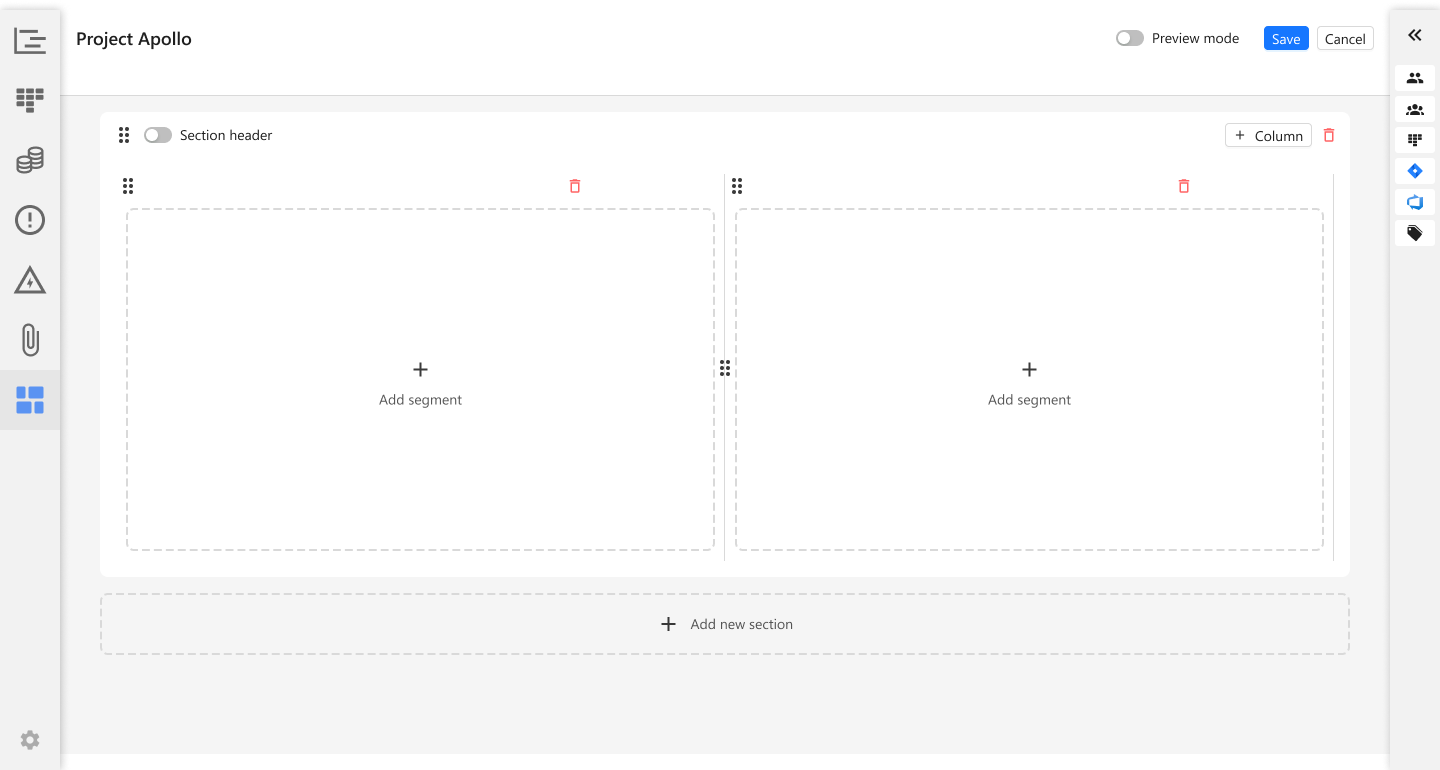
The page is built from sections. Managers and Support can add, name, reorder, and remove sections.
- Naming a section gives it an entry in the anchor bar under the page header, in the order the sections are arranged.
- Selecting an anchor bar entry navigates to that section and writes it to the URL, so you can link to a specific section directly.
- Each section holds columns, and each column holds segments. Use Add column, Add segment, and Add new section to build the structure.
The section, column, and segment mechanics are the same as in the workflow page-layout editor.
Segment types
Field segments
A field segment shows project fields, selected per segment, with their values for that project.
Editability is a property of the field itself. A segment can narrow a field further, for example by making an editable field read-only in this context, but it can never make a read-only field editable.
List segments
A list segment represents one item type, chosen when you add the segment:
- A built-in log item type: risks, issues, lessons learned, quality reviews, or changes.
- A custom log, listed in the picker alongside the built-in types.
- Plan items, which shows the items on the project's Kanban board.
Per segment you choose the Columns the list displays, and whether allow add and remove items is on. With it on, users with write access on the project can add and remove items of that type straight from the segment. Those items also appear in the project's own tab for that type, for example the Risks tab.
All roles can always add issues through the Issues tab, regardless of the allow add setting of a segment.
When the item type of a segment is set to inactive, the segment shows empty with an indication that the type is not available. The rest of the page keeps working.
How this works with Project Models
Project Models offer the same Custom page tab and the same editor, so a Manager on the model builds the standard layout there.
The Project model settings modal, reached from the model's banner, has a Custom page row in its top matrix, alongside Visible tabs, Canvasses, and Kanban lists. It offers the same two options as Canvasses:
- Project follows the model (strictly): every project based on the model shows the model's live layout, with no editing offered. A change to the model's page appears in those projects without any further action.
- Editable in project: the project shows its own stored copy, which Managers and Support on the project can edit freely. Later changes to the model leave those layouts alone.
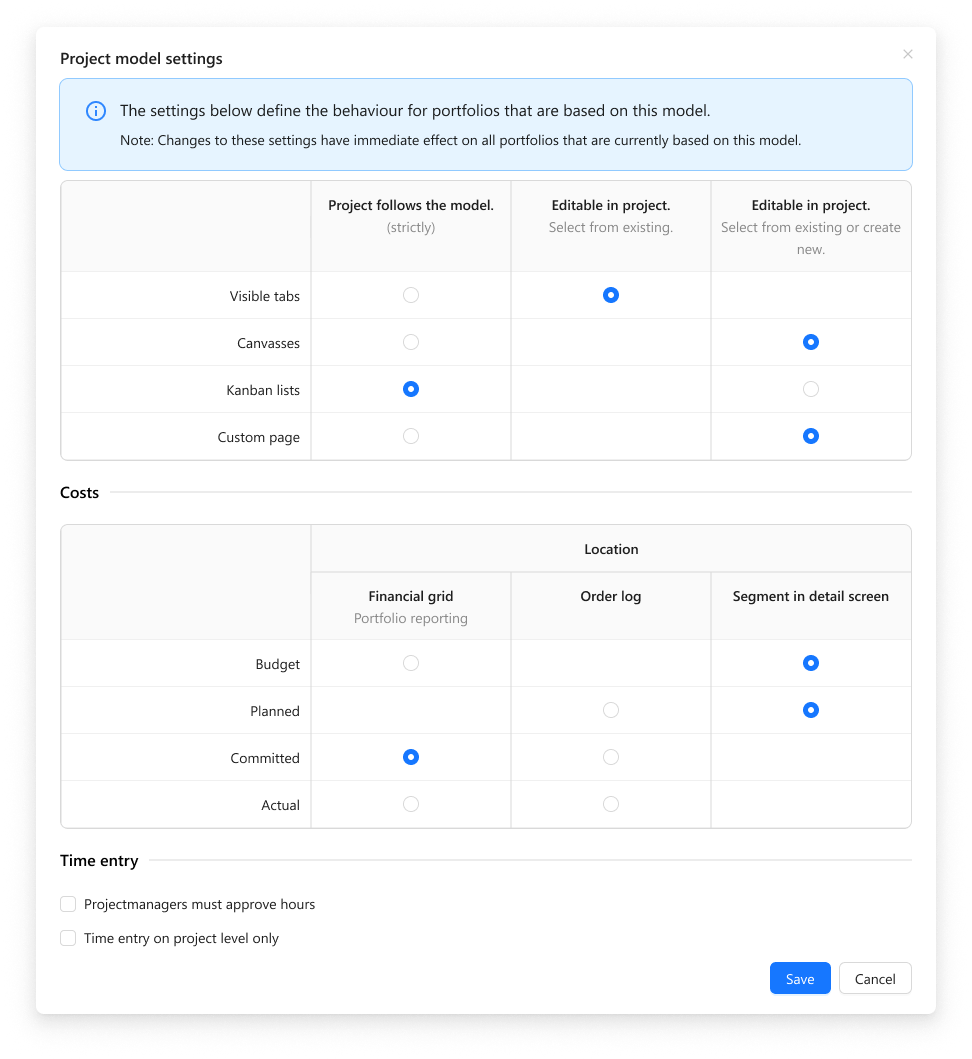
The model's layout is copied into a project when the project is created, whichever option is selected. The option decides whether that stored copy is shown and editable, or whether the model's live layout is shown instead. Changing the setting takes effect immediately on all projects based on the model.
- Switching from Editable in project to Project follows the model keeps the project's own layout, and switching back shows it again.
- On a project whose layout was never edited, switching to Editable in project shows the layout as it was copied when the project was created, not the model's current layout.
The Custom layout tab is a canvas and is therefore governed by the Canvasses row. The Custom page row governs the Custom page tab only. Whether the tab is visible at all stays governed by Visible tabs.
Best practices
- Name every section, so it appears in the anchor bar and can be linked to.
- Order sections in the sequence of your process, so the page reads from top to bottom.
- Use Project follows the model (strictly) when all projects should use the same standard page, and Editable in project when project managers need room to tailor it.
- Turn on allow add and remove items only for list segments where users should maintain items directly on the page.
FAQ
What is the difference between Custom page and Custom layout?
Custom layout is a canvas where you place and resize segments freely. Custom page is built from named sections with columns and segments, and has an anchor bar to navigate between sections.
Why can't I edit the page?
Only Managers and Support can configure the page. If the project model is set to Project follows the model (strictly), editing is only possible on the model.
Why is a list segment empty?
The item type of the segment may be set to inactive. The segment then shows an indication that the type is not available.
Can I make a read-only field editable in a field segment?
No. A segment can only make a field more restrictive, never less.
Need more support?
Contact your Fortes Change Cloud administrator or consult the online knowledge base for more step-by-step configuration guides.