Custom layout
Introduction
What is the tab?
The Custom layout tab lets you design a one-page overview that fits your project: highlight key info, combine lists and fields, and present status to stakeholders.
Who uses it?
Project managers, team leads, and anyone who needs a compact, shareable view of project information.
What value does it deliver?
- One page with exactly the information your organization cares about.
- Flexible canvas segments you can arrange, resize, and reuse.
- A simple, repeatable way to keep everyone aligned.
What is the goal of the custom layout tab?
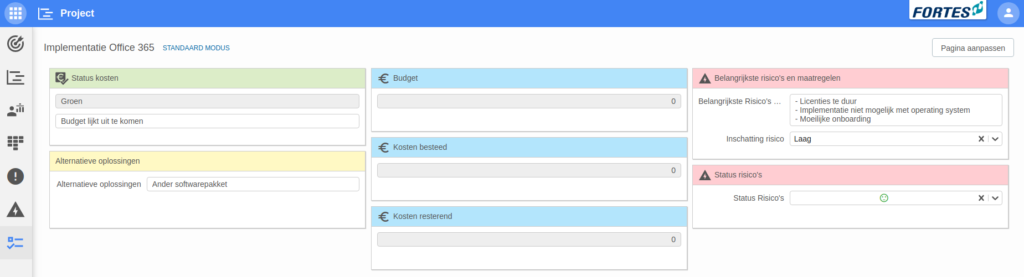
The custom layout tab can be used to create the overview you were missing in the Project app. You can use the tab to display information specifically relevant to your organization, or to display the issues and risks of the project on one page. A layout is created by placing canvas segments on the page. These canvas segments can display diverse information and can be positioned the way you want. This is the reason the custom layout tab is much like the canvases that are used in, for example, the portfolio funnel in the Portfolio app or on the kanban board in the Project app. Read more in Canvases.
Which canvas segments can I use?
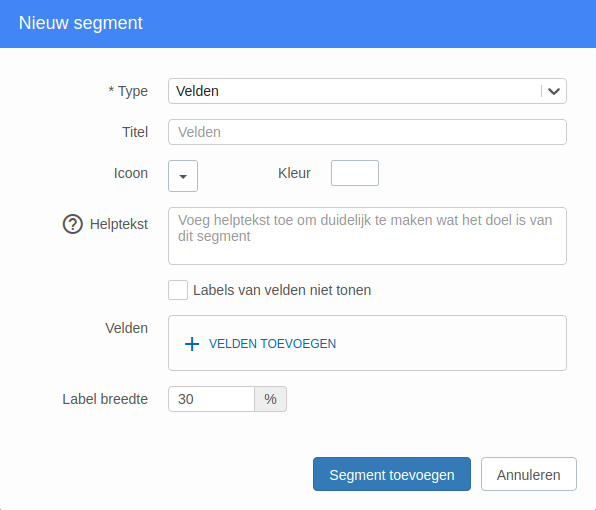
This tab supports these segment types:
- Fields: show selected project fields (and custom fields).
- List: show a tabular list (e.g., issues, risks, or other items) with configurable columns.
Each segment has a different purpose; combine them to match your use case.
How do I use the custom layout tab?
-
Decide what you want to show
You can choose to display general information about the project on this tab. However, you could also create a financial overview or display information that is relevant for all members of the project. -
Add segments
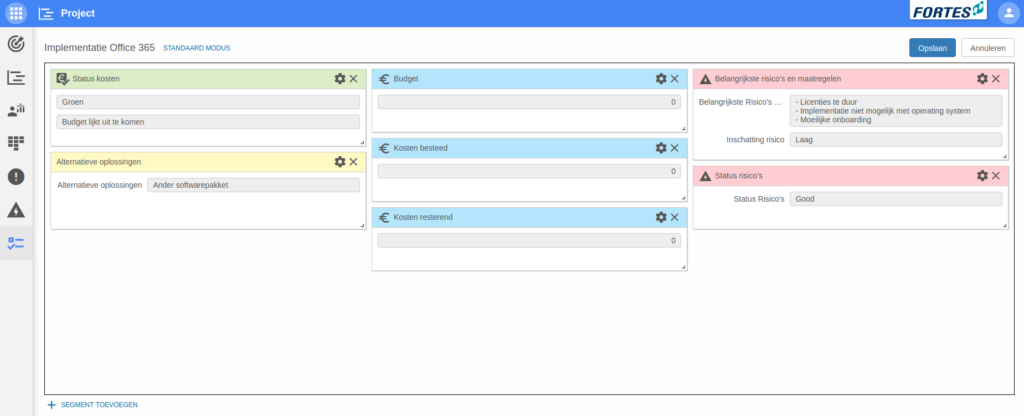
Click Customize page → + Add segment and choose the segment type.
- Drag the segment to reposition it.
- Use the bottom-right handle to resize.
- Tip: use the same color for segments that belong together, to improve scannability.
-
Save
Click Save to store the layout. -
Fill in the information
Note that some information cannot be edited on this page or is filled in automatically. It could, for example, be that the start date and end date can only be edited on portfolio level.
Best practices
- Start lean: add only the segments people actually use.
- Put the most important info near the top-left and keep segments consistent in size.
- Reuse Fields segments for different field groups (status, financials, planning).
- Keep color-coding meaningful (one color per theme).
- Review the page layout periodically as your process evolves.
FAQ
Where do I add segments?
Open Customize page, then + Add segment.
Can I move or resize segments?
Yes, drag to move; use the corner handle to resize.
Why can’t I edit some data on this page?
Some fields are managed elsewhere or filled automatically (e.g., dates at portfolio level).
What segment types are available here?
Fields and List segments on this tab.
Need more support?
Contact your Fortes Change Cloud administrator or consult the online knowledge base for more step-by-step configuration guides.