Skill capacity planning
Introduction
What is the Skill capacity planning? The Skill capacity planning tab answers one central question: is there enough capacity to execute the portfolio as planned? It places the demand for Skills (what the planned Portfolio items require) next to the supply of Skills (what the organization has available), per period. This makes immediately clear whether the required capacity is covered, and if not, where and by how much it falls short.
The Skill capacity planning and the Milestones planning use the same planning. A change in one is also a change in the other. If the Milestones planning is already filled in, the planning of Portfolio items can be skipped and you can start planning Skills right away.
Who uses it? The Skill capacity planning tab is used by:
- Portfolio Managers: to ensure that the portfolio is realistically executable given the available skill sets.
- Resource Managers: to allocate people effectively and identify where additional capacity or training is needed.
- HR and Talent Managers: to support strategic workforce planning and development.
- Executives and Decision Makers: to align strategic goals with operational capabilities.
What value does it deliver?
- Direct insight into whether planned initiatives are covered by available Skills, per period.
- Early identification of skill gaps, overutilization, and underutilization.
- Better decisions on staffing, recruitment, training, and prioritization.
- Safe experimentation with alternatives through scenario mode.
Understanding the board
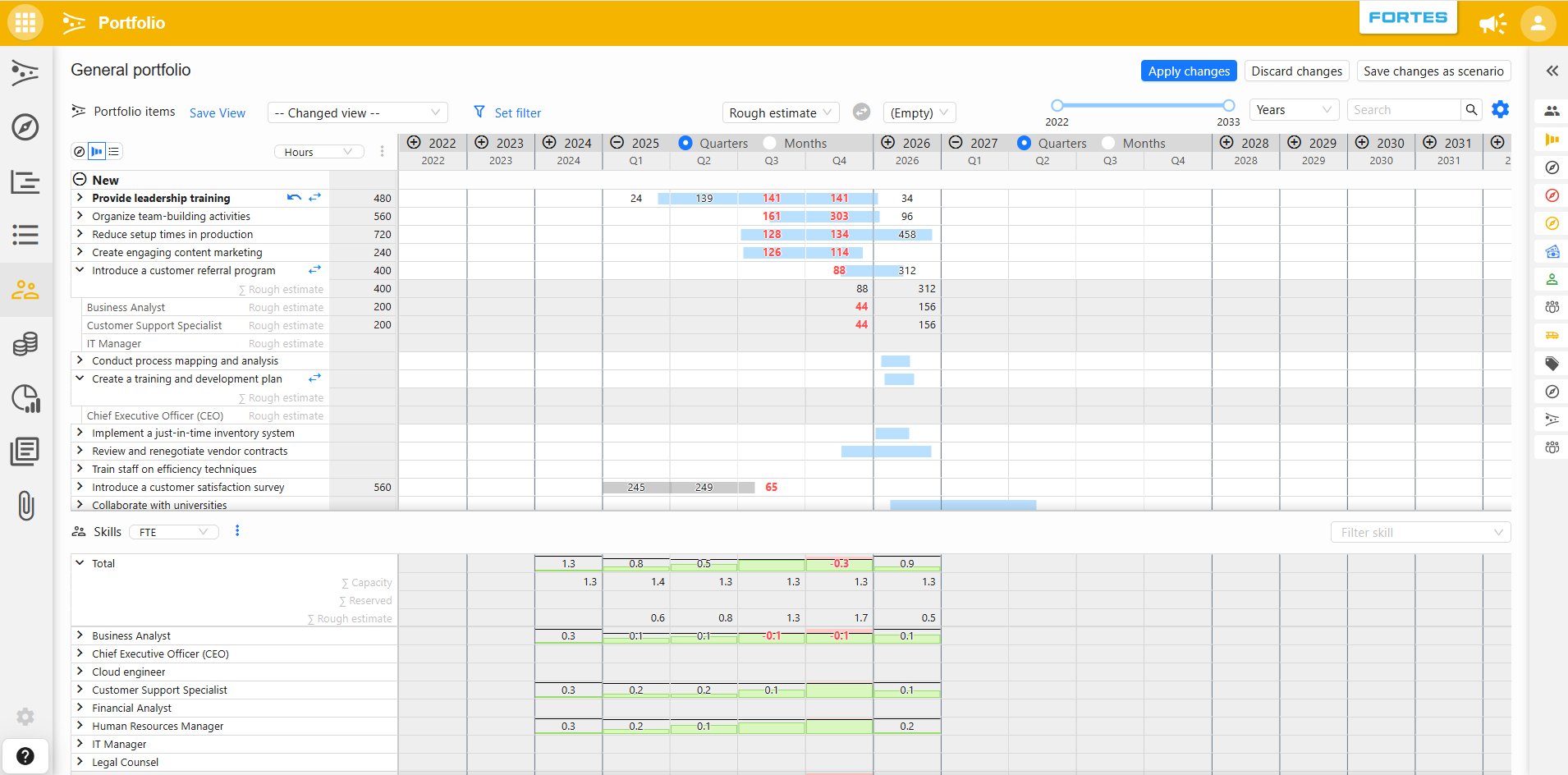
The board is an FCC planning grid; see the Grid article for the controls all planning grids share (value types, comparing, time scale, units, views, configuration, scenario mode). It consists of two sections that share the same timeline:
- Demand (top section): all Portfolio items, planned on the timeline. Expand a Portfolio item to see which Skills are planned on it and for how much per period. The unit (e.g. hours) can be selected at the top of the section.
- Supply (bottom section): the Skills of the portfolio with their available capacity per period, in the selected unit (e.g. FTE). This is where demand and supply meet: a red bar with a negative value indicates a shortage in that period.
The toolbar offers:
- A capacity type selector (e.g. Allocation) that determines which values are shown, with an optional second type to compare against.
- A time scale selector and period slider. Years can be expanded into quarters and months using the
+icon in the timeline header. - Set filter, Save View, and search, as in other tabs.
Setting up Skill capacity planning
Before you start using Skill capacity planning, you need to configure some settings.
- Click the gear icon in the top-right corner of the grid.
- This opens the settings modal. At the top, you will see tabs. Make sure you select Skill.
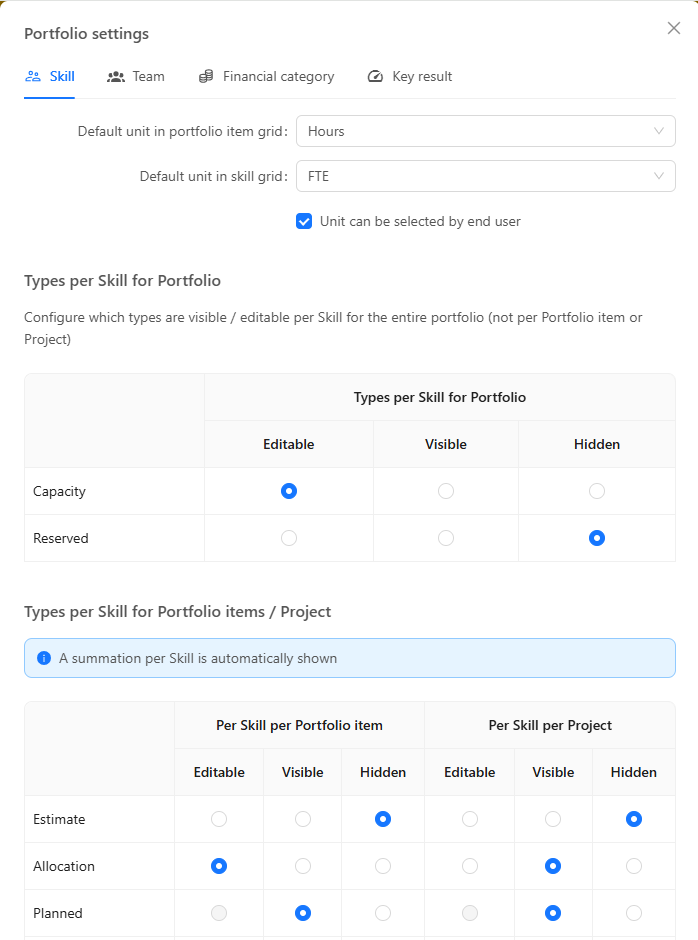
Define the standard units
The first options allow you to set:
- The default unit of the supply and demand sections.
- Whether the default units can be changed by regular users.
Configure behavior for capacity types
Next, define the behavior of capacity types per skill for the supply section of the grid. For each type, you can choose:
- Visible: Users can see the value.
- Editable: Users can change the value.
- Hidden: The type is not shown.
Configure behavior for Portfolio items and Projects
Below that, you will find types per skill for Portfolio items. This section uses a grid of selection buttons where you define, for each type:
- If it is editable, visible, or hidden.
- Separate settings for Portfolio items and Projects.
Examples:
- You might allow editing of Requested on a Portfolio item but only viewing it on Projects.
Note: Planned cannot be editable because it comes from the Plan items in a project. And the type Rough Estimate does not exist for Projects.
Working with the Skill capacity planning
Step 1: Plan Portfolio items on the timeline
Plan Portfolio items by dragging them to the right period. Click and drag the end of a planned Portfolio item to lengthen or shorten the planned period.
Note: The Skill capacity planning and the Milestones planning use the same planning. Adjusting the planning in one also changes the planning in the other.
Order the planned items according to Gantt principles: place the items that start first at the top, so the planned items form a line from the top left to the bottom right. See Milestones planning for more on working with the Gantt chart.
Step 2: Add Skills to the portfolio
Add the Skills (or roles) that can be planned in the capacity planning. Skills can be added and removed at any time, and tags can be used to reflect expertise or seniority.
Step 3: Enter the availability of the Skills
Fill in the availability of each Skill to get insight into the available capacity (the supply section). Click the calendar icon next to a Skill, and enter the start date, end date, and the number of FTE or hours. Apply your changes to update the capacity planning.
Tip: Think about how to enter availability. Entering 1 FTE per line makes it easy to account for the individual availability of each person with that Skill. Alternatively, enter the total availability for a period on a single line.
Step 4: Plan Skills on Portfolio items
Expand a Portfolio item and click Add Skill to select the Skill(s) the item requires (the demand section). Then specify how much of the Skill is needed per period:
- Change the number in the bar to adjust the required amount of the Skill.
Step 5: Optimize the planning
Minimize the moments where more Skills are needed than available. When demand exceeds supply, a red bar appears in the Skills overview, showing in which period the shortage occurs and how much extra capacity is needed to meet the demand. Resolve shortages by shifting Portfolio items in time, adjusting the required amounts, or increasing the availability of the Skill.
Configuring a canvas for rough estimate of skill hours
Customize the canvas to add a rough estimate segment to your board, so that you can quickly provide skill hour estimates directly from Portfolio items. Values entered on a Portfolio item will then directly appear in the Capacity planning.
Making a rough estimate of skill hours
Start by entering a rough estimate of the skill hours required for each Portfolio item. This step is the foundation for detailed capacity planning and helps identify skill gaps early.
When you enter a value, FCC distributes it linearly across the selected period.
For example: If a project spans 4 months and you enter 400 hours, the system assigns 100 hours per month in the planning view.
Tip: Use rough estimates during early planning stages to quickly assess feasibility.
Allocating rough estimate skill hours to the portfolio
Once rough estimates are in place, you can allocate these hours to skills and resources within your portfolio.
- Open the Skill capacity planning tab.
- Click the
⋮menu next to a Portfolio item. - Select Copy rough estimates to allocation (or another capacity type available in the top bar).
Copying one type to another creates a scenario, allowing you to immediately see the impact. You can then:
- Apply changes to confirm the scenario.
- Save as a scenario for later comparison.
Note: You can copy estimates per Portfolio item or use bulk copy to apply changes across all items at once.
Setting a filter and grouping
Filters help you focus on relevant Portfolio items, statuses, or skill types, making it easier to manage complex capacity plans.
How to set a filter
- Click Set filter in the left side of the top bar.
- Define your filter in the side panel.
- After applying a filter, the Filter button updates to show how many items remain visible.
Filtering on Skills
To filter by skills:
- Click Filter skill at the right side of the Skills section.
- Select the skills you want to include.
- Both the Supply and Demand sections will now show only data related to the selected skills.
Grouping Portfolio Items
You can group Portfolio items in different ways using the Group by selector in the top-left corner of the top bar:
- By Funnel Phase: Align capacity with portfolio stages.
- Alphabetically: For quick navigation.
- By Objectives: View capacity linked to strategic goals.
Tip: Combine filters and grouping options for a clear, focused view of your capacity planning.
Using scenario mode
Scenario mode allows you to safely create, modify, and compare different planning scenarios before applying changes to your portfolio. You can create new scenarios, apply or discard them, and manage or delete existing scenarios, supporting an iterative planning approach.
Understanding Capacity Types
Capacity planning in FCC uses several key concepts to compare planned and actual usage:
-
Allocation vs Planned
Allocation is the formally assigned capacity (e.g., hours or FTE) for a team or individual. Planned is what is scheduled on tasks or projects. Comparing these shows under- or overutilization. -
Request vs Allocation
A request is a demand for capacity from a project or initiative. Comparing this to allocation shows if the requested capacity can be delivered. -
Rough Estimate vs Request
Early-stage estimates provide an indication of future capacity needs. Comparing these to requests shows alignment between initial assumptions and actual demand. -
Planned vs Actual
Planned is what was scheduled; Actual is what was really recorded. This highlights deviations and improves future planning. -
Allocation vs Actual
Comparing allocated capacity to actual usage shows utilization efficiency and structural over- or underload.
Use the capacity type selector in the toolbar to choose which type is shown, and the comparison dropdown next to it to place a second type alongside it.
Best practices
- Start with rough estimates: Capture early-stage needs even if not all details are available. Early estimation enables proactive resource management.
- Plan according to Gantt principles: Keep items that start first at the top, so the planning reads from top left to bottom right.
- Use scenario mode for planning: Avoid impacting live data. Always experiment with different scenarios first.
- Bulk actions for efficiency: Use bulk copy and allocation options for large portfolios to save time.
- Regularly update allocations and availability: Keep skill allocations and availability up to date as project details and resource availability change.
- Apply filters: Use filtering to keep your board manageable and focused.
- Leverage tags: Use skill tags to reflect expertise, seniority, or other relevant attributes for better allocation.
FAQ
Does changing the planning here affect the Milestones planning? Yes. The Skill capacity planning and the Milestones planning use the same planning, so a change in one is also a change in the other.
What happens when I apply a scenario? Applying a scenario makes all changes in that scenario active in the portfolio. The previous state cannot be restored unless you have saved it as a separate scenario.
Can I edit skill allocations after applying them? Yes, skill allocations can be updated manually at any time, either for individual cells or via bulk operations.
Can I remove a skill from the board? Yes, skills can be added or removed at any time using the capacity board’s properties panel.
How do I know if there is a capacity shortage? A red bar in the Skills overview indicates that the required Skills exceed the available capacity in that period, including how much extra capacity is needed.
Is it possible to filter by specific skill or portfolio item? Yes, filters are available to quickly narrow down the list to what’s most relevant.
Who can configure canvasses and rough estimate segments? Users with the appropriate permissions, usually portfolio managers or administrators, can configure canvasses and segments for rough skill hour estimation.
Need more support?
For step-by-step instructions or troubleshooting, contact your Fortes Change Cloud administrator or consult in-app help.