Risks
Introduction
What is the Risks Tab? The Risks tab in the Portfolio functionality of Fortes Change Cloud is a centralized environment for identifying, assessing, and managing portfolio level risks that could impact the success of strategic initiatives. It allows users to log potential risks, evaluate their likelihood and impact, assign ownership, and define mitigation actions. This tab provides a portfolio-wide view of risk exposure, helping organizations proactively manage uncertainties and maintain control over strategic execution.
Who Uses It? The Risks tab is used by various roles involved in portfolio and risk management, including:
- Portfolio Managers, to monitor and manage risks across all initiatives and ensure alignment with risk appetite.
- Program and Project Managers, to identify and mitigate risks out of their management scope and escalate significant risks when needed.
- PMO Teams, to ensure consistent risk management practices and support governance.
- Executives and Sponsors, to stay informed about high-impact risks and make strategic decisions to address them.
What Value Does It Deliver? The Risks tab delivers value by:
- Enhancing Risk Visibility: Offers a clear overview of risks across the portfolio, enabling early detection and response.
- Supporting Proactive Management: Encourages timely identification and mitigation of risks before they escalate.
- Improving Decision-Making: Equips leadership with insights into potential threats and their impact on strategic goals.
- Strengthening Governance: Promotes consistent, traceable risk management practices across the organization.
Working with the risks tab
- Add the required columns by clicking on columns and selecting the columns you need. These columns provide extra information about the risks, such as the date of last modification.
- Add a risk by clicking on the plus (+) icon. Enter a description and complete the other columns:
- Status: indicates whether a risk is resolved or still open.
- Opportunity: shows the likelihood that the risk will occur.
- Impact: reflects the impact if the risk materialises.
- Owner: allows you to assign the risk to a specific person.
- Optionally add a filter to narrow down the risks that are displayed. This helps to focus on risks that are relevant at any given time. Save the view if you want to reuse a set of filters regularly.
- Export risks to a spreadsheet to share or distribute them with others who do not have access to Fortes Change Cloud.
Relation to project risks
A portfolio has its own Risks tab, and each project that belongs to the portfolio has its own separate Risks tab. The two registers are not the same list: a risk logged on a project does not automatically appear in the portfolio's Risks tab, and the other way around.
A project can report its risks to the portfolio. Reported risks become visible in places such as portfolio reports and dashboards, but they are not merged into the portfolio's own Risks tab. This keeps the portfolio's risk register and each project's risk register genuinely separate: the portfolio manager sees what is reported, while the project keeps full ownership of its own list. For how a project controls which risks are reported, see Linking project risks to the portfolio.
Customizable detail page of log items
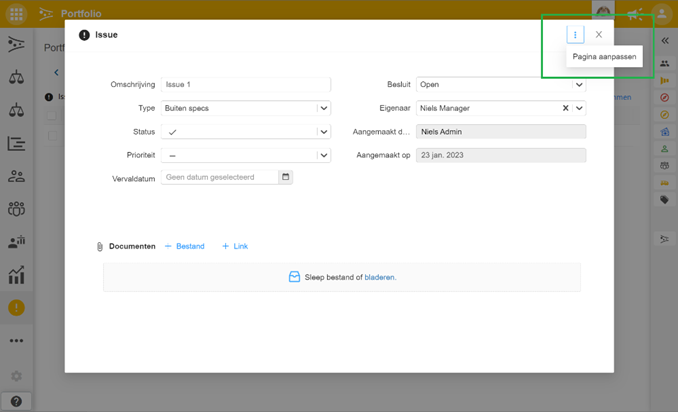
It is now possible to configure the detail page of log items according to your needs. This is true in the Portfolio app for the Issues and Risks tabs.
If you go to the detail page of a log item, there is now a menu button with the Adjust page option. You will then enter the canvas’s configuration mode and you can change the default layout. This feature is only available for administrator, manager, and support roles.
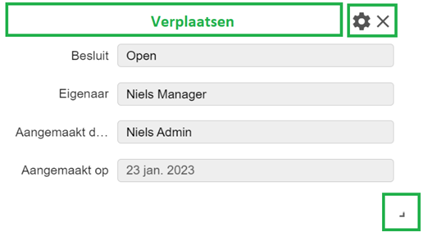
The settings button of a segment allows you to adjust the segment. The cross allows you to discard the segment. The “+ add segment” button at the bottom of the canvas allows you to add a new segment. Segments can be moved on the page by clicking on the segment header and then dragging the mouse. A segment can be made larger or smaller at the corner of a segment.
The Reset to Default button restores the default setup.
On the detail page of a log item, 4 segment types can be added:
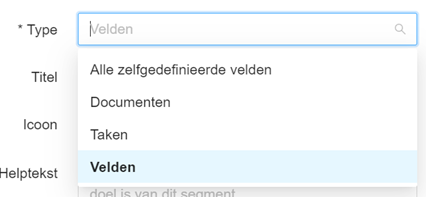
- Fields: self-selectable fields.
- All self-defined fields: contains all self-defined fields of the given log item.
- Tasks: tasks can be added to the log item.
- Documents: documents can be added to the log item.
The field segment is the only segment that can be added multiple times on a canvas.
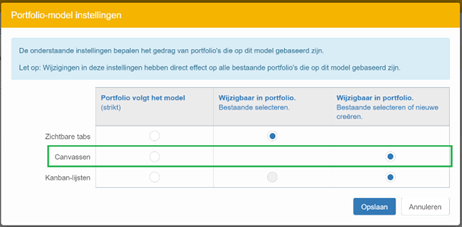
A custom detail page can be set up for each log item type. The modified detail page is only available in the portfolio where you made the modification. If you want to roll out custom detail pages across multiple/all portfolios, you can do so using portfolio models.
When you customize detail pages in a model, all derived portfolios and projects will have these custom pages. In the model, you can further set whether strictly following the model or allowing deviation on a portfolio-by-portfolio basis.
Best practices
- Use filters and columns to ensure risk overviews remain manageable and relevant.
- Assign an owner to each risk so there is always a clear point of contact.
- Export risks regularly to share insights with stakeholders who do not have access to Fortes Change Cloud.
- Customise the detail page only when it adds real value for your organisation. Consistency across portfolios can be ensured via the portfolio model.
FAQ
Can I customise the risks tab for every portfolio separately?
Yes, you can customise the risks tab and detail pages per portfolio. If you need consistent layouts across all portfolios, use portfolio models to manage this centrally.
Is it possible to revert the custom detail page to the original layout?
Yes, the "reset to default" button restores the default detail page setup.
Who can edit the detail page of log items?
Only users with the administrator, manager or support roles can configure the detail page layout.
Can I export the list of risks?
Yes, risks can be exported to a spreadsheet for easy sharing or reporting.
Need more support?
For step-by-step instructions or troubleshooting, contact your Fortes Change Cloud administrator or consult in-app help.