Objectives
Introduction
What is the Objectives tab?
The Objectives tab is the strategic anchor within the Portfolio functionality of Fortes Change Cloud. It provides a centralized location where initiatives and projects can be linked to the objectives from the centralized strategies (from the strategy app) or locally managed objectives within the portfolio. This tab allows users to define, track, and manage strategic goals, ensuring that all change efforts are aligned with the organization’s long-term vision and priorities.
Who uses it?
The Objectives tab is used by executives, strategy teams, portfolio managers, and PMOs who are responsible for setting and steering strategic direction. It’s also valuable for project and program managers who need to understand how their work contributes to broader organizational goals. By linking initiatives to objectives, it supports alignment across all levels of the organization.
What value does it deliver?
The Objectives tab delivers value by:
- Ensuring strategic alignment: It connects every initiative or project to strategic objectives, helping the organization stay focused on what truly matters.
- Providing visibility and traceability: Users can see how objectives are progressing and which initiatives are driving that progress.
- Supporting performance management: With measurable targets and indicators, organizations can monitor the effectiveness of their strategy execution.
- Enabling informed decision-making: Leaders can prioritize initiatives based on their contribution to strategic goals, ensuring resources are invested wisely.
In short, the Objectives tab transforms strategy from a static plan into a dynamic, actionable framework, making it easier to lead change with purpose and clarity.
Working with objectives
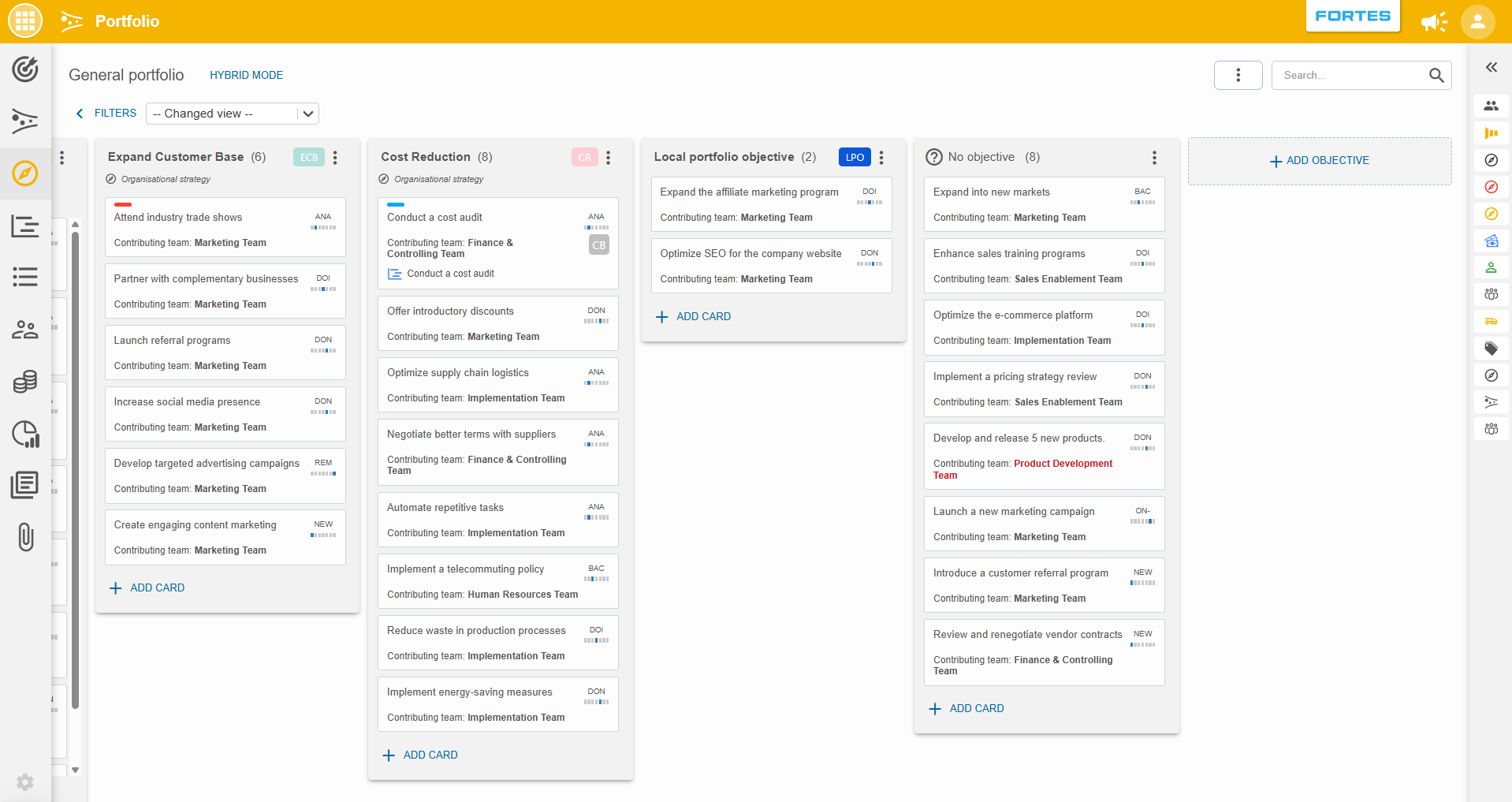
The Objective tab provides an overview of which initiatives and projects are linked to strategic objectives. The objectives are visualized in a Kanban view where items can be dragged between lists, filters can be set and views can be made. For more information on the Kanban view, see the Kanban article.
Adding and removing objectives
Before you can use the objective tab effectively, objectives must be added. Objectives can be:
- Pulled from the Strategy App
- Pulled from an Enterprise Portfolio
- Created locally within the portfolio
Removing objectives
To remove an objective, click ⋮ menu and select Remove this objective or Unlink this objective. Objectives from the Strategy module or Enterprise Portfolio cannot be removed, but they can be unlinked. Objectives created locally can be removed. When removing or unlinking, all items in that objective move to No objective. Initiatives that are not linked to any objective appear in the No objective list, shown as the rightmost column (only if such initiatives exist).
Objective details
Each objective consists of:
- A name
- A short name (2–3 letter code), auto-generated but editable
- A color, auto-generated but customizable
- The number of items in the objective, noted by the number after the name
You can edit these details by:
- Clicking the short name at the top of the list
- Using the properties panel under Objectives
Item details
The portfolio items in the lists show the funnel phase on the right. Similarly, the portfolio funnel shows the objectives of the portfolio items. Moreover, you can assign or change a portfolio item’s funnel phase and objective from the item’s detail page, via the panel on the right.
Best practices
- Link every initiative to an objective so the portfolio stays aligned with your strategy and nothing important is left unassigned.
- Choose the right source: pull objectives from the Strategy App or an Enterprise Portfolio for shared, organization-wide alignment, or create local objectives for portfolio-specific goals.
- Use clear short names and colors so objectives are easy to recognize and filter across the Funnel and other tabs.
- Actively manage the No objective list to catch initiatives that still need to be linked.
FAQ
Can I edit objectives pulled from the Strategy App or an Enterprise Portfolio?
No. Those objectives are managed at their source. In the portfolio you can link or unlink them, but not edit them. Locally created objectives can be edited and removed.
What happens when I remove or unlink an objective?
All items in that objective move to the No objective list.
Can I change an objective’s short name or color?
Yes. Both are generated automatically and can be adjusted via the short name at the top of the list or the properties panel under Objectives.
Need more support?
For step-by-step instructions or troubleshooting, contact your Fortes Change Cloud administrator or consult in-app help.