My portfolios and modes
Introduction
What is the My portfolios page?
The My portfolios page is the personal start page of the Portfolio app. It shows the portfolios you are involved in or responsible for, so you can jump straight to the portfolio you need without searching through the whole organization. From here you also create new portfolios and reach the Enterprise portfolios.
Who uses it?
Portfolio managers and portfolio support, to reach and manage their own portfolios. It is also useful for executives and decision-makers who want quick access to their portfolios.
What value does it deliver?
- Focus: you see only the portfolios that matter to you.
- Fast access: open the right portfolio in one click.
- A starting point for creating portfolios and enterprise portfolios.
The My portfolios page
The page lists your portfolios as cards, grouped by kind: PPM and Hybrid portfolios at the top and Enterprise portfolios below. Each card shows the portfolio name, its managers, and its Mode.
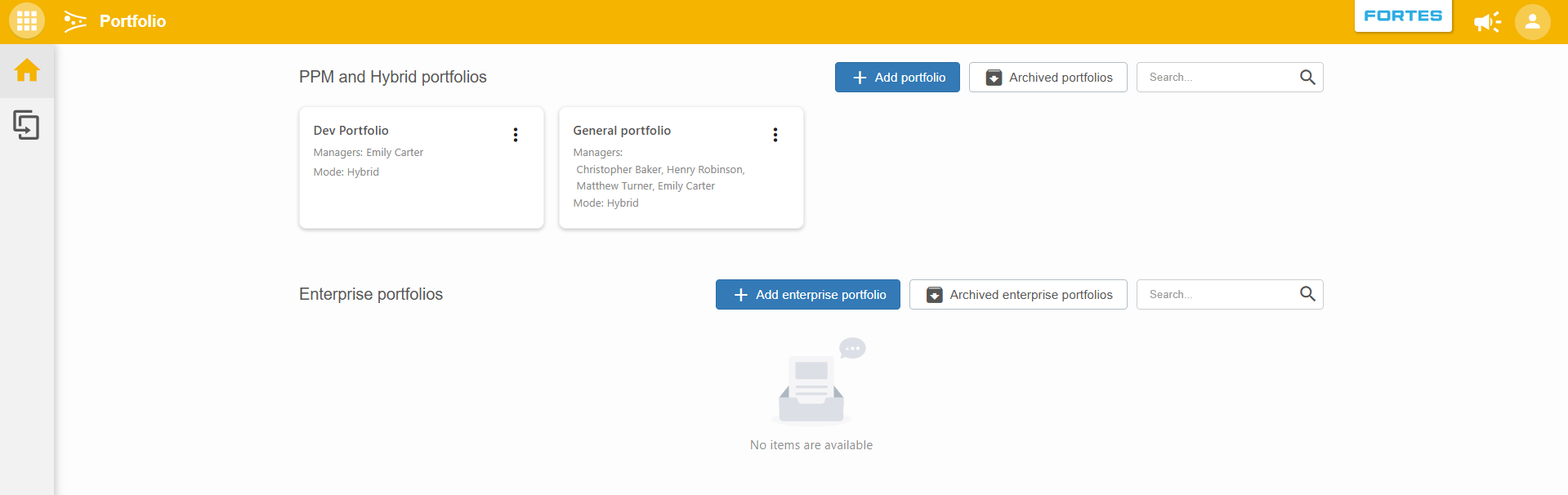
From this page you can:
- Add portfolio / Add enterprise portfolio: create a new (enterprise) portfolio.
- Archived portfolios / Archived enterprise portfolios: consult archived portfolios.
- Search: filter the cards by name.
- Open a portfolio by clicking its card, or use the
⋮menu on a card for actions.
Portfolio modes
Every portfolio has a mode that determines how its data is represented. Switching mode only changes the representation of the data in the portfolio, not the data itself.
Classic mode
Portfolios in this mode use classic Principal Toolbox functionality.
PPM mode
Portfolios in this mode are compatible with classic Principal Toolbox functionality, but also take full advantage of the new Fortes Change Cloud platform functionality:
- Use the funnel to define your portfolio process.
- Link your Portfolio items to key results and estimate the contribution.
- Use canvases to define the necessary information for each process step.
Hybrid mode
Hybrid mode has everything PPM mode offers, and adds support for a scaled agile way of working: projects and agile teams side by side in the same portfolio ("the best of both worlds"):
- Use the funnel to define your portfolio process.
- Link your Portfolio items to key results and estimate the contribution.
- Use canvases to define the necessary information for each process step.
- Send items to Jira for implementation by Jira teams.
- Add Agile programs to use a Scaled Agile approach.
Hybrid mode is the right choice when defined projects (often with a deadline) need to co-exist with agile release trains and agile teams that handle ongoing work.
Switching mode
Switch a portfolio's mode by clicking the mode name shown next to the portfolio name on the Funnel or Overview tab. In the Portfolio mode dialog, select the desired mode and confirm with Change mode.
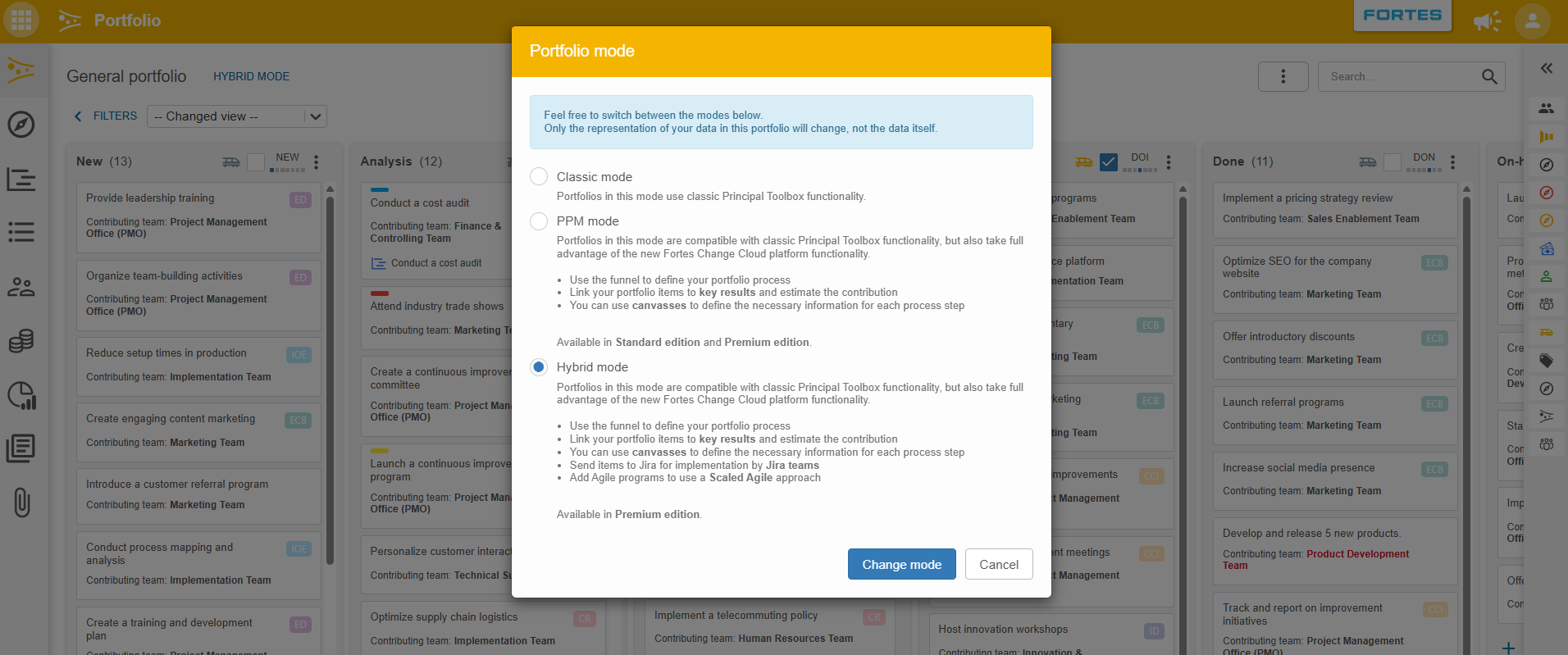
Note: Whether portfolio managers may switch the mode themselves is a configuration setting. If it is disabled, only the functional administrator can change the mode. See Portfolio Management configuration.
FAQ
Does switching mode change my data?
No. Only the representation of the data in the portfolio changes, not the data itself.
Why can't I switch the mode?
Switching mode by portfolio managers can be disabled in the configuration. In that case only the functional administrator can change it.
What is the difference between PPM and Hybrid mode?
Both use the new platform functionality (funnel, key results, canvases). Hybrid adds sending items to Jira and adding Agile programs for a scaled agile approach.
Where do I switch the mode?
Click the mode name next to the portfolio name on the Funnel or Overview tab.
Need more support?
For step-by-step instructions or troubleshooting, contact your Fortes Change Cloud administrator or consult in-app help.