Milestones
Introduction
What is the milestones tab? The Milestones tab within the Portfolio app functionality provides a centralized overview of key delivery moments across all initiatives in a portfolio. It visualizes important dates such as phase completions, go-live moments, decision points, and other critical events that influence the overall timeline and coordination of change initiatives. Milestones are displayed in a timeline format, allowing users to quickly assess upcoming deadlines, dependencies, and potential bottlenecks. The tab supports filtering by time period, milestone type, and responsible party, making it easy to focus on what matters most.
Who uses it? The Milestones tab is primarily used by:
- Portfolio managers: to monitor progress and ensure alignment across projects.
- Program managers: to track key delivery dates and coordinate dependencies.
- Decision makers: to prepare for governance moments and strategic interventions.
- Project managers: to understand how their project fits into the broader portfolio timeline.
- Stakeholders: to gain visibility into when significant outcomes are expected.
What value does it deliver? The Milestones tab delivers several key benefits:
- Improved portfolio oversight: By aggregating milestones across projects, it provides a high-level view of progress and timing, enabling better strategic planning.
- Enhanced coordination: It helps identify dependencies and potential conflicts between initiatives, supporting proactive risk management.
- Informed decision-making: With visibility into upcoming milestones, decision-makers can prepare for governance moments and allocate resources effectively.
- Transparency and communication: Stakeholders can easily see when key events are scheduled, fostering trust and alignment across the organization.
- Time saving: Instead of manually collecting milestone data from individual projects, users get an automated, real-time overview in one place.
What is a Gantt chart and how does it work?
A Gantt chart gives you insight into process planning and is a widely used tool in project and portfolio management. In Fortes Change Cloud, Gantt charts are used for milestone planning and capacity planning within the portfolio, as well as for project and resource planning.
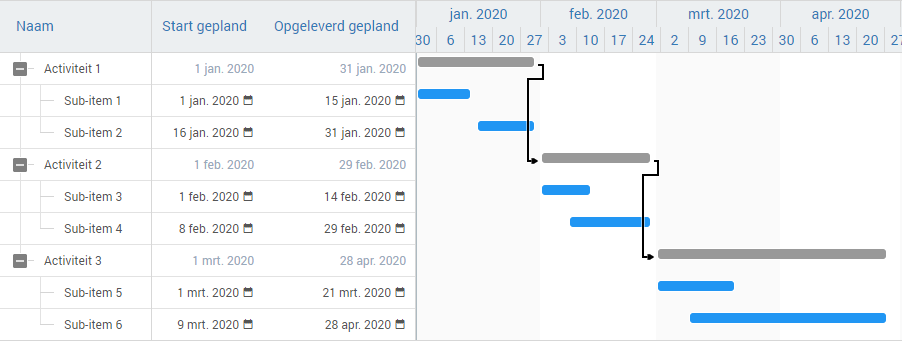 Example of a Gantt chart in Fortes Change Cloud.
- The y-axis displays phases or activities (portfolio items).
- The x-axis shows the timeline.
- Each bar visualizes the start date and duration for an activity.
- Dependencies make clear when one item must finish before another starts.
Components of a Gantt chart
A Gantt chart contains several essential components. In Fortes Change Cloud, extra options support project and portfolio management, such as adding columns for start/end date or strategic fields.
- Activities or items: These are the portfolio items you can schedule. The Gantt chart uses items defined in the portfolio funnel.
- Bars: Represent scheduled activities or items, showing start, end, and duration.
- Dependencies: Lines between bars that show relationships between items.
- Sub-items: Break down an activity into milestones or tasks.
- Timeline: The time axis, adjustable by days, weeks, or quarters.
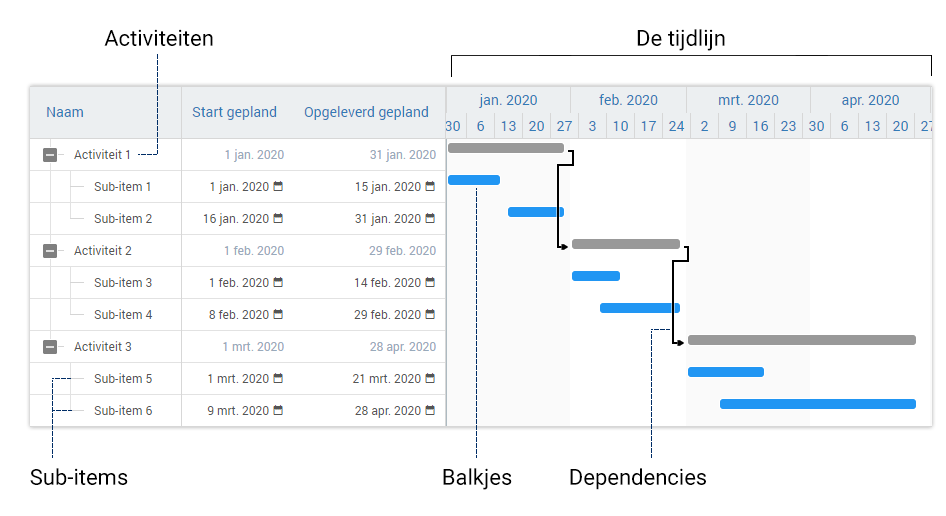 Key components: activities, bars, dependencies, sub-items, and the timeline.
Working with milestones planning
Planning and editing items
- Drag bars to set or adjust dates.
- Use sub-items for detail or specific milestones.
- Add dependencies for order and clarity.
Add or remove columns
Personalize your view by adding columns for strategy, results, finances, skills, or custom segments.
See the Selfguide:
Zooming in and out
Adjust your view to see more or less detail in the planning.
See the Selfguide:
Managing dependencies
Show relationships between items by adding or removing dependencies as needed.
See the Selfguide:
Adding sub-items
Break down items or mark key milestones by adding sub-items.
See the Selfguide:
Using baselines
Baselines allow you to compare your current planning with the original or previous versions. The initial baseline appears as a thin line below the current schedule, so deviations are visible at a glance.
- Both initial and current baselines can be saved.
- The portfolio manager chooses when to save an updated baseline.
Example of a planning that matches the baseline:
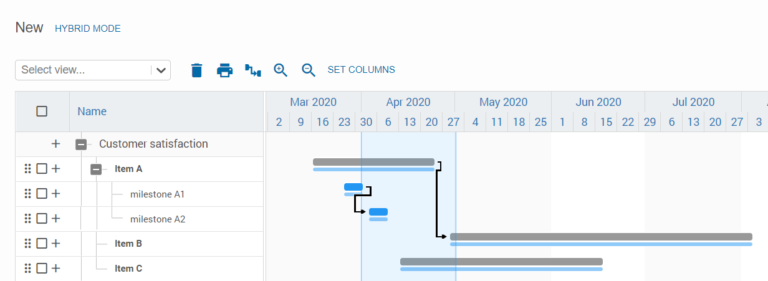 Schedule that matches the original baseline (thin line below).
Example of a planning that has shifted from the baseline:
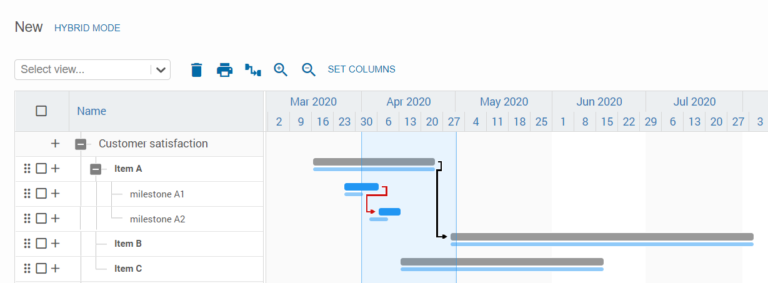 Schedule that deviates from the baseline (red arrow).
- Use filters to select which baseline is displayed.
- Multiple baselines can be stored and managed.
Setting baselines per portfolio item or milestone
You can also set baselines for individual items or milestones using Bulk edit.
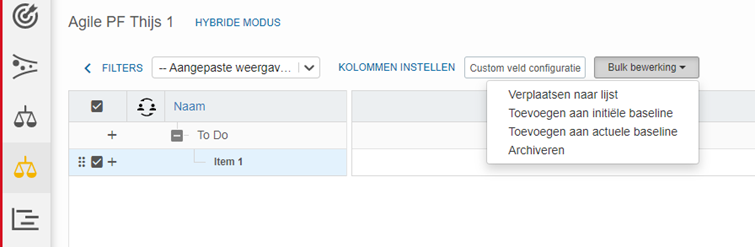 Set initial or current baseline for selected items via Bulk edit.
Bulk editing in milestones planning
Bulk editing allows you to move or archive multiple items at once.
How to bulk edit
- Go to the Milestone planning tab.
- Select the items you want to edit.
- Click Bulk edit at the top.
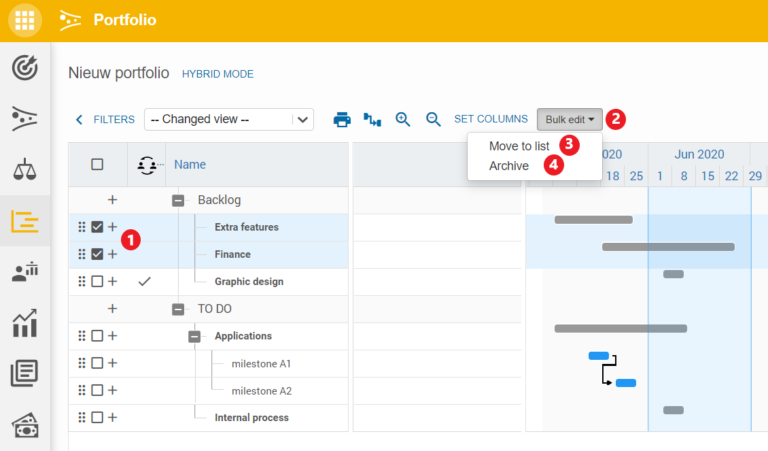 Select items and use Bulk edit for efficient actions.
Move multiple items: Choose Move to list, select the new list, and click Move.
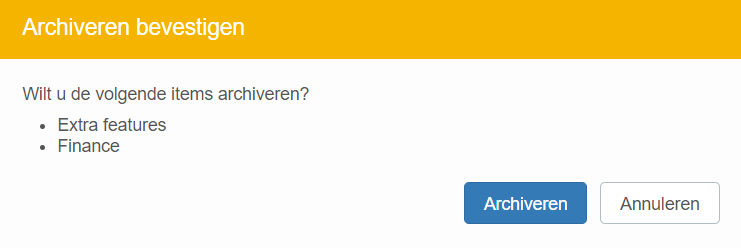
Archive multiple items: Choose Archive and confirm. Sub-items will be removed.
Synchronising milestones from portfolio planning with project planning
The milestones created in the Portfolio Planning can be synchronised with the Project Planning. That is to say:
- The milestones created in the Portfolio Planning can be passed on to the Project. This allows these Portfolio Milestones to be included in the Project Planning.
- Once included in the Project Schedule, the planning data (start and end date, percentage completed, etc.) for these milestones can be automatically synchronised from Project to the Portfolio with each (monthly) report. The portfolio planning is then automatically adapted to the actuality of the project planning.
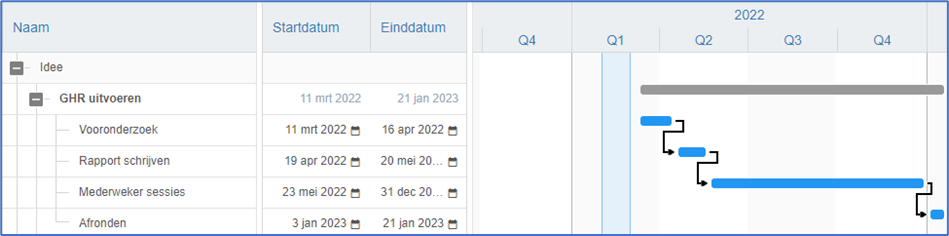
Include portfolio milestones in a Project Schedule
Please note: The synchronisation of milestones between a portfolio and a project is done using the milestone segment that can be included in the portfolio reporting. Ask the portfolio administrator to add this.
With the following steps, the Milestones from the Portfolio can be transferred to a Project Schedule:
-
Send a Report Request from the Portfolio to the Project: this must be done by the Portfolio Manager/Support Person.
-
Open the Project and go to the ‘Portfolio Reporting’ tab
-
Add the Portfolio Milestones to the Project Schedule by doing the following:

The report states the above. Press the text NO SYNCHRONISATION WITH PROJECT PLANNING. The following pop-up is displayed:
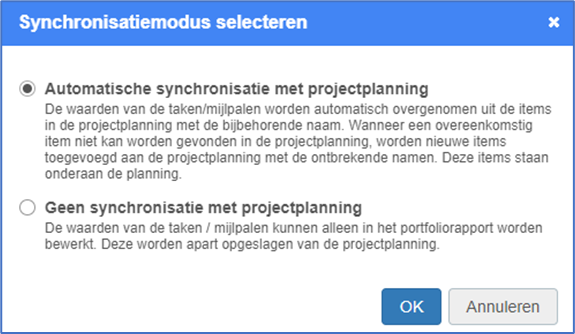
Choose the option Automatic synchronisation with project planning.
It now checks whether there are already plan items in the Project Planning with the same name. These are then automatically linked to the Portfolio Milestones of the same name. For the milestones that are missing in Project Planning, the following dialogue will be established:
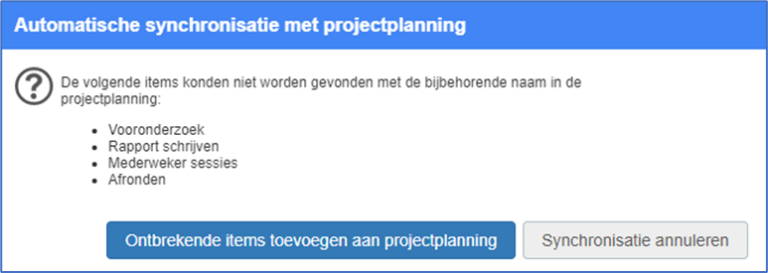
To include the Portfolio milestones in the Project planning click on Add missing items to project planning. The milestones have now been added to the bottom of the Project Schedule. The Project Manager can now move them to his desired place in his Project Planning.
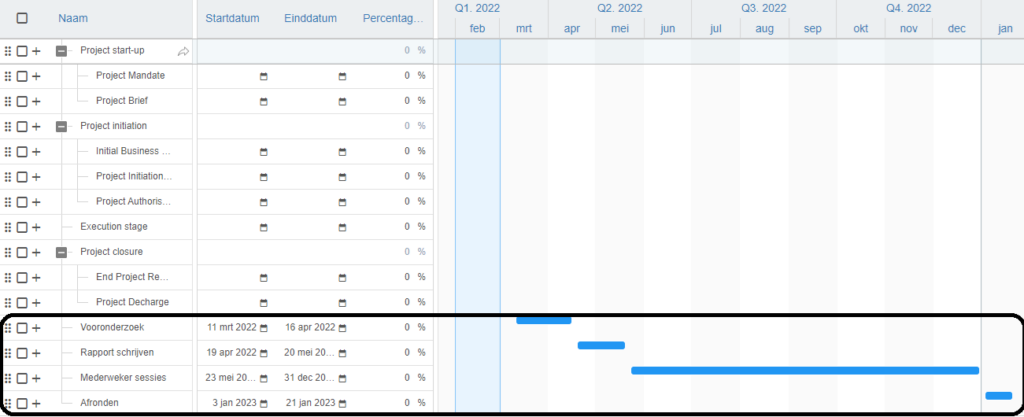
If this is done, synchronisation will be automatic from now on.
Attention: The synchronisation is by name. It is therefore important that the name of the milestone on the portfolio side remains the same as the name on the project side.
Best practices
- Keep your schedule and milestones up to date: Reliable reporting starts with current planning.
- Use baselines: Monitor changes over time and compare with original schedules.
- Add sub-items and dependencies: Increase clarity and make relationships explicit.
- Use columns and zoom features: Tailor your overview to your specific needs.
FAQ
Can I add custom fields as columns? Yes, you can add custom fields via the column selection menu.
How do I view past planning? Compare current planning to saved baselines using the filter option.
Where can I find archived items? In the Portfolio funnel tab, under the archive drop-down.
Who can adjust milestone planning? Anyone with editing rights in the portfolio.
Need more support?
For step-by-step instructions or troubleshooting, contact your Fortes Change Cloud administrator or consult in-app help.