Financial planning
Introduction
What is the Financial Planning tab? The Financial Planning tab within the Portfolio functionality of Fortes Change Cloud is a dedicated space for managing and aligning financial resources with strategic initiatives. It enables users to create, monitor, and adjust financial plans across portfolios, ensuring that budgets are allocated effectively and transparently. This tab integrates financial data with portfolio performance, offering a comprehensive view of planned versus actual spending.
Who uses it? This tab is primarily used by:
- Portfolio Managers: to oversee financial allocations across multiple projects and programs.
- Financial Controllers: to ensure budget compliance and track financial performance.
- Program and Project Managers: to align project budgets with strategic goals and monitor financial health.
- Executives and Decision Makers: to gain insights into financial forecasts and make informed investment decisions.
What value does it deliver? The Financial Planning tab delivers significant value by:
- Enhancing Financial Transparency: Users can easily compare planned budgets with actual expenditures, identify variances, and take corrective actions.
- Supporting Strategic Alignment: Financial planning is directly linked to strategic objectives, ensuring that investments support organizational goals.
- Improving Decision-Making: Real-time financial insights empower stakeholders to make data-driven decisions about resource allocation and prioritization.
- Facilitating Scenario Planning: Users can simulate different financial scenarios to assess potential impacts and optimize planning.
- Streamlining Collaboration: Centralized financial data fosters collaboration between finance and portfolio teams, reducing silos and improving efficiency.
Strategic Financial Management
Strategic financial management in portfolio and project management (PPM) is a process by which financial resources are allocated to projects based, among other things, on their strategic value.
The goal is to optimize the organization’s financial resources and achieve its strategic objectives.
This process includes identifying appropriate projects, determining their strategic value, assessing their financial viability and allocating financial resources based on this assessment. The process also includes monitoring the performance of projects to ensure that they are on track and that financial resources are used effectively.
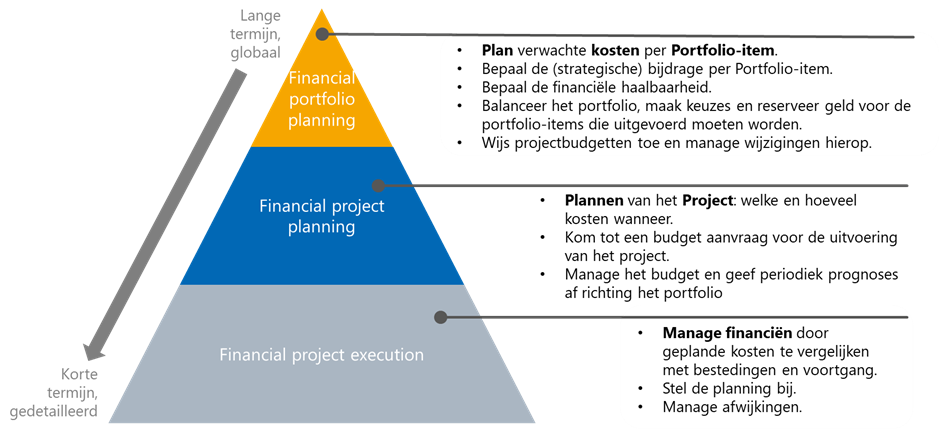
Through a new financial grid available in both portfolios and projects, the three levels are linked. Different types of financial classifications can be easily compared (e.g., ‘Budget versus Forecast’). Through scenario planning, the impact of various situations can be analyzed before they are effected. This provides easy insight and the opportunity for financial steering at all levels.
Financial Portfolio Planning
3 months to 3 years (or longer) ahead
By looking far ahead, you know roughly how much money will be needed in the future. This allows you to determine early on whether there are sufficient financial resources for the projects the organization wants to implement. Recognizing potential financial problems early gives time to resolve them.
Set the capacity and amount of financial resources needed against the contribution that a (potential) project makes to the organization’s goals and themes. This provides the insight needed to prioritize.
Financial Project Planning
3 months to 1.5 years ahead
Once a project is started, the project manager can create a detailed schedule. This detailed planning leads to an accurate picture of the costs required over time. This detailed picture can be fed back to the portfolio so that Financial portfolio planning can be honed.
Based on this detailed planning, the portfolio can allocate a budget to the project. The financial situation is periodically reported to the portfolio through a current forecast.
Financial Project Execution
Daily project direction
While executing the project, finances should be managed. During implementation, expenditures come in that can be measured against planned costs.
A deviation can lead to a change in the Financial project planning which in turn can lead to a change in the Financial portfolio planning. Excessive deviations will potentially lead to an RFC (Request for Change). For example, these RFCs can be handled by the appropriate procedures in the organization.
Tip: When handling a change request, use the Approval Workflows functionality built into Fortes Change Cloud. This ensures that the formal process is followed and that the capture about the decisions takes place in the tool.
How do I organize ‘Financial portfolio planning’?
To properly carry out the process belonging to Financial portfolio planning, a number of preparations need to be made in Fortes Change Cloud. You do this in the portfolio (model) by:
- Making Financial categories available
- Activating the Financial planning tab
- Setting financial configuration: set “behavior" for the different types of financial classifications
Note Determine whether a centralized portfolio model will be used. Discuss this with the functional manager of your environment. If a central model is used, items listed should be adapted there. Otherwise, they can be adjusted directly in the “own" portfolio.
Making Financial categories available
Costs are managed on so-called Financial categories. In order to plan costs in the portfolio, these Financial categories must first be added to the portfolio.
In each Portfolio, a side panel is available for the ‘Manager’ and the ‘Supporter’ (right side of the screen). Press Financial categories.
A screen appears where the Financial categories you want to use in the portfolio can be added. Confirm the choices made by clicking Apply changes at the bottom of this screen.
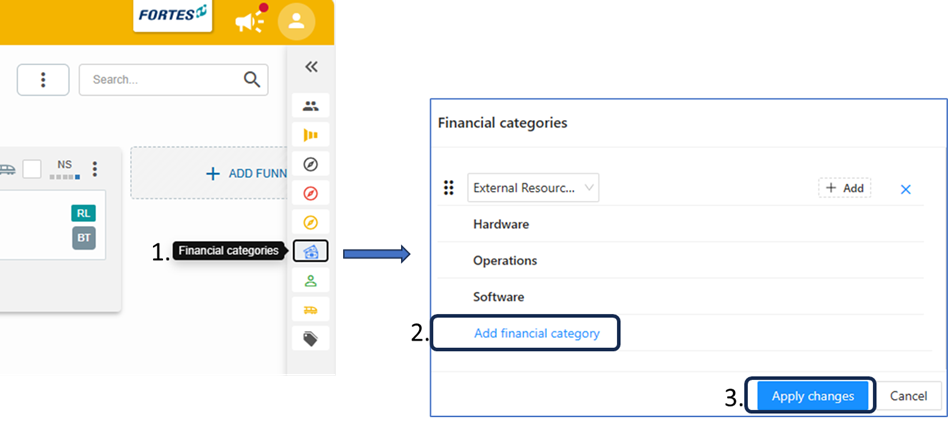
Attention! Should any Financial categories be missing, please contact the functional administrator. Financial categories can be added at a central level and then selected in the portfolio or portfolio model.
Good to know:
- Adjust the order of the Financial categories by clicking on the six dots.
- Remove a financial category from the list by clicking the cross.
- Add labels by clicking the Add tag button behind the Financial category. These labels can be filtered on in the Financial planning screen.

Activating the Financial planning tab
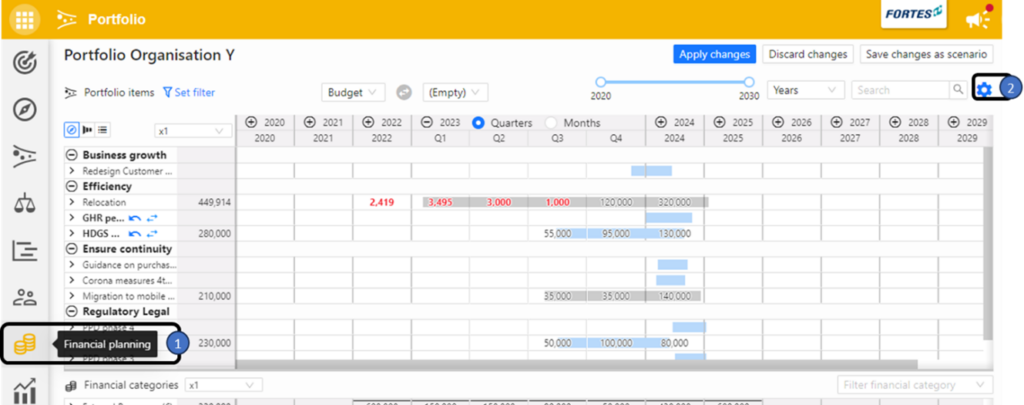
To make the Financial planning tab visible in the portfolio, open the tab visibility settings by clicking the gear icon in the bottom-left of the portfolio. In the Visible Tabs panel, check Financial planning and click Save.
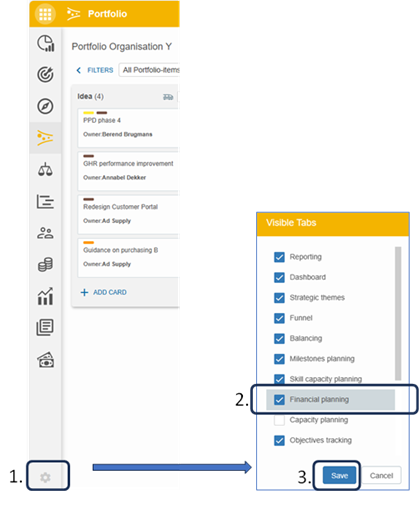
Financial configuration: setting “behavior" for the different financial classifications
In the portfolio (model), the financial configuration can be set by managers and support roles. Open the financial configuration by clicking gear icon on the topright of the Financial planning. Each financial classification can be specified whether it is:
- Customizable or just visible
- On the portfolio side or customized on the project side
- Not used (hidden)
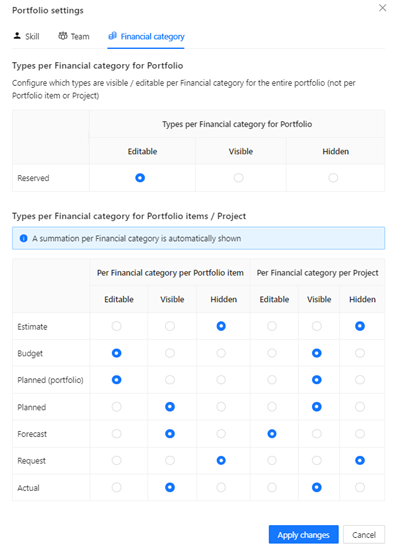
The following types of financial classifications can be indicated whether they are modifiable, visible or hidden in the portfolio and/or project:
- Reserved: used to display the money available for the portfolio. This type of classification can only be set on the portfolio and not on the project.
- Best practice: ‘Modifiable’ in the portfolio.
- Estimated and Scheduled (portfolio): the ‘Estimated’ type is for the very first financial estimate on a new portfolio item. Once it becomes more concrete, you can use the ‘Scheduled (portfolio)’ type.
- Best practice: we see at several establishments that ‘Estimated’ is not used and is therefore set to ‘Hidden’ at both the portfolio and project. If you do want to deploy the ‘Estimated’ type then it makes sense to make it ‘Editable’ on the portfolio side and ‘Visible’ on the project side. ‘Scheduled (portfolio)’ is a type that should really only be ‘Editable’ in the portfolio and ‘Visible’ on the projects side.
- Budget: projects are given a budget with which to carry out their project. Normally a budget is allocated to a project from the portfolio.
- Best practice: ‘Modifiable’ in the portfolio, ‘Visible’ in the project.
- Scheduled: is an addition by financial category of all finances booked in a project.
- Best practice: ‘Visible’ on both sides.
- Forecast: generally the forecast is given by the project manager.
- Best practice: ‘Editable’ in the project, ‘Visible’ in the portfolio.
- Request: to support a formal change process (RFC process), the Request type can be used.
- Best practice: ‘Editable’ on the projects side, ‘Visible’ in the portfolio.
- Spent: spending is generally read in from the financial system.
- Best practice: ‘Visible’ in the project and portfolio. If not read in but entered manually, set to ‘Editable’.
How to use Financial portfolio planning
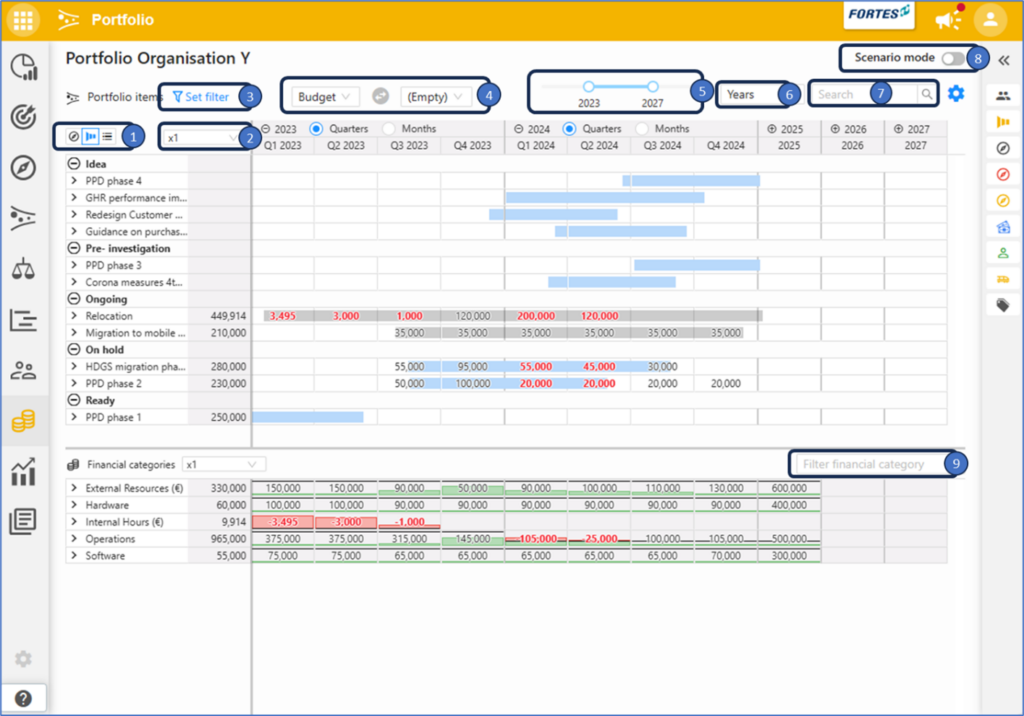
The screen is composed of two sections. The top section contains all portfolio items along with the financial data. The bottom section contains totals by financial category.
The upper section also shows the schedule of portfolio items as blue and gray bars. The blue bars are of portfolio items to which no project has yet been started. The gray bars are the schedule of portfolio items where a project has been started.

Ordering: using these icons, the ordering of portfolio items can be changed to theme, portfolio funnel or one list.

Number display: here you can set how the values should be displayed: as entered (x1), as thousands (x1,000) or as millions (x1,000,000).

Filtering: clicking here will bring up a panel on the left where all possible filters can be set. Filtering affects only the portfolio items that are at the top of the screen. The totals at the bottom of the screen always remain over the entirety of all portfolio items.
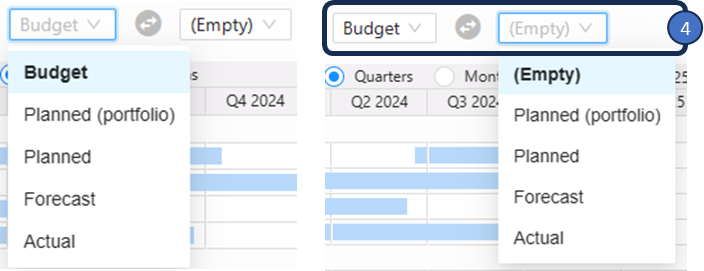
Input and Analysis
All types of financial classifications can be set off against each other for the purpose of data input and analysis. As an example, some logical combinations:
- Scheduled (Portfolio) versus (Empty): this creates the possibility of filling in the first rough estimate for portfolio items. Since this is the first rough estimate, there is no project yet and you do this first rough estimate on the portfolio. The goal is to get a sense of costs for the medium and long term. This helps balance or prioritize the portfolio.
- Budget versus Scheduled (portfolio): the lower part of the screen shows, for each financial category, the amount of money set aside for this portfolio versus the budget given to the various portfolio items. Putting the budget next to the scheduled cost per portfolio item creates the ability to take over this coarse on the portfolio scheduled cost as the budget. In the lower part of the screen you can then see whether allocating budget to this particular portfolio item fits within the total money available in the longer term: useful for making annual plans, for example. Also, allocating the budget can serve as a starting position for a project.
- Budget versus Scheduled: in a project, finances are carefully scheduled. Setting scheduled costs against the given budget provides insight into any deviations. If the deviation is acceptable, the scheduled costs can be adopted as the new budget with a single click.
- Budget versus Forecast: one step more formal is to use Forecast. in reporting from the project to the portfolio; Whereas scheduled cost is more something for the project manager, the forecast is intended to provide formal feedback on expected costs.
- Budget versus Spent: if the realization of costs is recorded in the FCC, it makes sense to periodically look at the difference between budget and these realized costs. This gives an indication of whether you are still on track in terms of costs.

Years display: this slider allows you to control how many years are shown in this financial grid.

Display period: select whether the periods should be displayed in months, quarters or years.

Quick filter: filter quickly for a portfolio item by name.


Scenario mode: moving this switch to the right puts the screen into scenario mode. This gives you the buttons associated with the scenario mode. For example, it is then possible to call up stored scenarios or manage the stored scenarios. It is also possible to apply an already created scenario.

Filter by financial category: at the bottom of the screen are the Financial categories. By clicking on the filter bar here you can choose a financial category. Both the top screen with the portfolio items and the bottom part of the screen with the Financial categories are then filtered on this choice. It is possible to choose multiple Financial categories at once here.
Quickly enter amounts
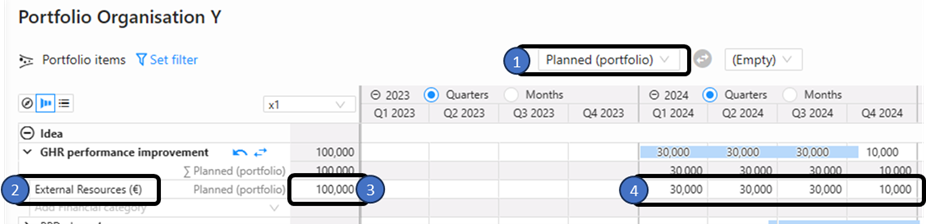
Amounts can be quickly entered under a portfolio item.
- Choose the financial classification you want to enter.
- Choose the financial category.
- Enter the amount.
- The amount is automatically prorated over the scheduled period of the portfolio item.
Note: You may not be able to enter a value for each financial classification. This has to do with the financial configuration of the portfolio. For example, spending may always be read in from the financial system and may not be entered manually.
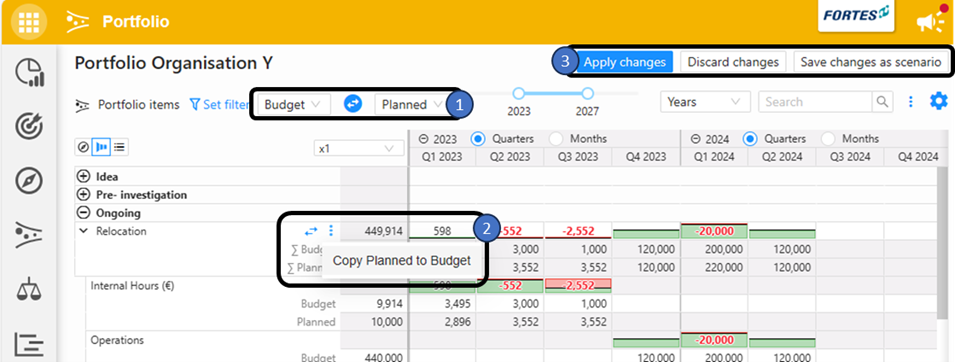
Transfer values from one financial classification to another classification
At the touch of a button, you can transfer the values of one financial classification to another. This allows you, for example, to easily convert the costs planned on a project to the budget you release for this project.
- Choose the financial classification you want to take over: on the left the type in which the amount is to be taken over, on the right the type that serves as the source.
- Press the 3 blue dots after which a small pop-up appears. Click on the message in this pop-up to transfer the amounts.
- Choose whether to apply, cancel or save the change as a scenario.
Purpose of Financial Portfolio Planning
3 months to as much as 3 years (or beyond) ahead
The purpose of “Financial Portfolio Planning" is twofold, namely:
- Long-term financial planning: understanding the financial consequence on long-term planning of all change requirements. This gives a picture of what realization of certain themes, objectives or programs will cost. By looking far ahead, financial bottlenecks can be addressed early.
- Effect of ongoing projects on financial planning: long-term planning is affected by the projects being implemented. Consider projects that become more expensive, spend the required budget only later, or delay. With this, ongoing projects can lead to adjustments in long-term financial planning. It is also necessary to continue to monitor whether the total cost of ongoing projects continues to fit within the available project and portfolio budgets.
Best practices
- Regularly review Financial categories and settings to ensure alignment with your organization.
- Use scenario planning for robust decision making.
- Filter and label wisely for clear insights.
- Compare planned vs. actuals and budget vs. forecast regularly.
- Leverage approval workflows for formal change processes.
FAQ
Can I add or remove Financial categories? Yes, if you have the correct permissions, you can adjust these in the portfolio or portfolio model.
How do I change the settings for a type of money? Open the financial planning tab, click the config icon, and edit the settings per type.
Can I manually enter spent amounts? Depends on your financial configuration: typically this is imported, but can be set to editable if needed.
How do I filter or compare financial data? Use the filter panel and scenario mode for analysis and reporting.
Need more support?
For step-by-step instructions or troubleshooting, contact your Fortes Change Cloud administrator or consult in-app help.