Financial funds
Introduction
What are Financial funds? The Financial funds tab lets you decide where the money for your portfolio comes from and how it is divided over your portfolio items. You create the Financial funds that finance the portfolio (for example an annual departmental budget or a subsidy), enter how much each fund has available, and allocate those funds to portfolio items. The tab shows per fund how much is allocated and how much is still free.
The tab complements Financial planning. Financial funds answer the question "which money pays for which initiative". Financial planning then tracks how that money is planned and spent per Financial category.
Who uses it?
- Portfolio Managers: to distribute the available funds over the initiatives in the portfolio.
- Financial Controllers: to see per fund how much is committed and where it goes.
- Readers of the portfolio: to view the funding of portfolio items without changing it.
Financial funds are part of a separate module. When the module is enabled for your environment, Financial planning is enabled as well. Without the module, the tab is not shown.
How the tab is organised
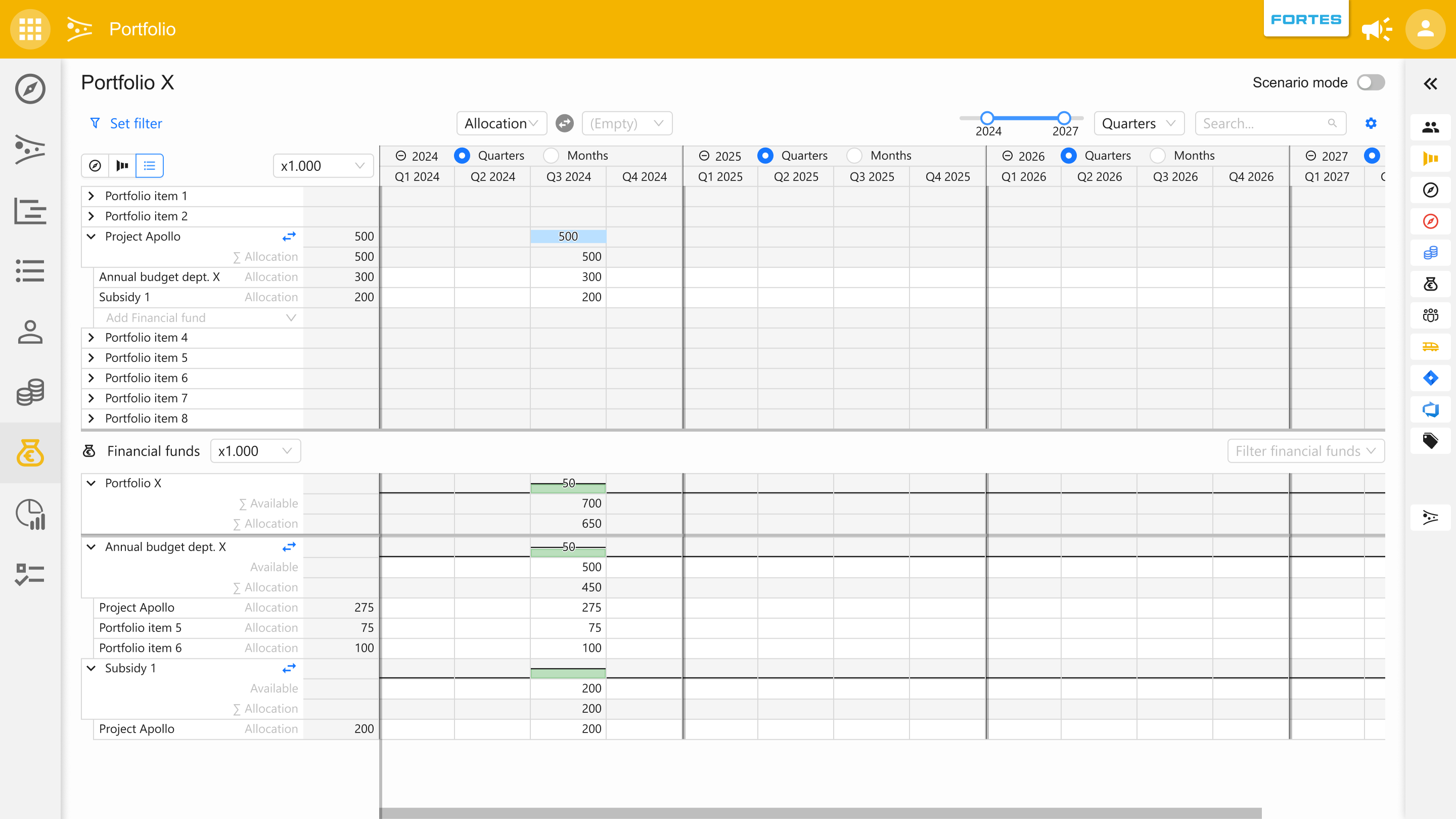
The tab is a planning grid with two parts, built on the same grid as the other capacity planning tabs. For the shared controls (value types, comparing, time scale, units, filters, views, and scenario mode), see the Grid article.
- The top grid lists the portfolio items. Under each item you add the funds that finance it and enter the Allocation per fund. The item shows the total allocation over all its funds.
- The bottom grid, titled Financial funds, lists the funds. Per fund it shows what is Available and the total Allocation to portfolio items, followed by the portfolio items that receive money from that fund. The first row totals all funds for the portfolio.
The bars in the bottom grid compare allocation with availability, so you see at a glance whether a fund still has room or is fully used.
Managing funds
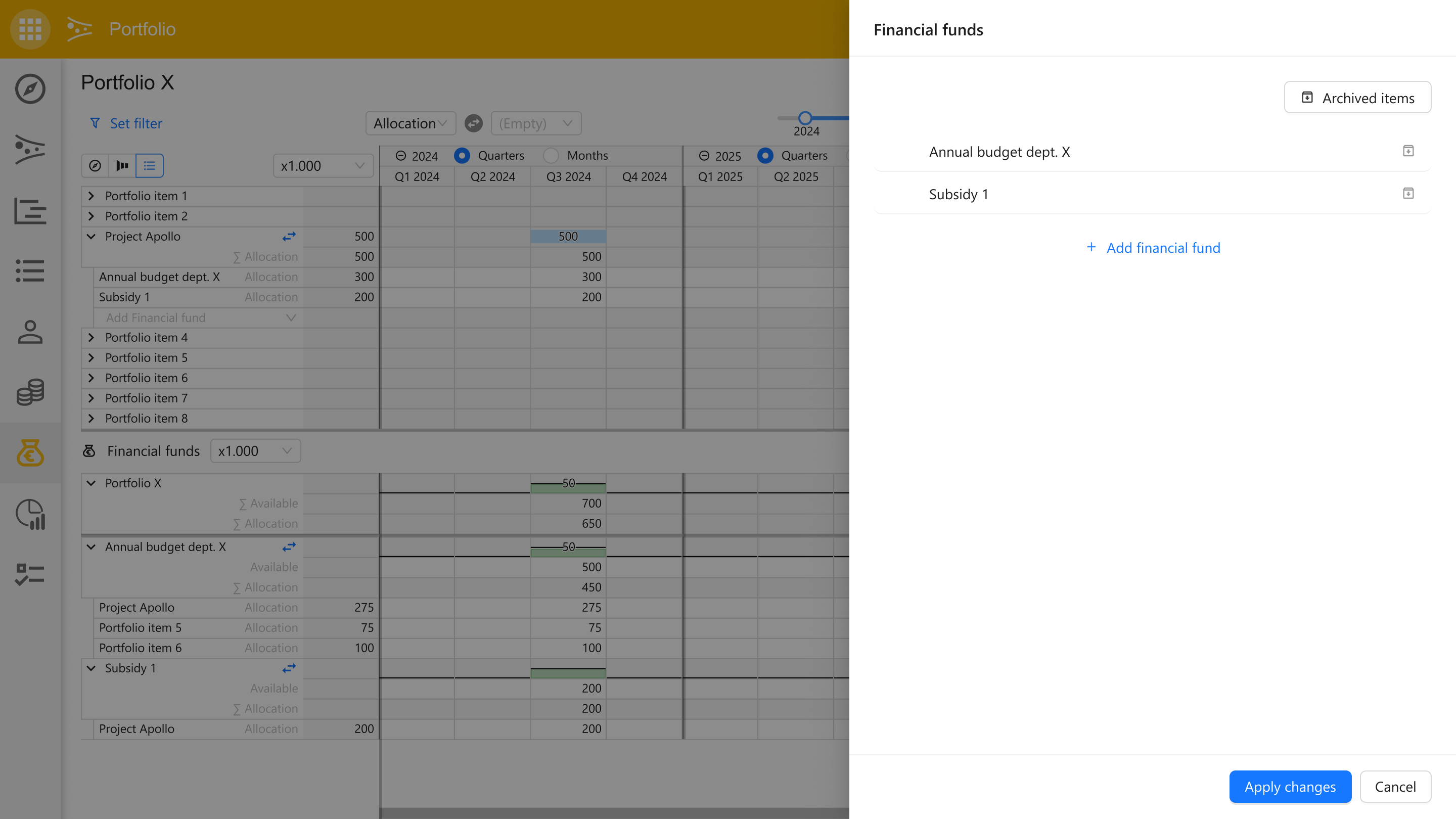
Funds belong to the portfolio. You manage them from the Financial funds section in the portfolio properties panel on the right side of the screen.
- Open the properties panel and select Financial funds.
- Click
Add financial fundand type a name. Each fund needs a name, and two funds in one portfolio cannot have the same name. - Click Apply changes to save.
The available budget of a fund is not entered in the drawer. You enter it in the Available row of that fund in the bottom grid of the tab.
Archiving and removing a fund
Use the archive icon behind a fund to archive it. An archived fund can no longer be selected for a portfolio item. Where an archived fund is still allocated to an item, its name is shown in red so you can spot it.
Archived funds are listed under Archived items. From there you can restore a fund, which makes it selectable again, or remove it permanently. Removing a fund also removes its allocations and cannot be undone.
Renaming a fund updates its name everywhere it is used.
Allocating funds to portfolio items
- In the top grid, expand the portfolio item.
- Select a fund in Add Financial fund under the item.
- Enter the allocation in the time periods of the fund row.
A portfolio item can receive money from more than one fund. The remaining availability per fund in the bottom grid updates while you type, so you always see how much of each fund is still unallocated. Changes are saved when you apply them, or you can keep them in a scenario first. See Grid for scenario mode.
You can enter amounts per year, quarter, or month. When you change a value at a coarser level than the existing entries (for example a year total that was entered per quarter), the grid warns you that detail will be lost before you confirm.
Over-allocation
The tab does not block over-allocation. You can allocate more than a fund has available when the situation requires it. When allocations exceed a fund's availability, the fund is flagged with an icon and a colour, and a message explains that it is over-allocated.
Comparing allocation with planned costs
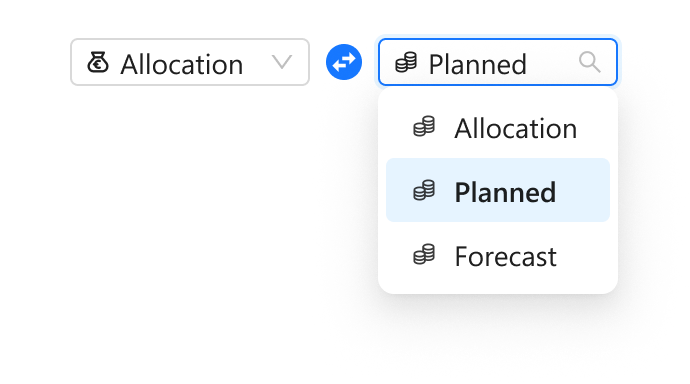
The value type selectors at the top of the tab let you compare the fund allocation of a portfolio item with the values from Financial planning. Next to the fund type Allocation, the selector lists the Financial planning types, such as Allocation, Planned, and Forecast, each marked with the Financial category icon. Planned costs come from Financial planning and projects and are shown as one total per portfolio item, over all Financial categories.
This shows early where an initiative plans to spend more than its funds provide. When planned exceeds allocated, the difference is highlighted.
Configuring the tab
Making the tab visible
In the app, the tab is labelled Financial funds capacity planning. Switch it on in the Visible tabs settings of the portfolio (model), in the same way as the Financial planning tab.
Portfolio settings
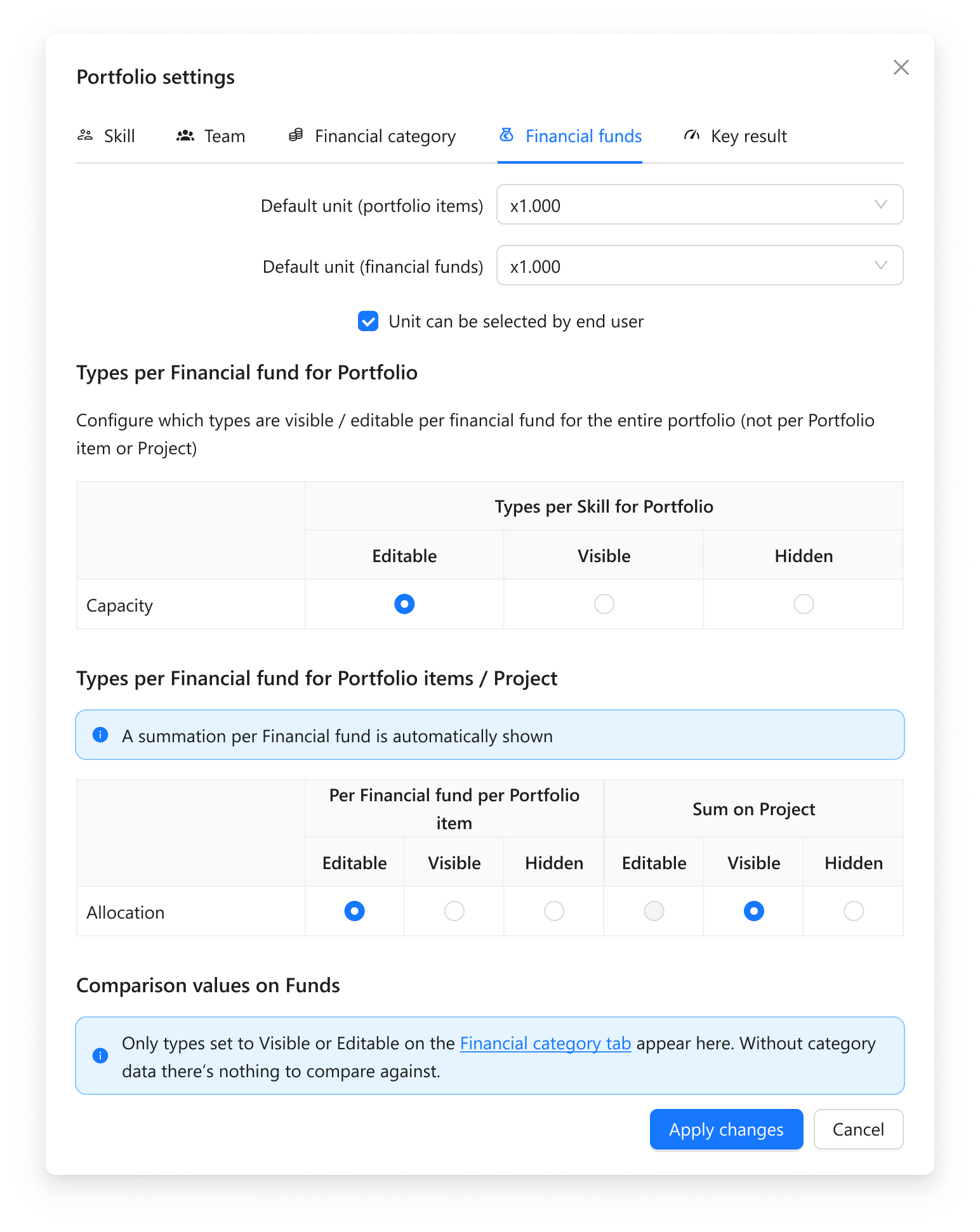
Administrators configure the tab from the Financial funds tab in the Portfolio settings, which open with the gear icon at the top right of the grid. From here you can:
- Set the default unit for the portfolio items grid and for the Financial funds grid, and choose whether the unit can be selected by the end user.
- Set whether Capacity is Editable, Visible, or Hidden per fund for the whole portfolio. Capacity is the value shown as Available in the Financial funds grid.
- Set the same for Allocation, separately per fund per portfolio item and for the sum on the project.
The comparison values on funds come from the Financial category tab of the same settings, so the funds stay aligned with Financial planning without configuring the same types twice. Only types set to Visible or Editable there are offered for comparison. See Financial planning for the Financial category configuration.
Roles and rights
- Managers and Support create, edit, archive, and remove funds, and enter or change allocations, also when a fund is over-allocated.
- Readers and Members see the funds, the allocations, and the over-allocation warnings, but cannot change them.
- Only Administrators see the Portfolio settings of the tab.
Reporting on funds
Fund allocations are available in the embedded Power BI dashboard and the BI connector. The cost entries expose Allocation as a value type and the Fund as a reference, for portfolios, enterprise portfolios, and Insights. You can therefore group and filter allocations by fund in a report. See Dashboard and BI connectivity.
FAQ
Where do I enter how much money a fund has? In the Available row of the fund in the bottom grid of the tab, not in the drawer.
Can one portfolio item be financed by several funds? Yes. Add each fund under the item in the top grid and enter the allocation per fund.
What happens if I allocate more than a fund has available? The allocation is saved, and the fund is flagged as over-allocated.
Why can't I select a fund for a portfolio item?
The fund is probably archived. Restore it from Archived items in the Financial funds drawer.
Need more support?
For step-by-step instructions or troubleshooting, contact your Fortes Change Cloud administrator or consult in-app help.