Balancing
Introduction
What is the Balancing tab?
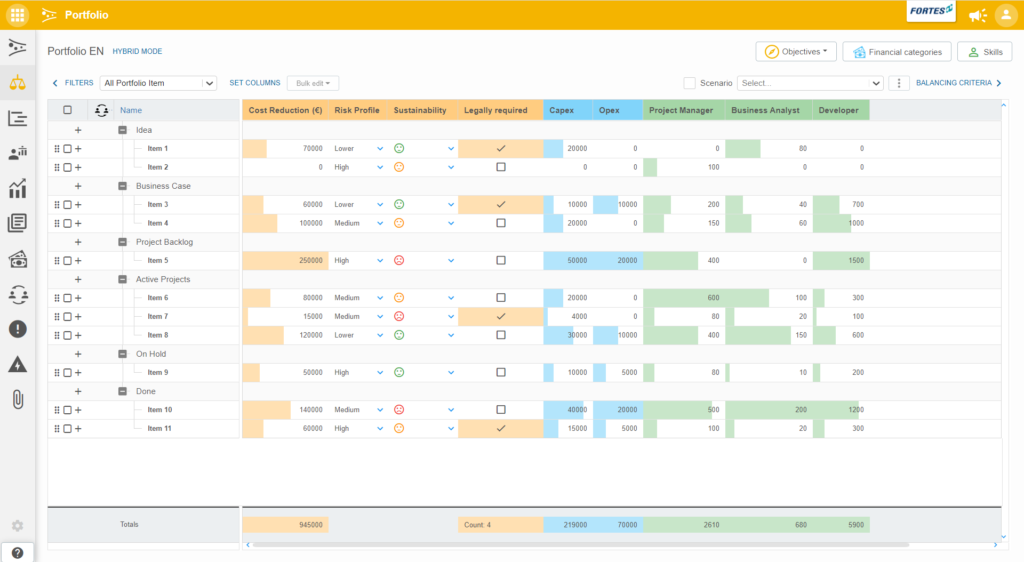
The Balancing tab in the portfolio provides a transparent overview of all relevant data for portfolio items (such as initiatives and projects). Typical fields include contributions to objectives, financial investments, required resources, and other custom or system data.
Who uses it?
The Balancing tab is mainly used by portfolio managers and PMO teams, but is accessible to anyone with the right permissions who needs a clear view of the portfolio.
What value does it deliver?
It allows organizations to make data-driven decisions, compare scenarios, and quickly adjust to changes while staying aligned with strategy.
Working with balancing
Recording and viewing portfolio data
With the Balancing tab, you can easily record and view different types of data about portfolio items (such as cost reduction, risk profile, sustainability, legal requirements, Capex/Opex, and resource capacity per role).
All key information about portfolio items is shown in a single, clear overview.
Collected data is immediately available in customizable views, so everyone with the correct rights can see the latest status of portfolio items.
Scenario analysis
The Balancing tab enables you to analyze your portfolio using built-in balancing criteria.
You can save multiple scenarios and compare them with the current situation. If circumstances change, you can easily switch to the most suitable scenario.
Bulk editing portfolio items
Managing many items at once is simple with bulk editing:
- Go to the Balancing tab in the portfolio.
- Select the items you want to edit (check the checkboxes).
- Click Bulk edit at the top.
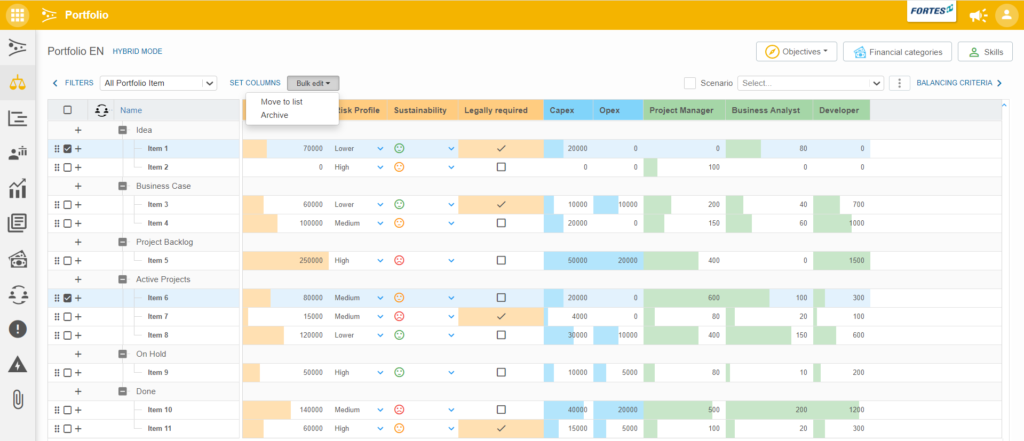
Click 'Bulk edit' for group actions on selected items.
Move multiple items to another list:
- Choose Move to list from the Bulk edit menu.
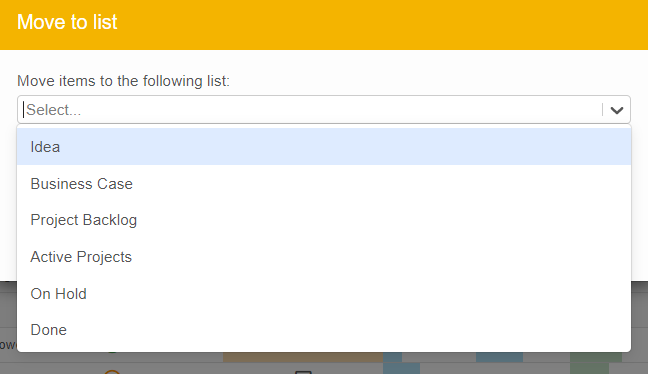
- Select the target list (e.g. 'On Hold', 'Done', 'Business Case').
- Confirm by clicking Move.

Confirm moving the selected items to the new list.
Archive multiple items at once:
- In the Bulk edit menu, choose Archive.
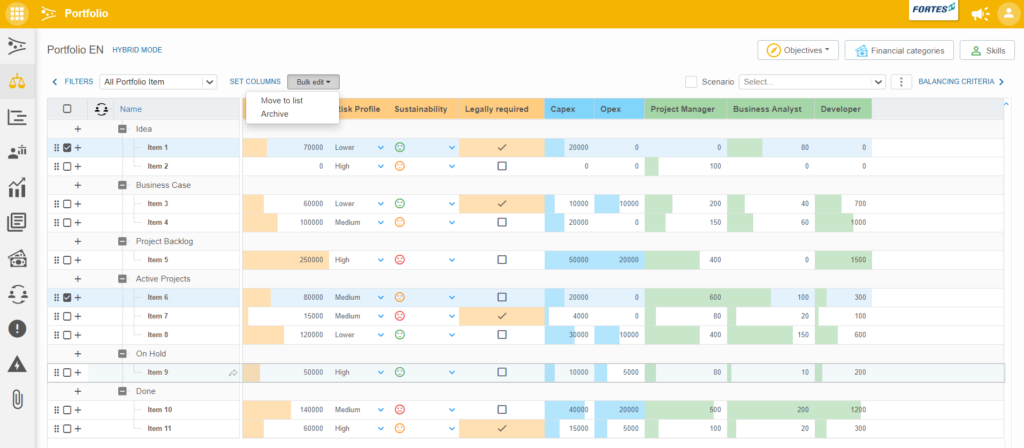
Choose 'Archive' to remove multiple items from active lists.
- Confirm the action by clicking Remove.
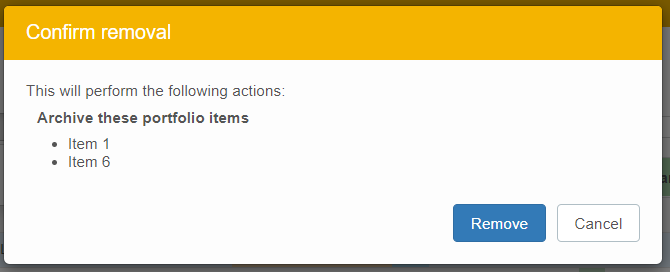
Final confirmation before archiving selected items.
Best practices
- Keep item data up to date: Regular updates make scenario analyses more reliable.
- Define clear lists and stages: Use list names that fit your workflow (e.g., 'Idea', 'On Hold').
- Leverage scenario planning: Regularly review and compare scenarios to stay agile.
- Use custom views: Tailor views to your team’s needs for maximum clarity.
FAQ
Can I customize which fields are shown?
Yes, you can configure both system and custom fields.
Who can use the Balancing tab?
Anyone with the appropriate rights in Fortes Change Cloud.
How do I compare scenarios?
Use the scenario dropdown at the top of the Balancing tab.
What happens when I archive items?
Archived items are removed from active lists but remain available for reference.
Need more support?
For step-by-step instructions or troubleshooting, contact your Fortes Change Cloud administrator or consult in-app help.