List
Introduction
What is list?
List views in Fortes Change Cloud show items (e.g., issues, risks, portfolio items) in a table you can sort and filter. Administrators can define a default sort on a list segment and decide whether end-users may change it. You can also apply a fixed filter that always limits what’s shown. If a fixed filter is enabled, the Add button is removed to prevent adding out-of-scope items.
Who uses it?
Project/portfolio managers and contributors who need to review, filter, and export records, plus admins who configure list segments in dashboards.
What value does it deliver?
Faster triage and reporting with reusable filters (views) you can save for yourself or share with everyone, straightforward exports to spreadsheets, and bulk creation from Excel when you need to seed many items at once.
Standard sorting and filtering in list segments
Sorting options
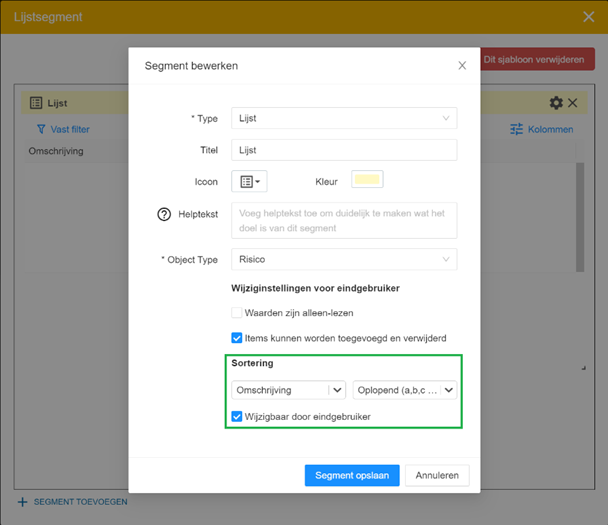
When the Object Type is chosen when setting up the list segment, the Sorting section allows you to choose the field that will be sorted by default. You can also specify whether to sort ascending or descending. Finally, you can still choose whether or not the sorting is modifiable by the end user.
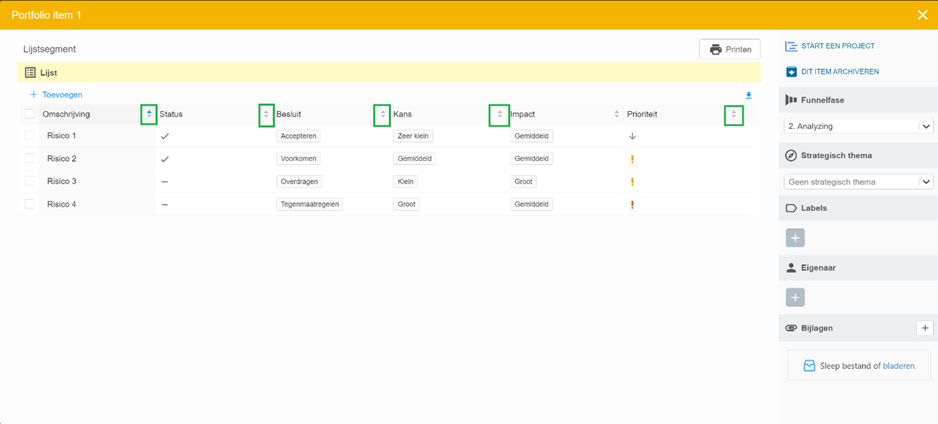
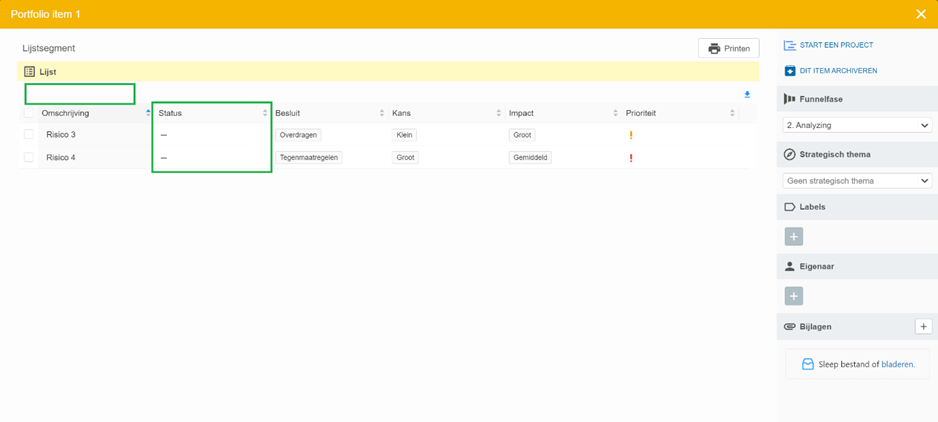
The list segment now displays a sort indicator with each column. The list has the default sorting. When the configuration indicates that the sorting is modifiable, the user can click on the indicator to adjust the sorting.
Filter options
A fixed filter can be set in the configuration screen of the list segment. Thus, the end user will then see a filtered set of items in the list segment.
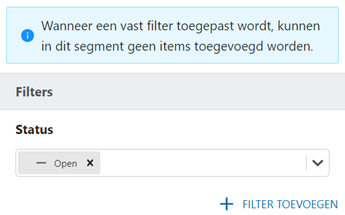
The fixed filter can be set by clicking on the ‘Fixed Filter’ button. On the left side, the filter panel appears where the filter can be set.
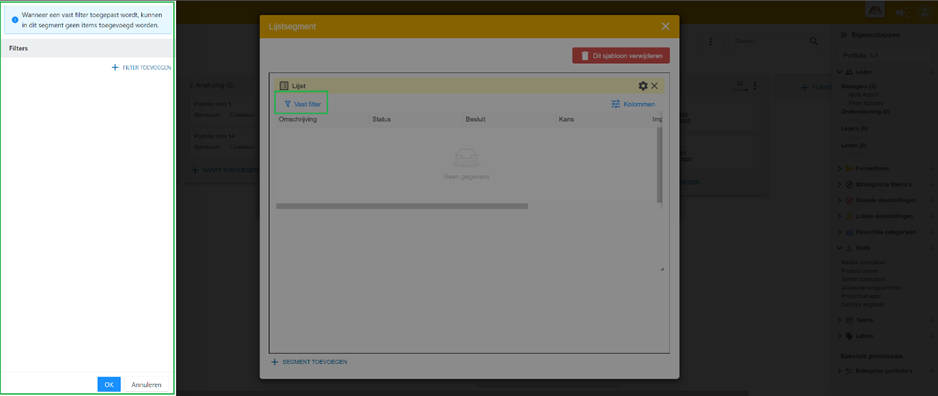
Please note: When you choose to set a fixed filter, it is no longer possible for the end user to add items to the list. The ‘Add’ button will then no longer be present at the top of the list segment. At the top of the filter panel you will also be alerted to this.
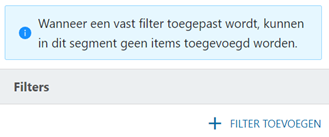
So for example, if you set a fixed filter where only items with Status ‘Open’ are shown, the list will be filtered accordingly and the ‘Add’ button will no longer be present at the top left of the list.
Best practices
- Pick columns first (if available), then sort, then export. If your list offers a display menu/column picker, set the columns you need before applying sort and exporting. Your spreadsheet will match the on-screen view. (General tip; aligns with how views are saved and reused.)
- Set a sensible default sort; allow overrides where helpful. Configure the default sort in the list segment; enable end-user overrides so people can click the column indicator to adjust.
- Use a fixed filter only when you must lock scope. A fixed filter hides the Add button; use it to prevent out-of-scope creation on curated dashboards.
- Save common filters as views (personal or shared). Open the filter panel, apply filters, and Save current view for yourself or for everyone to reuse across sessions.
- Export via the spreadsheet icon for quick reporting. One click downloads a file you can open in Excel/Sheets; use it as a template for re-imports.
- For “import,” use bulk add from Excel (Funnel). Prepare your Excel and paste/import to create many portfolio items at once, including values for custom fields.
FAQ
How do I change the default sorting?
In the list segment configuration: choose the field, order (asc/desc), and whether end-users may modify it. End-users see a sort indicator and can click to change it if allowed.
Can I save my filters for reuse or share them?
Yes. Open FILTERS → set filters → SAVE CURRENT VIEW. You can overwrite an existing view or add a new one, and choose personal vs shared.
Why is the Add button missing on a list segment?
A fixed filter is configured. With a fixed filter, the Add button is removed to keep the list curated.
How do I export issues or risks to Excel?
Click the spreadsheet icon on the tab; open the downloaded file in your spreadsheet program. (Works similarly for issues and risks.)
How do I bulk import items?
Use Funnel → bulk add to create multiple portfolio items from Excel/clipboard; you can set values for (custom) fields as part of the import.
Do views also control which columns I see?
Views save your filter state and, in many contexts, your display configuration; use the display/view menu to adjust what’s shown, then save as a view for reuse.