Kanban
Introduction
What is the Kanban board?
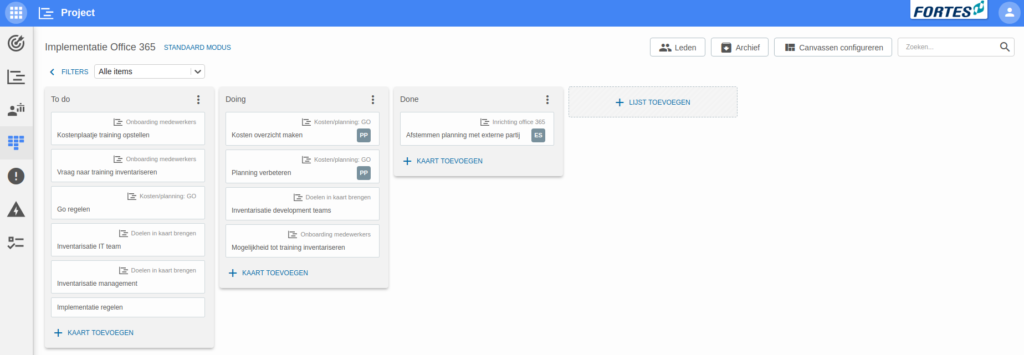
A visual workflow where work items (cards) move left-to-right across status lists. The Kanban view is not limited to a single app. It is used throughout Fortes Change Cloud, including the Kanban tab in the Project app, the Portfolio Funnel, and the boards in the Agile Program app. Wherever it appears, you set up lists, add cards (or tasks from plan items), prioritize by ordering, and optionally rank on a field value for a consistent order. You can also attach canvasses to lists to show structured info per phase.
Who uses it?
Project teams and portfolio owners who track progress, prioritize work, and need quick status overviews. Team members focus on cards; managers configure lists, fields on cards, and shared views.
What value does it deliver?
Fast, shared visibility of work-in-progress: filter by attributes (including labels), save reusable views, surface key data on the card, and apply board-wide ranking to align priorities.
How do I work with the kanban board?
What is a kanban board and how do I use it?
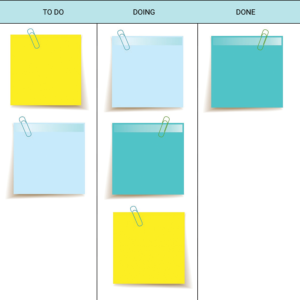
A kanban board is a physical or digital board that displays the progress of tasks within a team or project. Swimlanes or lists (columns) illustrate different phases on the board. Cards are used to display tasks or user stories. By placing a card in a column it becomes clear in which phase a task is and which phases it still has to go through to be finished. Use different colored cards to differentiate between different types of tasks (e.g. tasks, features, bugs or user stories). Next to that, using the kanban board enables you to indicate which cards have the highest priority by placing them above the other cards in their column.
How do I set up a kanban board?
-
Start by creating lists on the kanban board. You can make these as detailed and extensive as you like, but make sure it doesn’t get too complicated and fits your project. We have put together a list for inspiration:
-
Basic usage: To do, Doing, Done.
-
Software development: Backlog, Ready, Coding, Testing, Approval, Done.
-
Marketing: Requested work, Waiting to be assigned, Assigned to writer, Assigned to editor, Final production, Published.
-
Agile Program (SAFe): Funnel, Reviewing, Analyzing, Backlog, Implementing, Done.
-
-
Add tasks to plan-items by clicking the arrow next to a plan-item in the project planning and adding tasks to the plan-item’s kanban board. These tasks are added to the kanban board in the kanban tab as well, together with a label that indicates the plan-item the task belongs to.

-
Add individual tasks to the kanban board by clicking on + ADD CARD in the list in which you want to place the card.
-
Prioritize the cards on the kanban board by changing the order of the cards. For example, put the cards with the highest priority at the top.
-
Add owners to the cards by clicking on a card and clicking + underOwner. Adding an owner makes a person responsible for the card and at the same time provides insight into the distribution of cards among people.
How do I add specific information to the items on my kanban board?
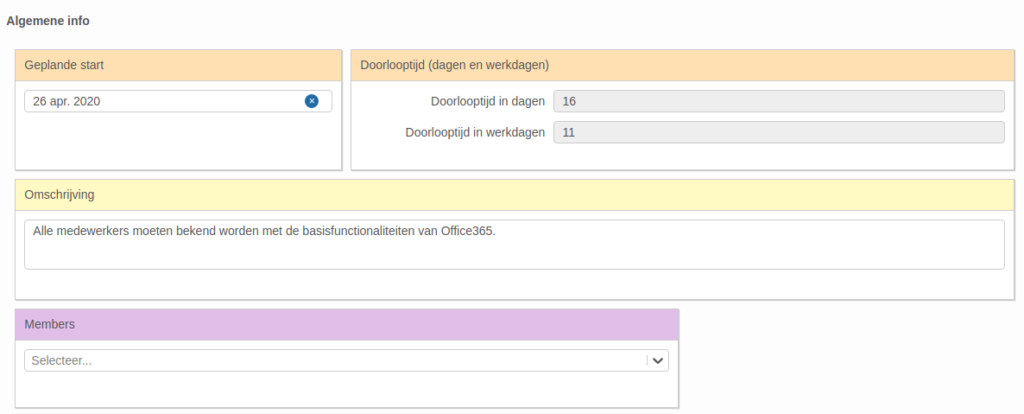
The Project app in Fortes Change Cloud makes use of canvasses. A canvas is a customizable template that is used for displaying information. This way, you can decide what information to show in what phase or list.
-
Add canvasses to lists on the kanban board to display specific information about cards.
-
First, create a canvas template by clicking Configure canvasses and then click + ADD CANVAS TEMPLATE. Name the canvas template and add segments by clicking + ADD SEGMENT. Read about the different segment types and how to create a canvas in the Canvases article.
-
Add the canvas to a list by clicking + ADD CANVAS CONFIGURATION, selecting the canvas and selecting the list(s) to which you want to add the canvas.
-
-
Order the items on the kanban board. Order them, for example, based on priority. This ensures the items with highest priority are the first you see and increases the insight.
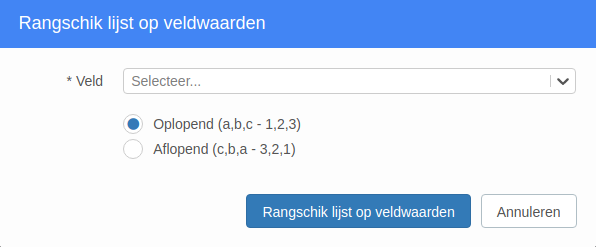
- Click the options menu top right of a list and click Rank on field value to rank the cards of a list on a relevant value of a field.
-
Set filters to display a specific set of cards. This can lead to a larger overview and give more insight in the progress of a project. Do you want to use the same filters more than once? Save the (set of) filter(s) as a view.
How can I rank cards in a Kanban board by a field value?
You can rank cards from the Kanban board based on various values. Each field of portfolio items can be set as a value, such as the WSJF score or the item name.
How do I add fields on Kanban cards
It is possible to make fields visible at Portfolio, Program, and Project level on the cards in the kanban board. This allows essential information about the initiatives and projects to be seen at a glance.
How do I use labels on the kanban board
To make the Kanban board clear, you can add labels to the cards on the board. The labels provide direct insight with colors and can also be used to create quick overviews.
Best practices
-
Keep the flow simple. Start with a small set of lists (e.g., To do → Doing → Done) and avoid over-segmenting; it keeps the board readable and matches the guidance in the Kanban article.
-
Show only the essentials on cards. Add the few fields everyone needs at a glance (priority, owner, due date, key custom fields). You can add/remove visible fields at portfolio, program, or project level.
-
Use labels for fast slicing. Standardize label names/colors and use them in the FILTERS panel; save frequent combinations as shared views.
-
Save filters as views. After applying filters, Save current view for yourself or for everyone to reuse.
-
Rank by a field for consistency. Use Rank on field value (e.g., priority/score) so the order reflects an agreed signal rather than ad-hoc dragging.
-
Agree on who edits structure. Restrict list/field configuration to the board owner/manager; team members work on cards and filters. (Based on role guidance across the Kanban articles.)
-
Know app specifics. In Agile Program, card fields also appear on Splitting and PI planning tabs; their layout can’t be changed there.
FAQ
How do I filter the board and save that filter for later?
Click FILTERS → add criteria (e.g., labels/owner) → Save current view (personal or shared).
Can I filter by labels?
Yes. In FILTERS, add a filter on Labels, select one or more labels, and only matching items are shown.
How do I change which fields are visible on cards?
Use Adding fields on Kanban cards… to add or remove fields (portfolio/program/project levels). This exposes key information directly on each card.
What’s the difference between dragging cards and “Rank on field value”?
Dragging changes a card’s manual position; Rank on field value orders cards by a field (e.g., priority) for a transparent, repeatable sort across sessions.
Who can change lists or membership?
Typically the board/project manager. Team members can add/update cards; structural changes (lists, fields, shared views) are handled by managers.
Do card fields also show in Agile Program boards?
Yes, on the Splitting and PI planning tabs; their layout there isn’t editable.