Use of Models
Introduction
What is a Model? A Model is a reusable template that defines the default structure and behavior of an instance (e.g., a project or portfolio), such as which tabs, Canvases, and Kanban lists are available and whether managers may override them. New instances copy Model settings on creation. If managers are not allowed to change these settings, later changes to the Model are automatically applied to all instances based on it.
Who uses it? PMO/Model owners, administrators, and portfolio owners who standardize how projects and portfolios are created and governed across the organization.
What value does it deliver?
- Consistent project and portfolio setup across the organization.
- Faster onboarding of new projects.
- Controlled flexibility: you decide where divergence is allowed.
- Distinctions between classic and standard Project Models ensure users see only relevant Models when creating projects.
How do Models work?
The following selfguides walk you through the basics of working with Models in Fortes Change Cloud.
This selfguide explains how to create and navigate Models:
This selfguide demonstrates how to change and go to the Model:
Accessing Models
You can open a Model in two ways:
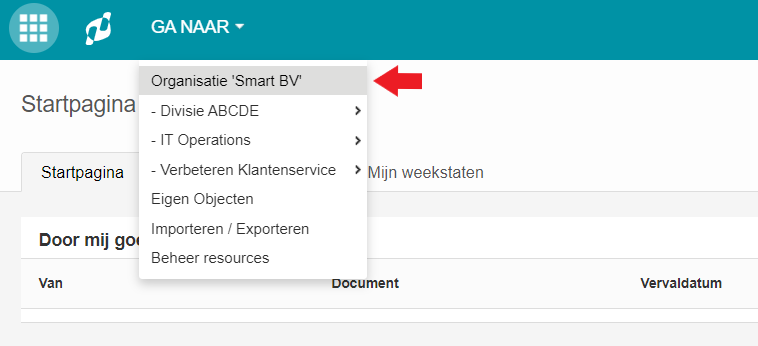
- Via the Organization Unit. Go to your Organization Unit through Start, open the Models tab, and select a Model from the list (for example, under Project Models or Portfolio Models).
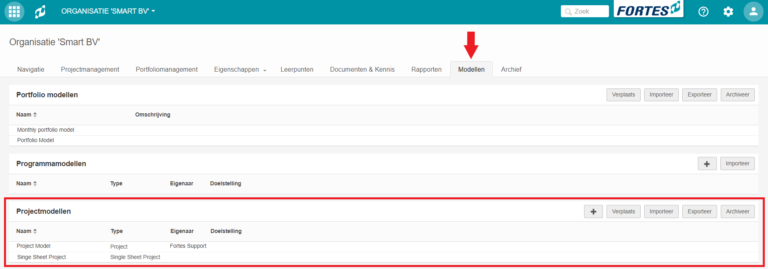
- Via the Project or Portfolio app. Open the Models tab in the Project app or Portfolio app to go straight to the Models used by that app.
Once you have opened a Model, a banner at the top of the screen shows that you are viewing a Model rather than a regular instance. Click the banner to open that Model's configuration panel directly, for example the Project model settings or Portfolio model settings described below.
Project Models
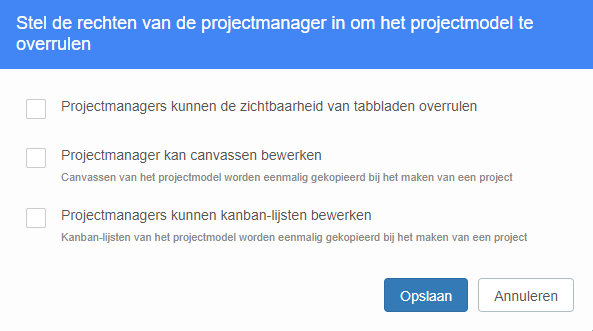
When using Project Models, you can set whether projects continue to follow the Model's setup, or whether the project manager has the rights to adjust the project setup. These permissions can be set for tabs, Canvases, and Kanban lists.
When a project is started, the Project Model settings are transferred to the project. When the project manager is not allowed to change the settings, all changes made in the Model are automatically applied to all projects based on that Model.
Project Models come in two modes, classic and standard, matching the two versions of the Project app. For the mode switcher and how this choice affects project creation, see Creating a project.
Project model settings
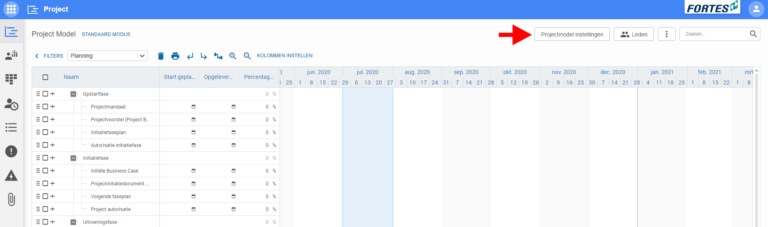
Open a Project Model (see Accessing Models), then click Project model settings at the top right of the screen.
A pop-up appears where you can set the rights of the project manager. You can choose to give the project manager rights to adjust tab visibility, edit Canvases, and/or edit Kanban lists.
Permissions in Models
Tab visibility
You can set whether the project manager may adjust the visibility of tabs:
- Open the Project Model settings.
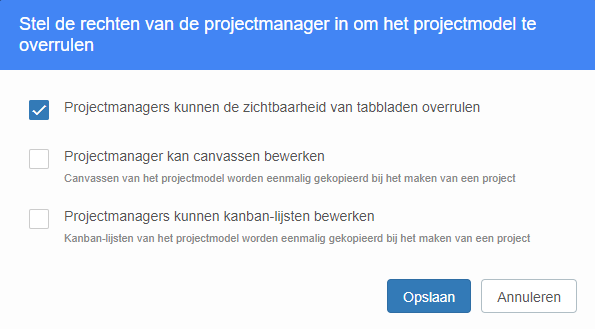
- Check the option Project managers can overrule tab visibility and click Save.
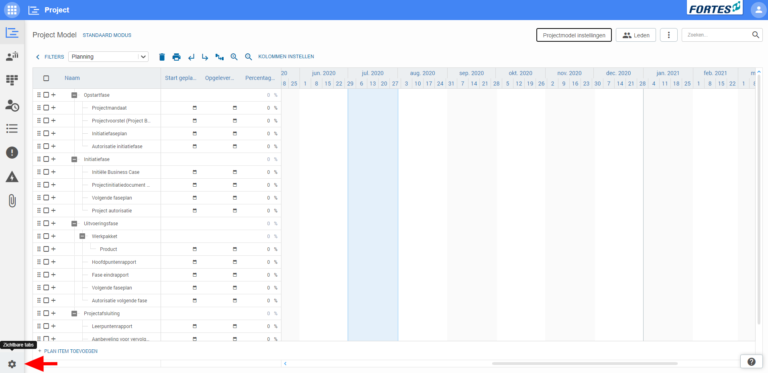
- Project managers can then adjust tab visibility via the gear icon at the bottom left of the page.
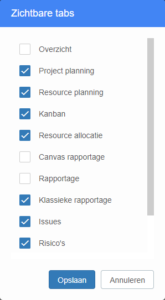
A pop-up appears where tabs can be checked or unchecked.
Note: If this setting is unchecked, the project follows the standard layout of the Project Model.
Effect on existing projects
When you enable this permission, tabs are initially visible as set in the Model. The project manager can then switch tabs on or off.
When you disable this permission, projects based on the Model start following the Model's settings again. Tab visibility set by the project manager is overwritten.
Canvas editing
You can set whether the project manager may edit Canvases:
- Open the Project Model settings.
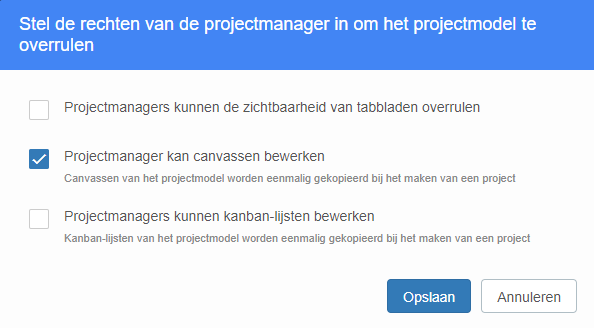
- Check the option Project managers can edit Canvases and click Save.
- Project managers can then configure Canvases by clicking Configure Canvases in the dropdown menu at the top right of the screen.
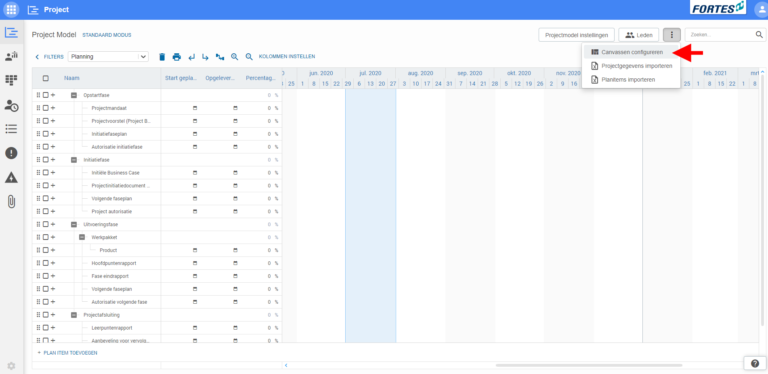
A pop-up appears where Canvas configurations and Canvas templates can be added.
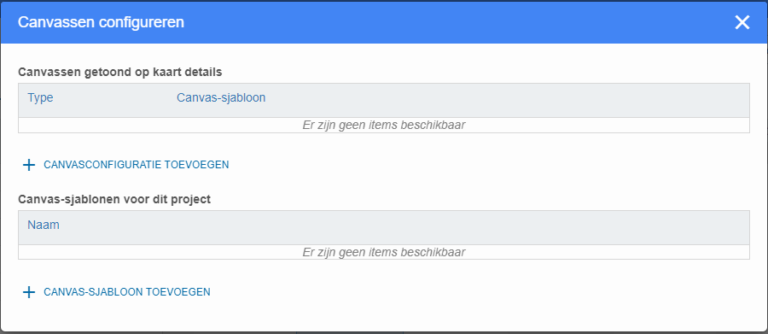
Note: When creating the project, the Canvases of the Project Model are copied to the project only once. If this setting is unchecked, the project follows the standard layout of the Project Model.
Effect on existing projects
When you enable this permission, Canvases revert to the settings as they were at the start of the project. The project manager can then adjust Canvas settings for:
- The Overview tab
- The Canvases of the products in the Project Planning tab
- The Canvases for the cards on the Kanban board
When you disable this permission, Canvases are taken over from the Project Model and custom Canvases are no longer visible to the project manager.
Kanban list editing
You can set whether the project manager may edit Kanban lists:
- Open the Project Model settings.
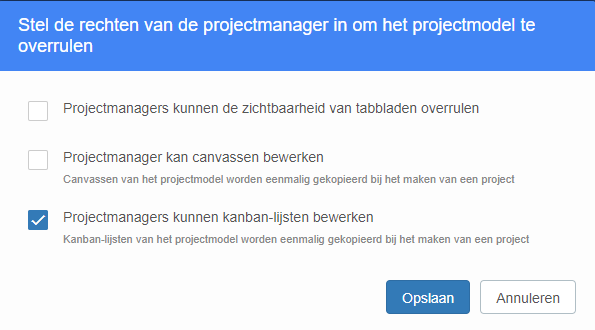
- Check the option Project managers can edit Kanban lists and click Save.
- Project managers can then add and remove lists on the project's Kanban tab and on a plan item's detail page.
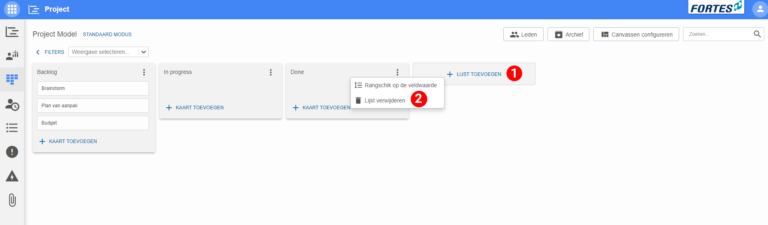
Note: When creating the project, the Kanban lists of the Project Model are copied to the project only once. If this setting is unchecked, the project follows the standard layout of the Project Model.
Effect on existing projects
When you enable this permission, the next time the Kanban tab is opened, you are asked to place the existing items in one of the columns. Adjustments made in the Model no longer affect existing projects.
When you disable this permission, the lists as defined in the Project Model are applied to all existing projects based on that Model. The project manager is again asked to place existing items in one of the lists the first time the Kanban tab is accessed.
Portfolio Models
What does a Portfolio Model do? A Portfolio Model defines the default setup for every portfolio created from it: which tabs are visible, which Canvases are used, and which Funnel stages are available. As with Project Models, the Model's setup is copied to the portfolio when it is created, and changes to the Model are automatically applied afterwards unless portfolio managers are given rights to deviate.
Portfolio model settings
Open a Portfolio Model (see Accessing Models), then click Portfolio model settings.
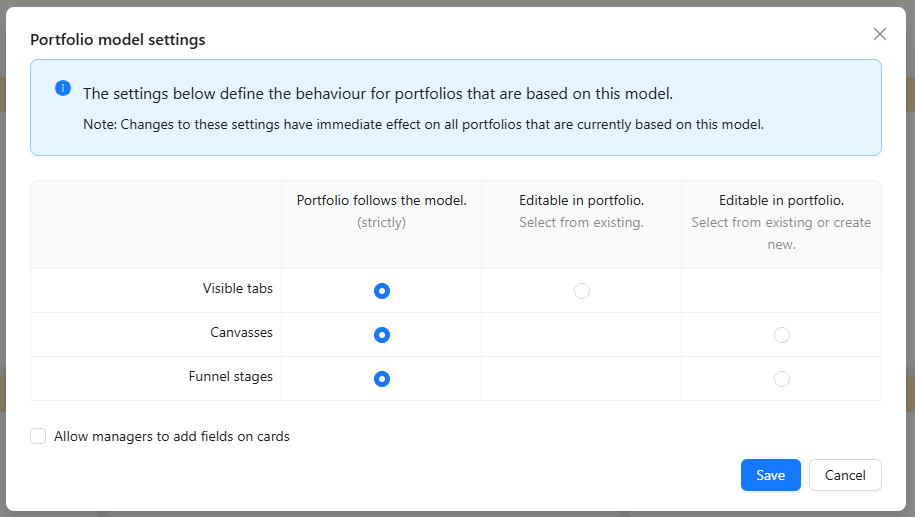
For Visible tabs, Canvasses, and Funnel stages, choose one of three levels:
- Portfolio follows the model (strictly): portfolios based on this Model always mirror the Model's setup. Portfolio managers cannot make changes.
- Editable in portfolio. Select from existing.: portfolio managers can choose from tabs, Canvases, or Funnel stages that already exist elsewhere in the organization, but cannot create new ones.
- Editable in portfolio. Select from existing or create new.: portfolio managers have full control and can also create new tabs, Canvases, or Funnel stages for their portfolio.
Note: Giving portfolio managers editing rights does not undo the initial setup copied from the Model. It only determines whether they may change it afterwards.
Allow managers to add fields on cards
The Allow managers to add fields on cards checkbox controls whether portfolio managers may add extra fields to the cards on the Portfolio Funnel, on top of the fields defined by the Model. Once enabled, portfolio managers select the additional fields via Fields on cards on the Funnel tab. The model-defined fields remain the foundation and the manager's selections layer on top. See Customize fields on cards when following a portfolio model for the step-by-step instructions.
Field behavior between Portfolio item and Project
Portfolio items and projects
In a portfolio, Portfolio items (change items) are created. These can be implemented as projects. Once that happens, there are two objects: a Portfolio item and a Project. These two are of the same object type ("Project") and share the same fields. They are interconnected so that data can be exchanged between them, for example, field values, the overall planning, logbook information, or progress information.
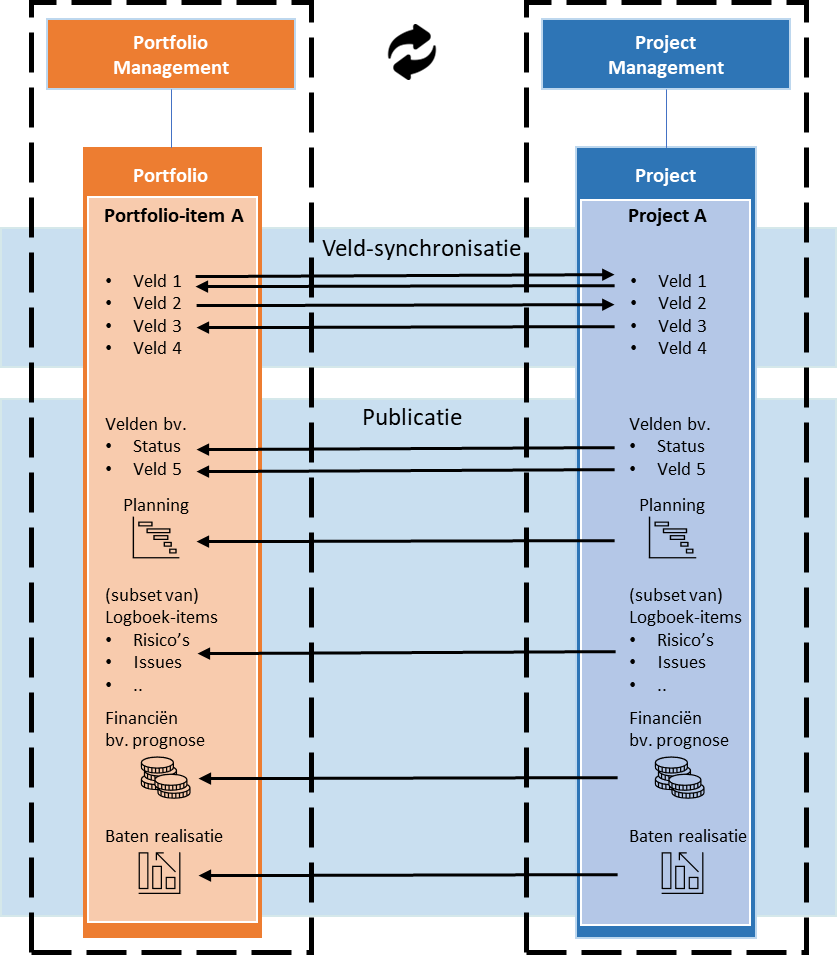
Field synchronization and publication
Data exchange between the Portfolio item and the project happens in two ways:
-
Field synchronization: Defines how data of the same field is exchanged between a Portfolio item and its associated project. Once set, each field change is synchronized immediately in the configured direction.
-
Publication: A mechanism to periodically report data from the project to the corresponding Portfolio item. The project manager deliberately presses Publish to portfolio to transfer validated data. Publication can include fields, the project schedule, subsets of log items, financial data such as the Forecast, and the contribution to Objectives (Benefit realization).
Key difference: Field synchronization is immediate and can work in both directions. Publication is deliberate (triggered by the project manager) and only works from project to Portfolio item.
Tip: When setting up the Fortes Change Cloud, consider which fields require immediate synchronization and which should only be updated upon publication. This determines how you configure each field.
Configuring field synchronization
Synchronization determines whether the value of a field in a Portfolio item equals the value of that same field in the linked project.
Fortes Change Cloud includes standard fields (such as name, description, start date) and Custom Fields (fields specific to your organization). Both types can be configured for synchronization. Standard fields have a default setting that can only be changed for some fields. Custom Fields also have a default setting but can all be changed.
Where to configure field synchronization
It is best practice to configure field synchronization in the Portfolio Model. This ensures all portfolios created with that Model behave identically.
Field synchronization can also be configured directly in a portfolio, which overrides the Portfolio Model settings for that single portfolio.
Who can configure field synchronization
In the Portfolio Model:
- Users with Manager or Support rights on the Organization Unit where the Model resides.
- Users with System Administrator rights in Fortes Change Cloud.
In a portfolio:
- Users with Manager or Support rights on that portfolio.
- Users with System Administrator rights in Fortes Change Cloud.
How to configure field synchronization
- Open the Portfolio Model. Portfolio Models are located within an Organization Unit on the Models tab.
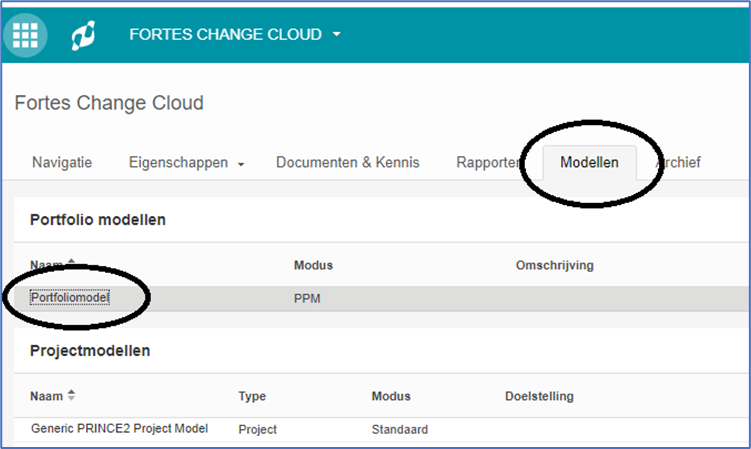
- Go to the Reporting tab.
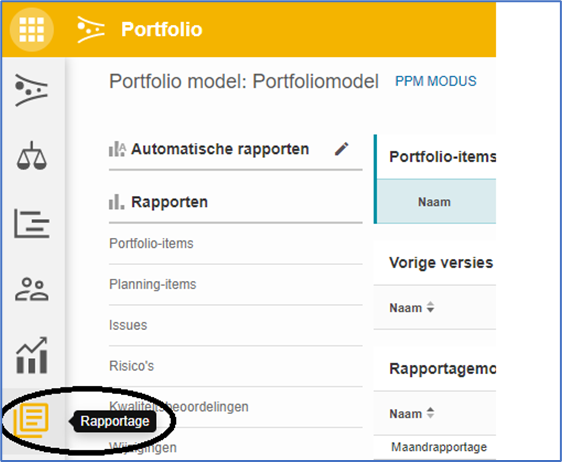
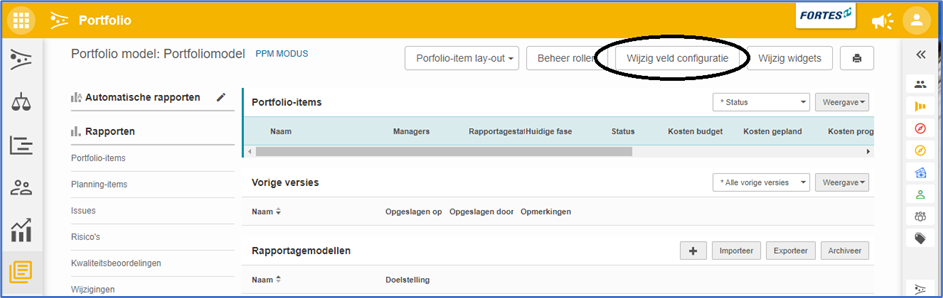
- Click Change Field Configuration at the top right of the screen.
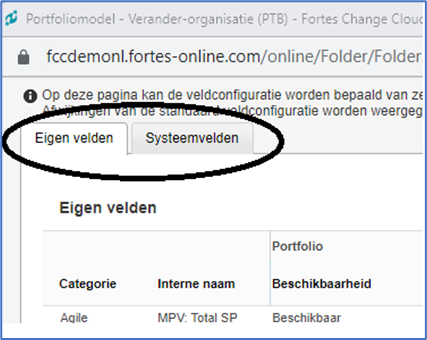
- Choose the appropriate tab. There are two tabs: one for Custom Fields and one for System fields (the standard FCC fields).
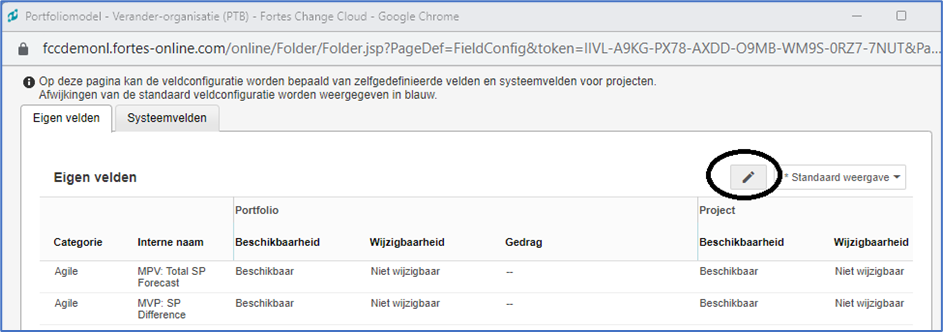
- Click the edit icon (pen) to enable edit mode.
Note: Configuring field synchronization directly in a portfolio works identically: start at step 2.
Field synchronization options
Custom Fields can be assigned a category name. Fields with the same category name are displayed together throughout Fortes Change Cloud, including in the field synchronization settings.
The following synchronization options are available:
1. A change to the Portfolio item automatically affects the project
The value entered in a field in the Portfolio item is copied to the same field in the project. The field is read-only in the project.
| Category | Internal name | Portfolio: Availability | Portfolio: Modifiability | Portfolio: Behavior | Project: Availability | Project: Modifiability | Project: Behavior |
|---|---|---|---|---|---|---|---|
| Fortes | Department | Available | Modifiable | Customized | Available | Not modifiable | Synchronized |
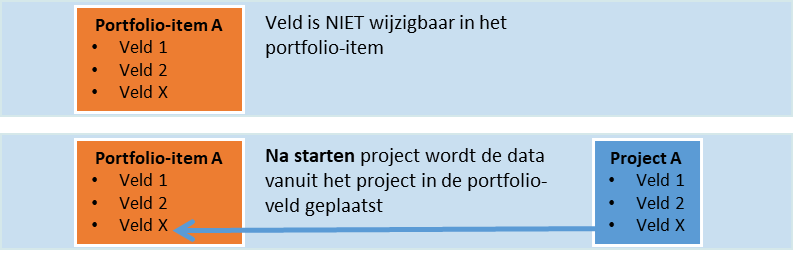
2. A change at the project automatically affects the Portfolio item
The project is leading and the field in the Portfolio item follows the value chosen in the project. The field cannot be modified in the Portfolio item.
| Category | Internal name | Portfolio: Availability | Portfolio: Modifiability | Portfolio: Behavior | Project: Availability | Project: Modifiability | Project: Behavior |
|---|---|---|---|---|---|---|---|
| Fortes | Department | Available | Not modifiable | Synchronized | Available | Modifiable | Customized |
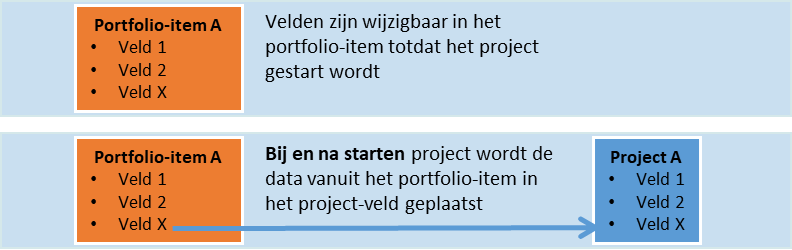
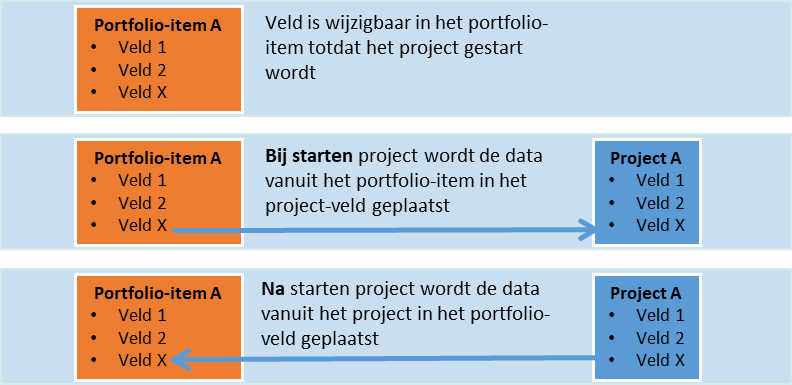
3. Modifiable in the Portfolio item until the project starts, then the project leads
As long as no project exists, the value in the Portfolio item can be modified. Once a project starts, the value can only be modified in the project, and changes are passed to the Portfolio item.
| Category | Internal name | Portfolio: Availability | Portfolio: Modifiability | Portfolio: Behavior | Project: Availability | Project: Modifiability | Project: Behavior |
|---|---|---|---|---|---|---|---|
| Fortes | Department | Available | Modifiable before project start | Synchronized after project start | Available | Modifiable | Customized |
4. Changes are not synchronized (use with publication)
The field in the Portfolio item may have a different value than the same field in the project. If this field is included in a report, the value in the Portfolio item is overwritten when the report is published in the project.
Warning: If you use this setting for fields that are not included in reporting, the values between the Portfolio item and the project may permanently differ.
Tip: If you use publication, make the field read-only on the portfolio side in the Canvas.

| Category | Internal name | Portfolio: Availability | Portfolio: Modifiability | Portfolio: Behavior | Project: Availability | Project: Modifiability | Project: Behavior |
|---|---|---|---|---|---|---|---|
| Fortes | Department | Available | Modifiable | — | Available | Modifiable | — |
5. Field not available in the Portfolio item or project
A field may only be relevant on one side. Mark the field as not available on the side where it is not needed.
| Category | Internal name | Portfolio: Availability | Portfolio: Modifiability | Portfolio: Behavior | Project: Availability | Project: Modifiability | Project: Behavior |
|---|---|---|---|---|---|---|---|
| Fortes | Department | Available | Modifiable | — | Not available | Not modifiable | — |
Adjustments directly in a portfolio
If you choose to adjust field synchronization directly in a portfolio (instead of the Model), you can return to the Model setting per field by selecting No local configuration.
| Category | Internal name | Portfolio: Availability | Portfolio: Modifiability | Portfolio: Behavior | Project: Availability | Project: Modifiability | Project: Behavior |
|---|---|---|---|---|---|---|---|
| Fortes | Department | No local configuration | No local configuration | No local configuration | No local configuration | No local configuration | No local configuration |
Once you save, the text "No local configuration" disappears and the setting from the Portfolio Model is displayed.
Publication: from project to Portfolio item
In addition to field synchronization, data from a project can be written to a Portfolio item through publication. This uses the built-in reporting function.
With this method, only validated information flows from the project to the portfolio. The project manager must deliberately press Publish to portfolio.
In the Portfolio Model, you can set up reports (e.g., a monthly report). On that report you place the fields and components (such as Risks, Issues, contributions to Objectives) that need to be synchronized to the Portfolio item through publication.
| Category | Internal name | Portfolio: Availability | Portfolio: Modifiability | Portfolio: Behavior | Project: Availability | Project: Modifiability | Project: Behavior |
|---|---|---|---|---|---|---|---|
| Fortes | Department | Available | Modifiable before project start | Customized | Available | Modifiable | Customized |
Note: Only the fields included in the report are published to the Portfolio item. This also applies to Risks, Issues, planning, and data from the Financial Grid.
Good to know
The "Publish to portfolio" button
Once a report request is sent to a project from a portfolio, the Publish to portfolio button becomes available. After publishing, this button disappears until a new report request is sent. To keep this button permanently available, a System Administrator can enable the following toggle in Advanced System Settings: Feature.EnableAlwaysPublishToPortfolio with Custom value = true.
Publishing logs, plan items, and finances
In reporting from project to Portfolio item, log items, plan items, and financial data can also be published. Contact your administrator for further details.
Best practices
- Keep the "project manager may edit" options for tabs, Canvases, and Kanban lists off by default. Enable selectively per Model only where needed.
- Use standard Project Models for new work. Users see a clean split between classic and standard Models during project creation.
- Configure field synchronization in the Portfolio Model so all portfolios inherit identical rules.
- Understand the impact on existing projects before changing manager-override settings. Changing these can re-apply Model layouts or prompt re-placement of Kanban cards.
- Name Models clearly (what and for whom) and assign an owner to maintain them.
- For Portfolio Models, pick the permission level per element (strict, select-existing, or create-new) that matches how much local deviation you want to allow.
FAQ
What is the difference between classic and standard Project Models? When creating a project you see both types, each showing only its relevant Models. Choose based on your organization's preferred setup. Standard Models are the modern default for new projects. See Creating a project for the full walkthrough.
Do Model changes propagate to existing projects? Yes, if project managers are not allowed to adjust those elements locally. In that case, changing the Model applies to all projects based on it. If managers are allowed to edit, their local changes take precedence.
Can a project manager override tabs, Canvases, or Kanban lists? Only if the Model enables it. You can allow overriding tab visibility, Canvas configuration, and Kanban lists per Model.
How is a Portfolio Model different from a Project Model? A Project Model uses simple on/off permissions per element (tabs, Canvases, Kanban lists). A Portfolio Model offers a third, in-between level: portfolio managers can be allowed to select from existing tabs, Canvases, or Funnel stages without being able to create new ones.
Where should I configure field behavior between Portfolio item and project? In the Portfolio Model (recommended). You can also adjust it per portfolio, but Model-level settings keep behavior consistent organization-wide.
What is the difference between field synchronization and publication?
- Field synchronization: Immediate rules that keep a field's value aligned between Portfolio item and project.
- Publication: A deliberate push from project to Portfolio item via the Publish to portfolio action, often on a reporting cadence.
What happens to existing projects when I toggle manager override options?
- Tabs: Disabling the override re-applies Model tab visibility.
- Canvases: Disabling the override restores Canvases from the Model; custom Canvases become hidden.
- Kanban lists: Enabling or disabling the override prompts re-placement of items into the (new) columns.
Need more support?
Contact your Fortes Change Cloud administrator or consult the online knowledge base for more step-by-step configuration guides.