Access Denied When Logging In
If you see an Access Denied message when you try to log in to Fortes Change Cloud, the cause is usually a network access restriction rather than a problem with your account.
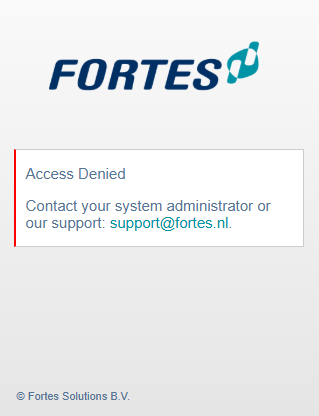
This article explains the most common causes and how to restore access.
Cause
Some organisations limit access to their Fortes Change Cloud environment to specific networks or IP addresses. If your organisation uses such a restriction, an Access Denied message means your current network location is not authorised. This typically happens when:
- You are not connected to your organisation's network or the required VPN.
- Your public IP address has changed and is no longer on your organisation's list of allowed IP addresses.
Symptoms
- You cannot open the login page or complete the sign-in.
- An Access Denied message appears after you enter your credentials.
- You can log in from one network or device, but not from another.
- The problem started after a change to your network, VPN or internet provider.
Solution
Step 1: Check Your Network Connection
- If you are in the office, make sure you are connected to your organisation's network.
- If you work remotely, connect to the VPN your organisation requires and try again.
- If you are already connected, disconnect and reconnect, or restart the VPN, to refresh the connection.
Step 2: Check Your IP Address
Look up your current public IP address and ask your IT department whether it is on the list of allowed IP addresses. If you recently changed location or internet provider, your new IP address may not have been approved yet.
Step 3: Ask Your Administrator to Review Your Access
If you still see Access Denied after checking your network and IP address, ask your IT department or Functional Administrator to review:
- The access rules for your Fortes Change Cloud environment.
- Your VPN configuration.
- Any recent changes to the list of allowed IP addresses.
Do you log in with Single Sign-On and see Authentication Failed instead? See Authentication Failed When Logging In.
Support
If the problem persists, ask your Functional Administrator to submit a ticket via the Support Center. See Fortes Customer Support. Include the following information:
- The exact error message (a screenshot helps).
- Your network location or VPN status.
- Your public IP address, if available.
- The date and time the problem occurred.
- Any recent changes to your network or access settings.