Roles and rights
Introduction
What are roles and rights?
Roles and rights in Fortes Change Cloud define who can view, create, edit, or delete content within a given scope (organization, portfolio, project, or board). The model combines roles (capabilities) with scopes (where they apply) and supports inheritance from organizational units to underlying folders and projects.
Who uses it?
Administrators, portfolio owners, PMO members, project managers, team leads: anyone who needs to control access for internal or external users.
What value does it deliver?
Secure, compliant collaboration with predictable onboarding and easier audits: the right people receive the right access in the right place, while exceptions remain manageable.
Authorization
The Fortes Change Cloud has basic user roles in three* types:
- System administrator: this person is allowed to do everything in the tool.
- Normal user: this person cannot do anything in the tool until this user is given a specific role (Manager, Reader, Member) in areas (portfolio, project, resource pool, etc.).
- External user*: this person has very limited capabilities in the tool (see bottom of this article)
*To use the ‘External Users’ setting, module 16 must be activated on your environment by the Fortes helpdesk.

As soon as someone is entered into the Fortes Change Cloud, it must be indicated what basic role the user has. Users can only be entered by an employee with the basic ‘System Administrator’ role.
Assigning Specific Roles on Portfolio, Project, Folders, etc.
An employee with the basic “Normal User” role cannot do anything in the tool until that user is given a specific role (Manager, Reader, Member) in areas (Portfolio, Project, Folders, etc.).
Across the Fortes Change Cloud, you can give employees specific roles. To do this, you will encounter the following buttons:

or

Based on the given specific roles, employees are given the right to perform certain actions in the tool: management rights, reading rights or as a Member limited writing rights.
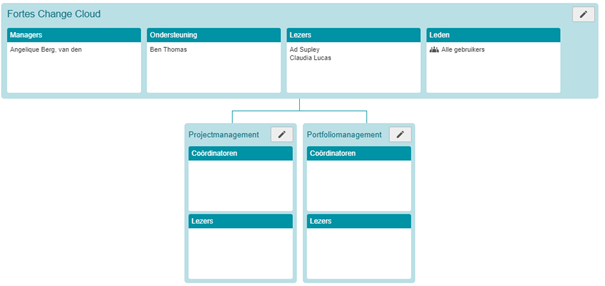
The rights work globally everywhere as shown in the table below.
| Role | Rights |
|---|---|
| Manager | May do everything in the specific area such as: give users specific roles; customize structure; customize layouts of screens; read everything |
| Supporter | Can do the same as a 'Manager' |
| Readers | May read anything within the specific area |
| Members | May be assigned a specific role within the specific area. |
| Coordinator | Can generally do the same as a 'Manager' |
Roles by area
Per area (Portfolio, Projects, Folders, etc.) this will vary slightly. The roles that can be used and what they entail are listed below for each area.
Also read the following article: Inherit permissions from organizational unit to projects, and folders
Roles on Organizational Units
Depending on which functional components are activated in the OU, the following specific roles can be assigned (see figure and table below):
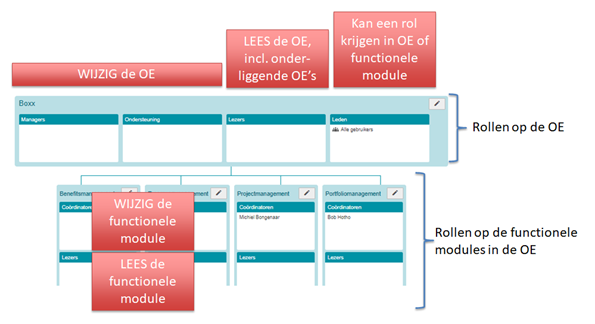
These assigned roles have an effect on what a user can see:
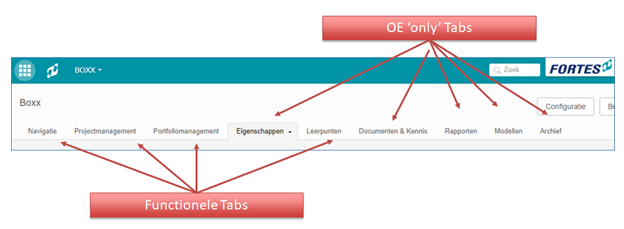
- An OU manager/support/readers: see all tabs
- An OU member: sees only the functional tabs
- A coordinator/reader of a functional module: sees only the functional tabs
| Role | Rights |
|---|---|
| Managers | Creating and archiving folders in the OU Assign folder manager(s) to a new folder within the OU Assigning folder reader(s) to a new folder within the OU Managing roles at the OU level. Access information from all folders and projects within the OU Change image and text on OU dashboard For an OU of the Resource Management type: – Manage resource availability – Assigning project and non-project work – Assigning and Deleting Non-Project Activity Sets from the OU – Assigning hours to projects and non-project activities |
| Support | The same access rights as the manager |
| Readers | Access to the information of all folders and projects within the OU For an OU of the Resource Management type: – Reading the resource pools of the OU – Reading of all allocation requests, time allocations and availability data from the respective OU |
| Members | Can be assigned to individual folders, projects or portfolios as readers or managers within the OU. Note: before access to Portfolios can be granted, users must first be members of Portfolio Management |
Roles on folders
| Role | Rights |
|---|---|
| Managers | Create, move, and archive projects and project models at assigned level Create, move and archive subfolders Delete and restore archived projects and project models at the assigned level Assign a project manager to a new project Manage roles (managers and readers) of assigned level Create, edit and delete issues, documents, risks etc. within assigned level Reads all information within own and underlying levels Setting tolerances for the projects within the assigned folder/project list Customize layout of folder/project list dashboard |
| Support | The same access rights as the manager |
| Readers | Read all information within own and underlying levels |
Roles in the Portfolio
| Role | Rights |
|---|---|
| (Portfolio) Manager | Create and archive portfolio items Assign managers, readers and members as owners to individual portfolio items Access to all portfolios and their data Create and archive portfolio items within portfolio Delete and restore archived portfolio items Starting Projects from a Portfolio Item Assign a project manager when starting a Project from a Portfolio item Changing the layout of the portfolio dashboard Save portfolio versions Define and customize canvases. Create/manage financial categories. Define/manage portfolio objectives Skills and Capacity select/enable/manage within capacity planning on the portfolio |
| Support | The same access rights as the manager |
| Readers | All information in the Portfolio can be read All information in the Projects started from the Portfolio can be read. |
| Members | Can be assigned to individual portfolio items as an owner. This allows a member to mutate that specific portfolio item and add documents to it. Note: to access portfolios, users must first be members of Portfolio Management |
Attention! To start a Project from a Portfolio item, a user must have ‘Manager’ or ‘Support’ as a specific role on the ‘folder’ within the Organizational Unit in which the ‘Project Model’ resides and in which the Project is created.
Roles on Projects
| Role | Rights |
|---|---|
| (Project) Manager | Manage all information within your own project Edit project plan, schedule, logs, etc. Edit project team Setting the overall status of the own project Customize layout project dashboard and canvases |
| Support | The same access rights as the manager |
| Readers and Steering Committee Members | Read all the information in a project Add Issues to the Issue Log |
| Members | Reads all information within a project except project cost information. Add Issues to the Issue Log |
Within a Project are Products/Plan Items to which and on which Members can have a specific role:
| Role | Rights |
|---|---|
| Owner | Adding Deliverables (documents) to a product Add new log items (issues, risks, changes, actions, quality reviews) related to the product. Editing of all product specific and custom fields |
| Reviewer | Adding Deliverables (documents) to a product Add new log items (issues, risks, changes, actions, quality reviews) related to the product. Editing of all product specific and custom fields |
Roles on Resource Pools
| Role | Rights |
|---|---|
| Coordinator | Has the following permissions on all resources within all underlying organizational units: – Determine availability of resources – Assigning project and non-project work |
| Reader | Has the following permissions on all resources within all underlying organizational units: – Access to all resources on the underlying organizational units. – Read access to all allocation requests, time allocations, and availability data |
Roles on Agile Teams
| Role | Rights |
|---|---|
| Manager | Change Agile Team Name Manage members Manage labels Lists (create, rename, move and archive) Maps (create, rename, move, add/delete attachments, add/change labels and archive) Portfolio report tab (open, edit and publish) Archived and restored maps |
| Team members/support | Same rights as Manager, except: – No access to manage members – No access to Portfolio reporting tab |
| Readers | Readers can only view programs and can’t make changes. |
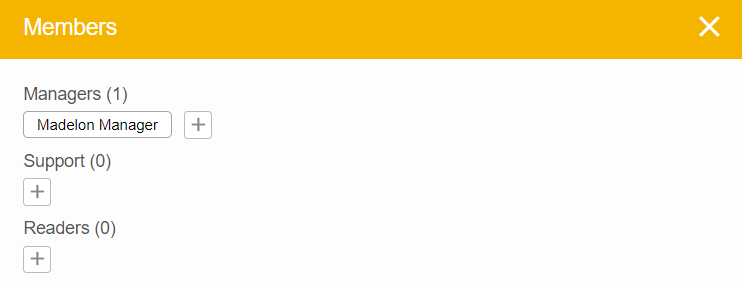
In the Agile program app, click on Members to add users to the desired program.
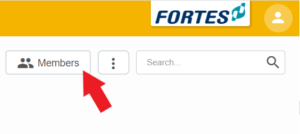
Then choose the plus icon at the desired role to add a user
Authorizing Groups

In addition to authorizing Individual users on Portfolios, Projects, Folders, etc., you can bundle Groups of users and authorize them at once.
This use is recommended when there are clearly defined groups of users in the organization that need to be granted the same rights in various places in the FCC. If someone in that group is replaced, then you only need to remove the employee from the group in one place and put the replacement in after which the replacement immediately has the same rights as his predecessor.
Groups can be created under User Management.
Attention!
- This can only be done by employees with the System Administrator role
- There is one particular user group: ‘all users’. This is pre-loaded, and automatically contains all users. For example, you can use it in the OU role ‘members’.
Example: There are six MT members are who should have read access to both the Portfolios and Projects.
As the System Administrator, click on the Configuration icon (in the upper right corner).

User management - Groups’ tab - Creating a ‘New User Group’

Press the “Create Group” button so that the new user group is created.
The new user group is now in the list of User Groups

Click on the User Group name to add or remove employees.

A pop-up will appear showing the ‘Add / Remove’ button. Press this button. In the pop-up that then appears, employees can be added or deleted.

After you press the OK button it is saved and the group is available for use. For example, the Group can be linked to a Portfolio as a Reader.
External Users
Attention! In order to list users as ‘External User’, module 16 must be activated on your environment by the Fortes helpdesk.
An ‘External User’ can only be assigned to Products, Issues and Risks in a Project and can additionally Write Time. The Products, Issues or Risks that this person is associated with can be viewed without opening the Project. The content (e.g., progress information) can be mutated at these items.
Inherit rights from organizational unit to projects, and folders
This breaks down into two points:
- The inheritance of rights now works uniformly across the Fortes Change Cloud as follows: For folders, projects and portfolios for which no specific authorization has been set, ALL members of the organizational unit have access according to the authorization set on the organizational unit (manager, reader, members).
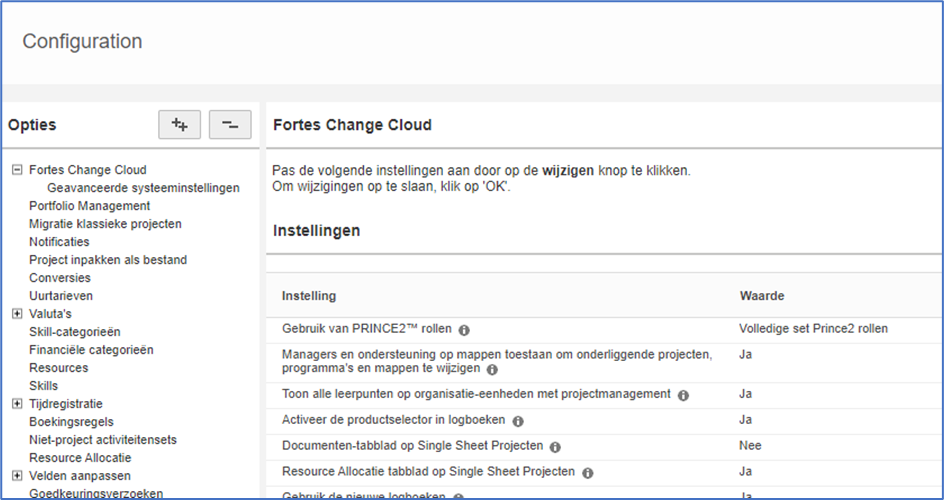
- The inheritance of manager privileges from an organizational unit while authorizations are set on the project or folder: Provided that the setting below is set to ‘Yes’, the following applies: for all underlying folders and projects, ALL managers of the organizational unit or folder have manager access.
This inheritance of rights is only active when the setting “Allow managers and support on folders to modify underlying projects, programs and folders” is set to “Yes”. This setting can be found under the “Configuration” in the “Fortes Change Cloud” menu.
Contacting Support and Working with User Permissions
Fortes Customer Support
Our Support Center staff resolve issues and answer questions about Fortes Change Cloud. Every request to the Support Center is registered as a ticket. A ticket can be an error, incident, enhancement request, or user question. Users with the correct permissions in your Fortes Change Cloud environment and administrators can create tickets via the Support Center and contact Support for assistance.
Conditions for receiving support:
- The application must be used according to its intended use.
- Reasonable cooperation must be provided to the Support Center to help resolve the ticket.
- If necessary, access must be granted to the systems in order to analyze and/or resolve the issue.
How do I contact the Support Center?
Before submitting a ticket, consult all available documentation (online or printed). If no solution is found, you can register a ticket online via the Support Center.
You can find the Support Center under the Support button. On the home page, click the question mark icon to open Support.
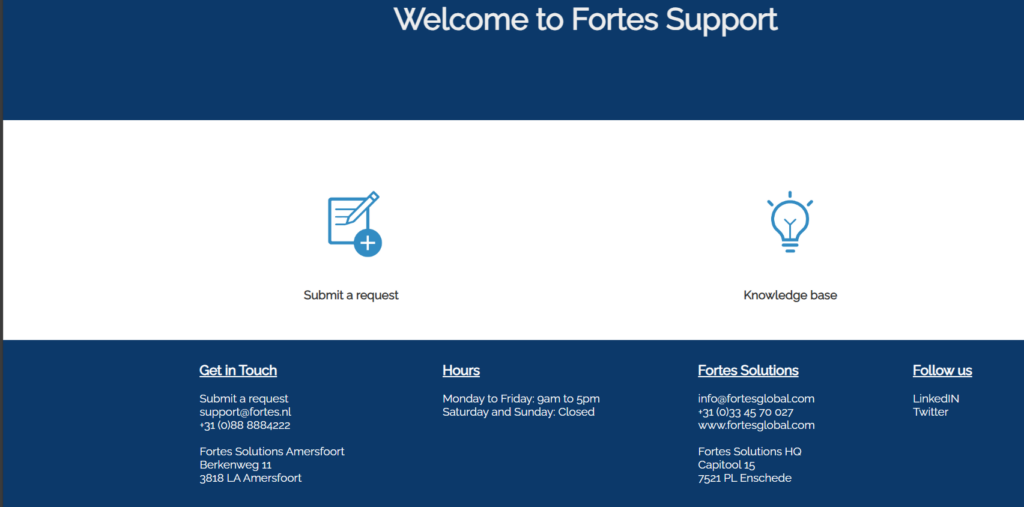
Click Submit a request to send your ticket to the Support Center. You’ll be asked a few questions to give Support a clear and complete picture of your request. Once completed, submit the ticket to the Support Center.
Who can contact the Support Center?
The Functional Administrator of your Fortes Change Cloud environment is the first line of support within your organization. When needed, they can register tickets with the Support Center. Responses from Support are sent through the ticket to the ticket reporter and any CC recipients.
In some organizations, a key user may also be responsible for registering tickets with the Support Center. Even if a user does not have administrator rights, it is possible to authorize that user for access to the Support Center.
How do I authorize a standard user for access to the Support Center?
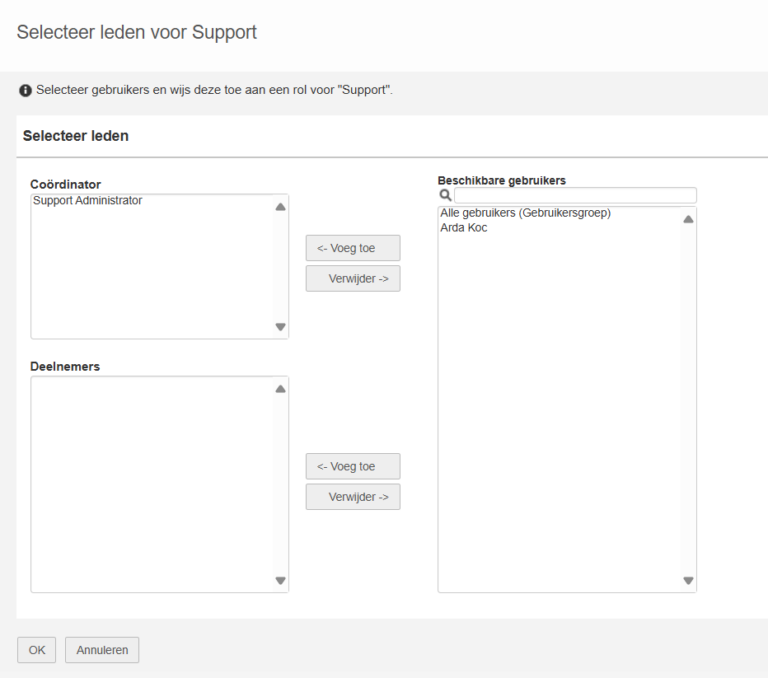
By default, standard users do not have access to the Support Center. A user with administrator rights can grant access from the home page via the Manage roles button.

There are two roles:
- Coordinator: Users with the Coordinator role can access the Support Center. They also have the authority to assign roles to other users.
- Participant: Users with the Participant role can access the Support Center.
Users with either of these roles have access to the Support Center and can view the organization’s tickets and create new tickets
Best practices
- Use groups: Manage access via groups instead of individual users.
- Lean on inheritance: Put baseline rights at the organizational unit; keep local exceptions rare.
- Least privilege: Grant the lowest role that enables the work.
- Document exceptions: Note unusual rights in the object description.
- Review regularly: Audit members and roles quarterly or per release.
- Board vs. project scope: Use board roles to fine-tune Kanban permissions.
FAQ
What’s the difference between a role and a scope?
A role defines what someone can do; the scope defines where it applies (organization, portfolio, project, or board).
How does inheritance work?
Rights set on an organizational unit flow down to its projects and folders. Local rights are additive.
Does a user have to be a project member to work on a board?
Not always. A board role can grant board-level permissions; combine with a project role for full functionality.
How do I grant access to external users safely?
Create a dedicated group with limited roles, invite them at the correct scope, and restrict sensitive segments via views.
Can I export members/roles for audit?
Yes, depending on your tenant configuration, you can report or export membership and role assignments.
Need more support?
For step-by-step instructions or troubleshooting, contact your Fortes Change Cloud administrator or consult in-app help.