Properties Panel
Introduction
The Properties panel is a collapsible sidebar located on the right side of the page in Fortes Change Cloud. It is available across multiple apps, including the Portfolio app, Project app, and Agile Program. The panel provides quick access to configuration options and contextual information without leaving the current page.
The Properties panel is collapsed by default and can be expanded by clicking <<. In the expanded panel, click > next to a property to see which items are selected. If you have sufficient permissions (Manager or Support role), you can make changes by clicking +.
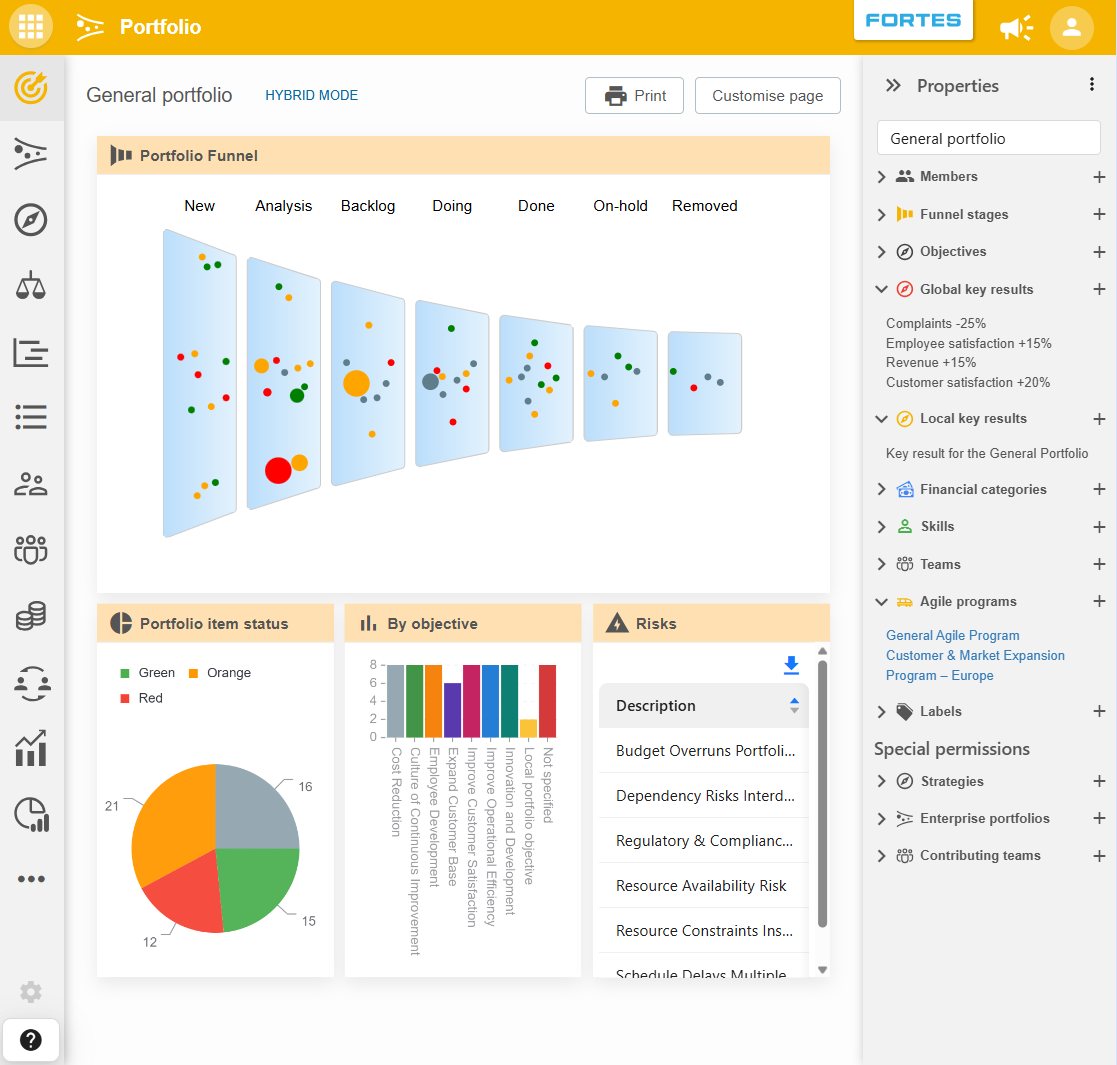
What can you find in the Properties panel?
The content of the Properties panel depends on the app and context you are working in. Common properties include:
- Members and roles: assign, update, or remove members and set their access level (e.g., Manager, Support, Reader).
- Objectives: manage Objectives linked to the portfolio, including those inherited from the Strategy app or an Enterprise Portfolio.
- Enterprise Portfolios: view or manage which Enterprise Portfolios the current portfolio participates in.
- Contributing Teams: add or remove teams that contribute to the portfolio or its items.
- Skills and capacity: configure which Skills are available for capacity planning.
- Funnel phases: manage the order and settings of funnel phases.
- Labels: add, remove, or edit labels (e.g., in Agile Programs).
- Connected teams: manage linked Jira or Azure DevOps teams (in Agile Programs).
Note: The available properties depend on your role and the app you are working in. Not all properties are visible to all users.
Managing members and roles
Assign, update, or remove members and set their access level (Manager, Support, Reader) for each funnel.
For more information on user roles, see Roles and Rights.
History log
The Properties panel gives direct access to the history log for any item you are working on, so you no longer need to navigate to a separate location to consult the changelog.
History access is available in the following apps:
- Portfolio: portfolio items
- Project: projects
- Agile Program: agile programs
- Teams: teams
How to open the history log
- Open the relevant app and select the item you want to inspect.
- Open the Properties panel by clicking
<<. - Click the
⋮menu in the panel header. - Select Open history to view the changelog.