Navigation
Introduction
Fortes Change Cloud (FCC) provides several ways to navigate through the application. You can use the App-selector, the Navigation menu in the Start App, or the Search functionality to quickly find and access the information you need.
App-selector
The App-selector is located in the top left of your screen. It gives you direct access to all available FCC apps, such as the Start App, Strategy App, Portfolio App, Project App, and more. Click the App-selector to see the list of apps and select the one you want to navigate to.
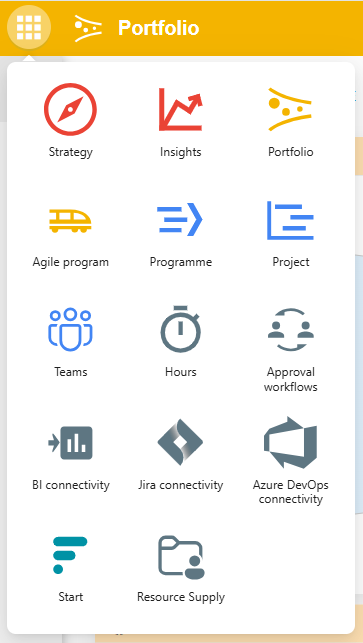
For a full overview of all available apps, see Apps.
Navigation menu
The Navigation menu is located in the top bar of the Start App. It allows you to navigate the Fortes Change Cloud organizational structure. This structure typically represents your organization's hierarchy, including organization units, portfolios, programs, and projects.
Use the Navigation menu to drill down into specific areas of your organization and access the relevant items.
Search
Fortes Change Cloud supports two search functions: Quick Search and Advanced Search.
Quick Search
The Search box is located in the top bar of the Start App. Use it to quickly find Portfolios, Portfolio items, Folders, Projects, Programmes, Plan items, and more.
- Click on the Search box in the top bar.
- Enter a minimum of 3 characters.
- The drop-down displays up to 10 matching results.
- The drop-down also shows up to 10 of your recently visited locations.
- Click a name in the drop-down to navigate directly to that item.
Advanced Search
Advanced Search allows you to search across multiple object types at the same time (e.g., Issues, Risks, and Plan items) and also supports searching for documents.
- Click the search icon on the right side of the dark blue header at the top of your screen. A dialogue box appears.
- Enter the name of the item you are looking for.
- Optionally, select an object type to narrow the results.
- Optionally, add a filter on the creation date.
- Click Search.
- The search results are displayed at the bottom of the screen.
Note: Advanced Search is available on many pages throughout FCC.
FAQ
Q: How many results does Quick Search show? Quick Search displays a maximum of 10 matching results and up to 10 recently visited locations.
Q: What is the minimum number of characters required for Quick Search? You need to enter at least 3 characters to trigger search results.
Q: Can I search for documents? Yes. Use Advanced Search to search for documents in addition to other object types.
Support
If you have questions or need help with navigation in FCC, please visit our Support page.