Documents and Attachments
Introduction
Documents and attachments can be added at many levels in Fortes Change Cloud, for example on a Portfolio, Project, Portfolio item, Plan item, or Risk. The Documents tab works the same way across all these levels, providing a centralized place to store, organize, and access relevant documentation.
You can upload files directly or link to external documents (for example OneDrive or Google Docs) by entering a URL. When linking via URL, a short description can be included so it is immediately clear what the link refers to. All documents support version history, folder organization, and approval workflows.
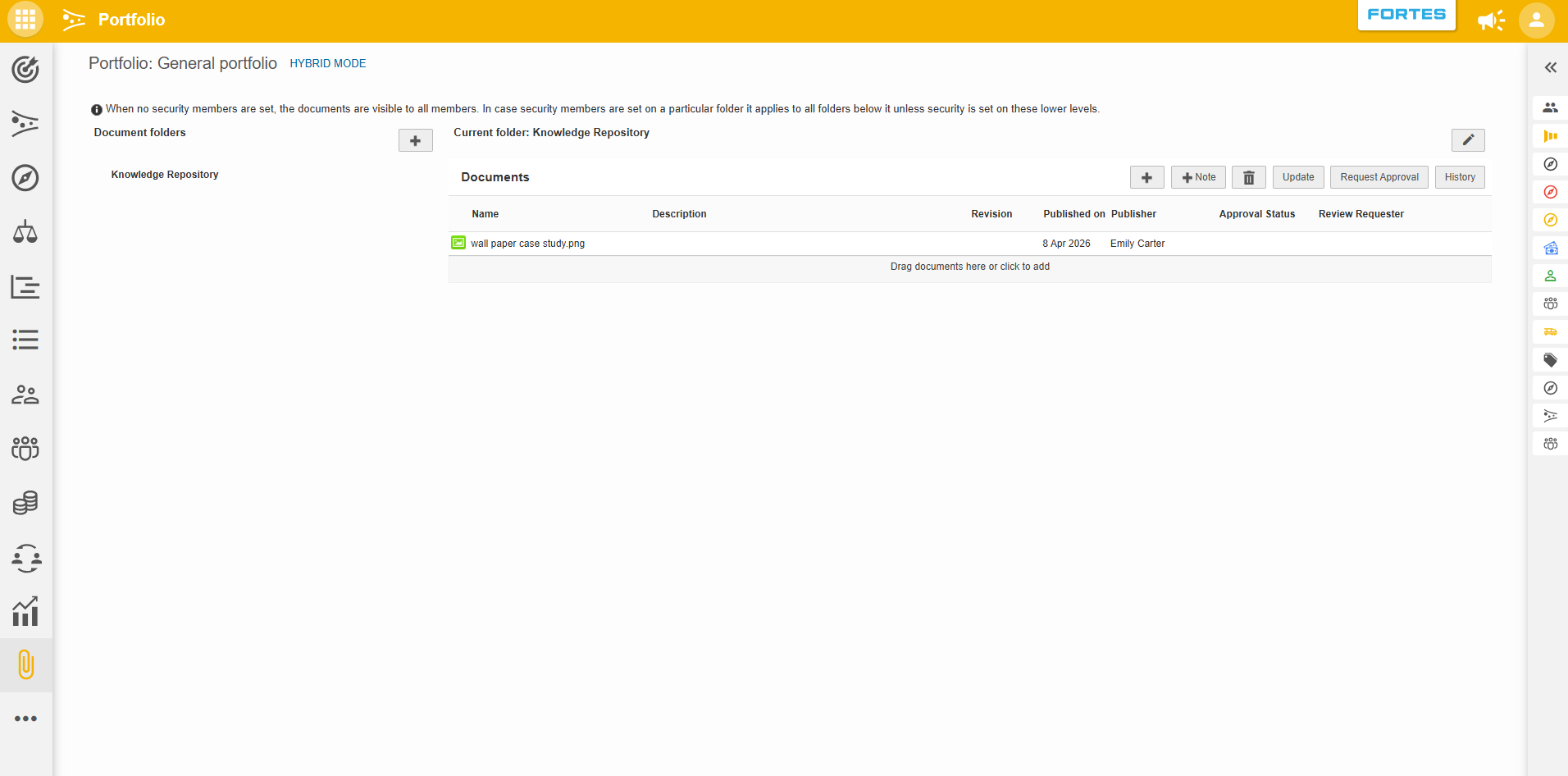
Working with documents
Adding a document
- Navigate to the Documents tab on the relevant level (e.g. Portfolio, Project, Portfolio item).
- Click + in the current folder.
- Upload a file or enter a URL to an external online file.
- Fill in a description and a version number.
Note: When adding a document via URL, the short description is displayed alongside the link so users immediately understand what it refers to.
Adding a note
Click + Note to add a note to the list of documents. Use notes to add important information or annotations, for example, context about a decision or a reminder for team members.
Creating folders
Click + next to the Document folders header, enter a name, and confirm with OK. Use folders to structure documents in a clear manner, for example by phase, initiative, or deliverable.
Checking version history
Select a document and click History. Here you can see all previous versions of the document that were uploaded to Fortes Change Cloud. This makes it easy to track changes over time.
Requesting approval
Select a document and click Request approval. Choose the approver(s) and set a deadline for the approval. The selected person(s) are then asked to review and approve the document.
Where are documents available?
The Documents tab is available in several places across FCC:
- Portfolio: Store documentation related to the portfolio as a whole. See Portfolio Documents.
- Project: Store project-specific documentation. See Project Documents.
- Portfolio item: Attach documents to individual Portfolio items.
- Plan item: Attach documents to Plan items within a project.
- Log items: Attach supporting documentation to Logs.
The functionality (uploading, folders, notes, history, approval) works the same on each level.
Best practices
- Use folders to keep larger collections organized (e.g., by phase, initiative, or deliverable).
- Enter a short description and version number when adding documents so version history stays meaningful.
- Prefer a URL when the source document lives online and must remain up to date.
- Use Request approval with a clear deadline to drive timely reviews.
- Check History before replacing a file so you understand what changed.
- Include a description when linking via URL so other users immediately understand the reference.
FAQ
Can I link to online content instead of uploading a file? Yes. When adding a document, you can provide a URL to an external file such as a OneDrive or Google Docs link. A short description can be added to clarify the reference.
How do I organize many documents? Create multiple folders using the + button next to the Document folders header.
How do I view older versions of a document? Select the document and click History to see all previously uploaded versions.
How do I request a review? Select the document, click Request approval, choose the approver(s), and set a deadline.
Is the Documents tab the same everywhere in FCC? Yes. The documents functionality (upload, URL, folders, notes, history, approval) works the same across Portfolios, Projects, Portfolio items, Plan items, and Risks.
Need more support?
Contact your Fortes Change Cloud administrator or consult the online knowledge base for more step-by-step configuration guides.