Splitting Portfolio items
Introduction
What is the Splitting Portfolio items tab?
The Splitting Portfolio items tab is the breakdown view within the Agile Program app. It allows program teams to pull in portfolio items (such as Epics) and split them into program items (such as Features), with a clear overview of work across different phases and across multiple agile programs.
Who uses it?
- Program managers: to pull in portfolio items and break them down into deliverable program items.
- Epic owners: to track how their epics are being split and delivered across programs.
- Agile teams: to see which portfolio items they are contributing to and manage their share of the work.
What value does it deliver?
- A hierarchical view of how portfolio strategy translates into executable program items.
- Support for cross-program collaboration, allowing multiple teams to contribute to the same epic.
- Efficient navigation through large backlogs with collapse, filter, and bulk-pull options.
How to use the splitting Portfolio items tab
Filters and views
Filters can be added to create better overviews of the Portfolio and Program items. To add filters and create views, see Filters and views
Share Portfolio items between Agile programs
In some cases, more than one Agile program needs to contribute to the same Portfolio item. Fortes Change Cloud supports this collaboration in two ways:
- Pushing a Program item to another Agile program
- This method allows you to send a Program item to another program so they can work on it.
- The other program will see the item as part of their own backlog and can plan and deliver it.
- Linking your Program item to a Portfolio item in another Agile program
- With this method, your program continues to work on its own Program item, but links it to a Portfolio item that has already been pulled in by another Agile program.
- This makes your contribution visible and ensures that progress is tracked across programs.
Pulling in a Portfolio item
- Only one Agile program can officially pull in a Portfolio item on the Split tab.
- Once pulled in, that Portfolio item is owned by that program and shown in dark yellow.
- Other programs can still contribute to the same Portfolio item by linking their Program items to it. In that case, the Portfolio item will also appear in their Split tab, but with a light yellow highlight.
Note: If no program has pulled in the Portfolio item, contributions can still be linked, but the Portfolio item will not appear on the Split tab. At least one program must pull it in for it to be displayed there.
Viewing Contributions Across Programs
When multiple programs contribute to the same Portfolio item, the splitting tab provides an overview of all contributions:
- In the program that originally pulled in the Portfolio item, a link appears:
“Program items delivered by other programs”, followed by the number of contributing items. - Clicking this link opens an overview showing which other programs contribute and how many Program items they have linked.
- Program names in this overview are clickable, allowing quick navigation to the contributing programs.
Move a Portfolio item
You can easily move a Portfolio item together with all its underlying Program items to another Agile Program.
- Open the menu behind the Portfolio Item.
- Select the option:
“Move this item to another Agile Program.”
Note: The Agile Programs you can move the item to are restricted. You can only choose Agile Programs that are linked to the same Portfolio as the Portfolio Item.
Keep a good overview
When there are many Portfolio items with sub-items, searching through this list quickly becomes difficult. To maintain an overview, three functionalities have been added.
Collapse of Portfolio subitems
Quickly see all Portfolio items (e.g. Epics) below each other by hiding the sub-items (e.g. Features). When a Portfolio item is collapsed, the number of sub-items per list is displayed. Portfolio items can be folded in and out individually but also simultaneously.
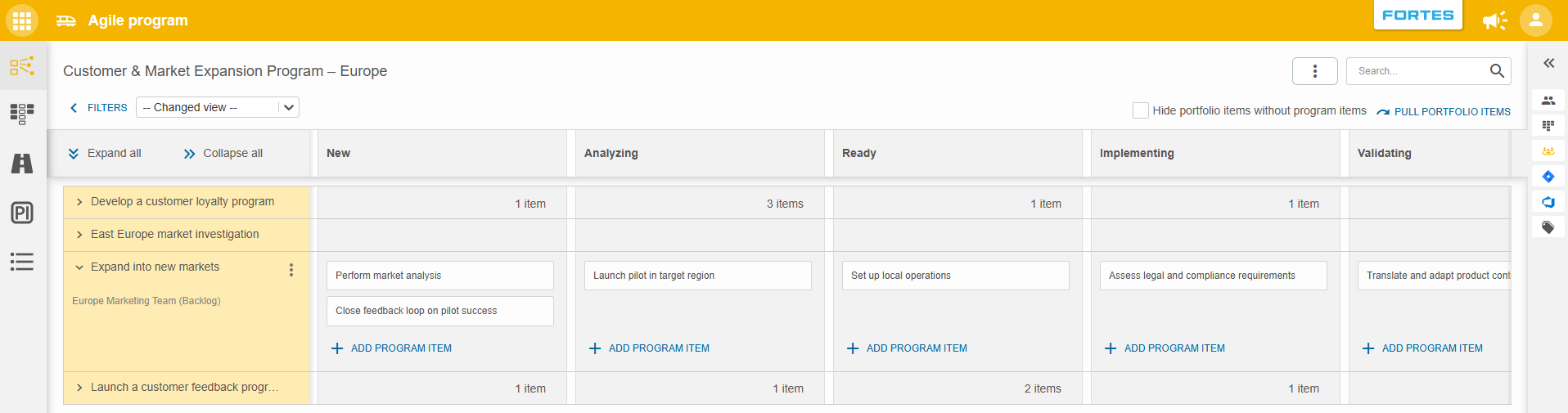
Hide Portfolio items ‘without visible Program items’
A filter option has been added to hide all Portfolio items (e.g., Epics) that do not have sub-items (e.g., Features) with the click of a button. Checking the check box filters out Portfolio items that have no sub-items. Unchecking the check box will display the relevant Portfolio items again.
Easily pull Portfolio items into the Agile program
You can pull Portfolio items into the program. This is done by looking up the item under the Portfolio items already pulled in and clicking on PULL PORTFOLIO IN THIS AGILE PROGRAM. This functionality remains unchanged.
To avoid having to first scroll down through a long list of pulled in Portfolio items, a second way to pull in Portfolio items has been added. The PULL PORTFOLIO ITEMS button has been added to the top right of the page.
Filtering on completed program items
To keep the overview manageable once a Portfolio item has many sub-items, add a filter on status to hide program items that are already completed. See Filters and views for how to set and save a filter.
Need more support?
For step-by-step instructions or troubleshooting, contact your Fortes Change Cloud administrator or consult in-app help.