Updating Fortes Change Cloud
Introduction
This guide describes how to update an existing on-premise installation of Fortes Change Cloud to a newer version. Before you start, check that the server still meets the system requirements.
Download the update package
Download the update package from downloads.principaltoolbox.com/FCC/update. You need login credentials to download it. Contact Fortes Customer Services for these credentials.
If the server has no internet connection, use the offline installer.
Run the update
-
Extract the files into the Fortes Change Cloud installation directory.
-
Run the
update.shscript with administrator privileges. -
Answer
yesto proceed, check the installation path, and press Enter. Make sure the path is correct.
-
The script validates the configuration files and stops the application.
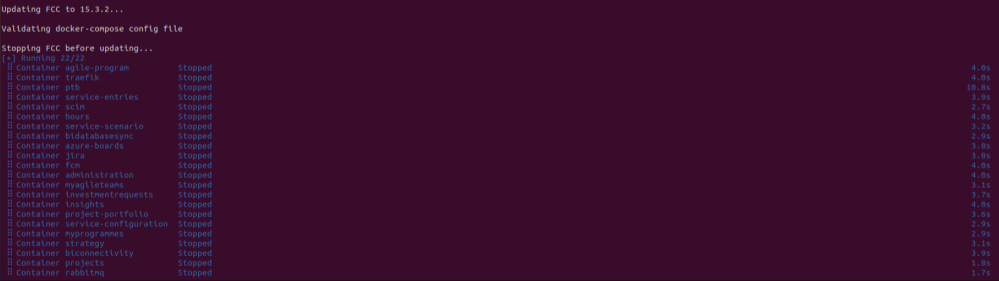
-
The update installs the necessary files and containers. This can take a while. If the server has not logged in to the Fortes Docker registry before, you are asked to log in. Use the credentials provided by Fortes Customer Services.
When the update is complete, Fortes Change Cloud starts again. The updates continue in the background, so it can take a while before you can log in.
FAQ
Do I need to enter the database settings again? No. The update script validates your existing configuration files before it stops the application.
How long does an update take? That depends on the update and the server. After the containers have started, the application may need some more time before you can log in.
Need more support?
Contact Fortes Customer Services at support@fortes.nl.