VBA macros in Microsoft 365
Introduction
Some Fortes Change Cloud reports and Excel tools use VBA macros, for example Excel files you download from Fortes Change Cloud. Microsoft Office now blocks macros in files from the internet by default, so these files may open with their macros disabled.
This article explains how Office decides whether a macro may run, and how IT administrators can allow the Fortes macros safely without switching off macro protection.
Who uses it? IT administrators and workplace managers who manage Office settings for an organization. End users can use the Trust an individual file steps.
Macros from the internet are blocked by default
VBA macros are a common way for attackers to deliver malware and ransomware. Microsoft therefore changed the default behaviour of Office: macros in files that come from the internet are blocked.
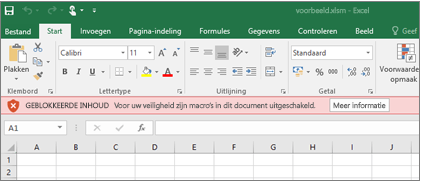
When a user opens such a file, Office shows a Blocked content banner stating that macros have been disabled for security reasons.
How Office decides whether macros may run
Office evaluates a file with macros in a fixed order. The first rule that applies decides the outcome.
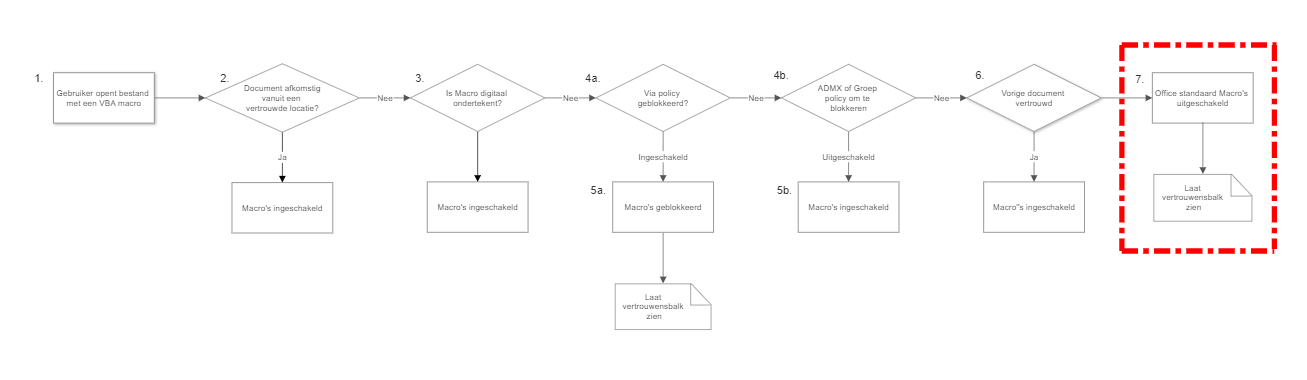
- A user opens an Office file with VBA macros that came from the internet, for example an email attachment or an Excel file downloaded from Fortes Change Cloud.
- If the file comes from a trusted location, it opens with macros enabled. Otherwise, evaluation continues.
- If the macros are digitally signed and the matching Trusted Publisher certificate is installed on the device, the file opens with macros enabled. Otherwise, evaluation continues.
- Office checks whether a policy enables or disables macros. If no policy is configured, evaluation continues at step 6.
- If the policy blocks macros, they are blocked. If the policy allows macros, they are allowed.
- If the user opened the file before Microsoft changed the default behaviour and selected Enable Content in the trust bar, the file is a trusted document and macros are enabled.
- In all other cases the default applies: macros in files from the internet are blocked and the user sees the security risk banner.
You can influence this process with Group Policy Objects (GPOs) and the Office Trust Center, and protect your organization against misuse at the same time.
Manage macro settings centrally with policies
By default, Office blocks files that contain VBA macros and shows a trust bar warning that macros are present and disabled. Users can inspect and edit the file, but cannot use the disabled functionality until they select Enable Content. The file is then added as a trusted document and its macros may run.
There is a policy for each macro setting. In the Group Policy Management Console, you find the policies under User Configuration\Policies\Administrative Templates:
| Application | Policy location |
|---|---|
| Access | Microsoft Access 2016\Application Settings\Security\Trust Center |
| Excel | Microsoft Excel 2016\Excel Options\Security\Trust Center |
| PowerPoint | Microsoft PowerPoint 2016\PowerPoint Options\Security\Trust Center |
| Visio | Microsoft Visio 2016\Visio Options\Security\Trust Center |
| Word | Microsoft Word 2016\Word Options\Security\Trust Center |
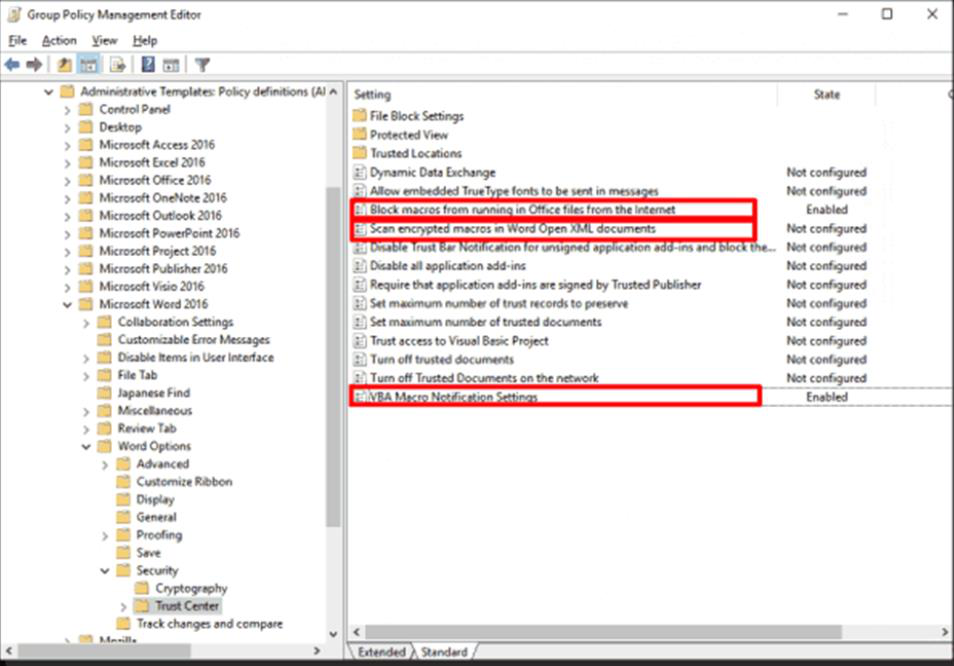
The policy you choose determines the level of protection:
| Protection level | Policy state | Policy value |
|---|---|---|
| Protected (recommended) | Enabled | Disable all except digitally signed macros (and select "Require macros to be signed by a trusted publisher") |
| Protected | Enabled | Disable all without notification |
| Partially protected | Enabled | Disable all with notification |
| Partially protected | Disabled | Same behaviour as "Disable all with notification" |
| Not protected | Enabled | Enable all macros (not recommended) |
If you do not configure these policies, users can change the settings themselves under File > Options > Trust Center > Trust Center Settings > Macro Settings:
| Protection level | Setting |
|---|---|
| Protected | Disable all macros except digitally signed macros |
| Protected | Disable all macros without notification |
| Partially protected | Disable all macros with notification (default) |
| Not protected | Enable all macros (not recommended: potentially dangerous code can run) |
The recommended setting is to disable all macros except digitally signed macros. The next section explains what that means for the Fortes macros.
Digitally signed macros
What is a digital signature?
A digital signature, or digital ID, is also called a digital certificate. To sign an Office document digitally, you need a current (not expired) certificate. Certificates are usually issued by a certificate authority (CA): a trusted third party that issues certificates for use by others. Many organizations, governments, and companies also issue their own certificates.
The certificate provides the public key that validates the private key linked to the signature. This lets Office verify that the macro code comes from the publisher and has not been changed since it was signed.
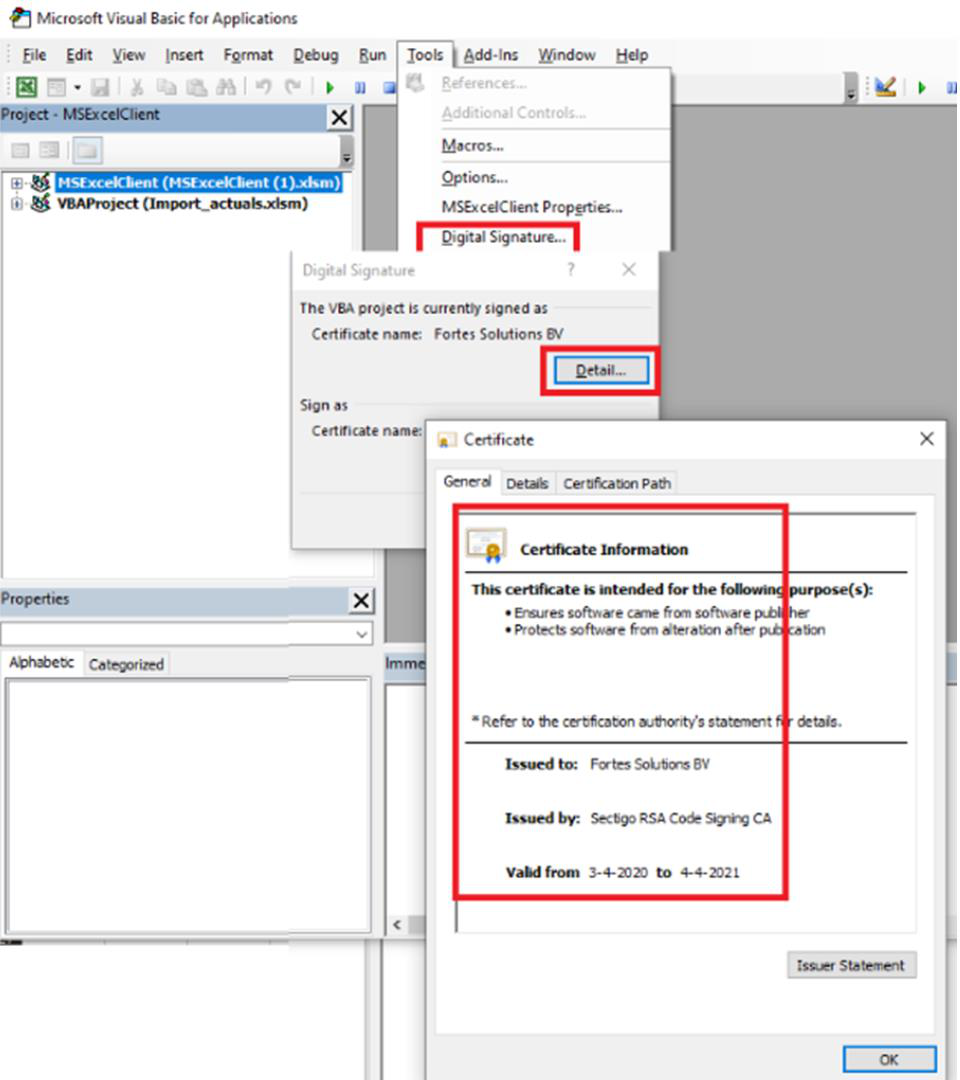
Fortes signs its VBA macros with a code signing certificate issued to Fortes Solutions BV.
Export the Fortes certificate and add it to the Trust Center
-
Open the workbook that contains the macro.
-
Press ALT+F11 to open the Visual Basic Editor.
-
In the Tools menu, click Digital Signature.
-
Click Detail to open the certificate.
-
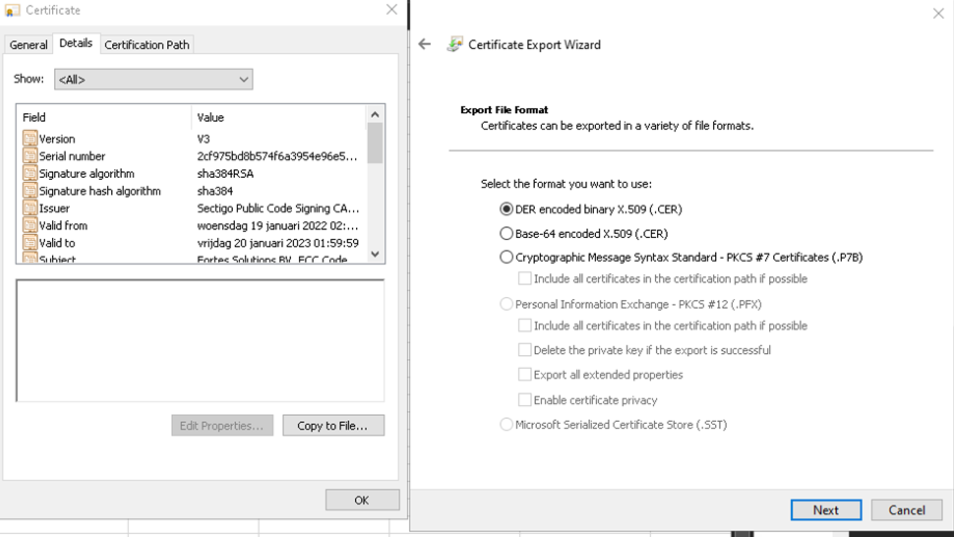
On the Details tab, click Copy to File and export the certificate in the format you need.
-
Import the exported certificate into the Trusted Publishers store, for example through a group policy.
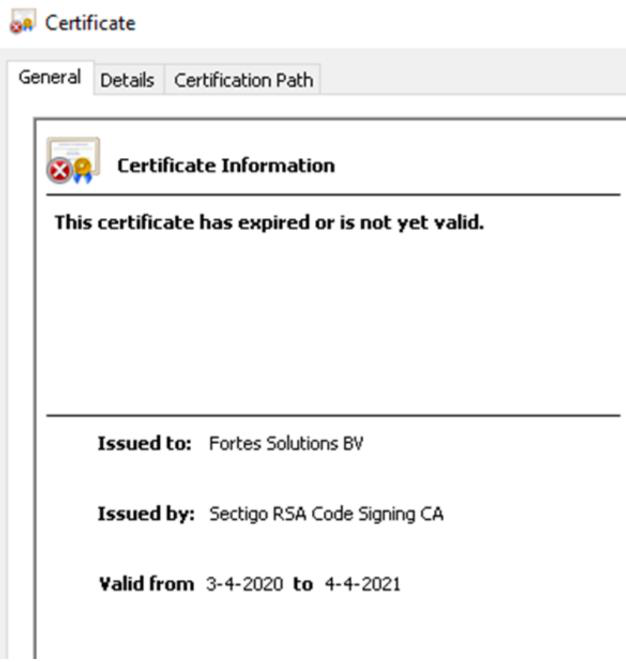
The exported certificate may show as expired. That is expected: a signature only needs a valid certificate at the moment the macros are signed. See the FAQ below.
Trust files with VBA macros
You can trust individual files, or let users open files from a central location that the organization manages.
Trust an individual file
To enable macros for a single file, the file must be saved on a local drive or OneDrive.
- Open Windows Explorer and find the file.
- Right-click the file and choose Properties.
- At the bottom of the General tab, in the Security section, select Unblock.
- Click OK.
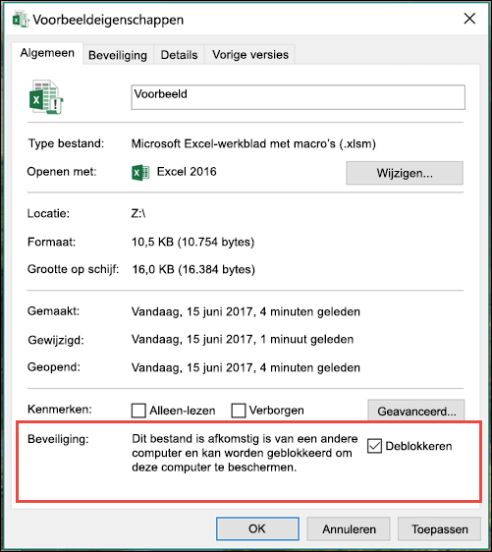
The file now opens as usual, with its macros enabled.
Place files on a network share or trusted website
If users open files from a trusted website or an internal network share, you can prevent macros from those locations being blocked:
- Designate the location as a Trusted site.
- If the network location is on the intranet, add it to the Local intranet zone.
For example: when users access a network share by its IP address, macros are blocked unless the share is in the Trusted sites or Local intranet zone. Add the share as a trusted site by adding its FQDN or IP address to the list of trusted sites.
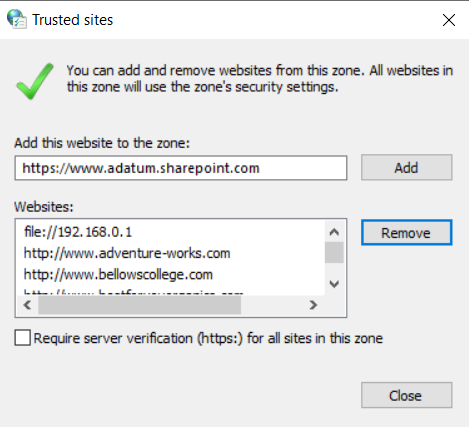
To add URLs that start with http:// or network shares, clear the Require server verification (https:) for all sites in this zone check box.
To roll this out across the organization, use the Site to Zone Assignment List group policy to add locations to the Trusted sites or Local intranet zone. You find this policy in the Group Policy Management Console under Computer Configuration\Policies\Administrative Templates and User Configuration\Policies\Administrative Templates, in Windows Components\Internet Explorer\Internet Control Panel\Security Page.
Best practices
- Do not switch off macro protection for the whole organization. Allow only digitally signed macros from trusted publishers.
- Distribute the Fortes certificate centrally through a group policy, instead of asking users to unblock files one by one.
- Use trusted locations only for shares that your organization controls.
FAQ
The exported certificate has expired. Is that normal? Yes. A digital signature lets users check that the VBA code has not been changed. The certificate must be valid at the moment the macros are signed. When the macros change, they are signed again with a valid certificate.
Do I need to repeat these steps every time Fortes changes the macros? Only when Fortes signs the macros with a new certificate.
- If the VBA change falls within the validity period of the current certificate, you do not need to import a new certificate.
- If the change falls outside that period, Fortes signs the macros with a new valid certificate and informs customers to import the new certificate into the Trust Center.
Can users enable the macros themselves? Only if no policy prevents it. Without a configured policy, users can select Enable Content or unblock the file. With the recommended policy, only signed macros from a trusted publisher run.
Need more support?
Contact your IT administrator or Fortes Customer Services at support@fortes.nl.