Page Layout Editor for Portfolio Workflows
Portfolio managers can now design custom page layouts for workflow configurations in the Portfolio App. Instead of a fixed form, teams that fill in workflow tasks see a layout you designed, with the fields and related items you choose, arranged the way you want.
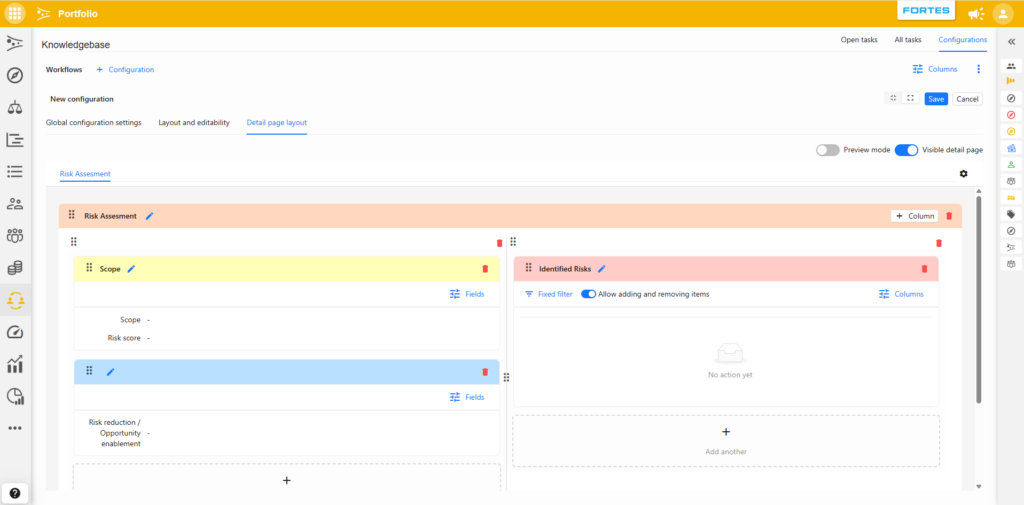
What changed
The workflow configuration screen now uses a tab-based layout, replacing the previous collapsible sections. A new Detail Page Layout tab lets you design the form that contributing teams see when they open a workflow task.
Building a layout
Sections and segments
Add sections to the layout. Each section can contain two types of segments:
- Field segment: displays a portfolio item field (name, status, dates, custom fields). Set each field as editable or read-only, and choose whether to show the label.
- List segment: shows a list of related items, such as risks, issues, actions, or lessons learned. Configure which columns are visible and whether users can add, edit, or delete items.
Supported list types: plan items, risks, issues, quality items, changes, actions, and lessons learned.
Rearranging
Drag sections, columns within a section, and segments using the drag handle (⋮⋮). Keyboard support is also available: Tab to focus, Space to pick up or drop, arrow keys to move.
Filling in a workflow task
When a team member opens a workflow task in the Portfolio App or Teams App, they see the layout you designed. Editable fields can be filled in, list items can be managed, and clicking a row in a list opens that portfolio item's detail page. Changes are saved automatically between fields.
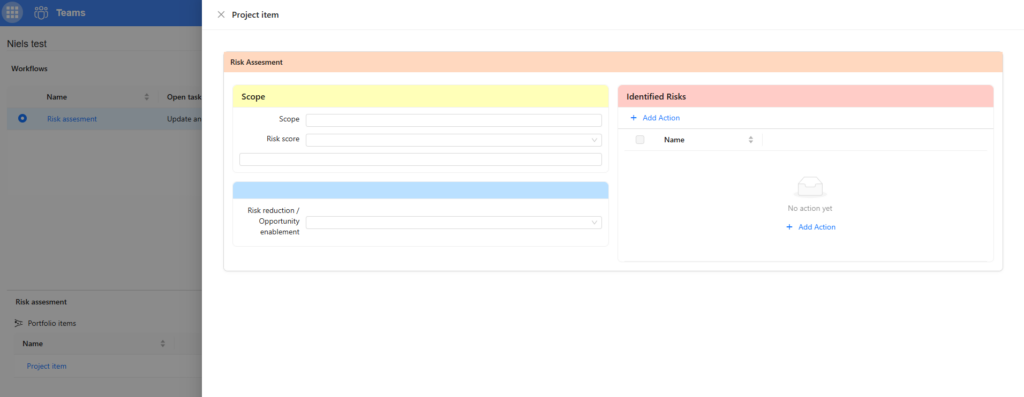
When a portfolio manager reviews the submission, the same layout is shown, so the review screen exactly reflects what was submitted.
Notes
- Each workflow configuration has its own layout. Different workflows can have different form designs.
- Existing workflow configurations continue to work without changes: the layout editor is additive.