Improved Archive for Portfolio Items
The archive in the Portfolio App has been redesigned. Instead of a basic list with just item names, you now get a full-screen dialog with search, sorting, filtering, and column customization, making it much easier to find and manage archived items.
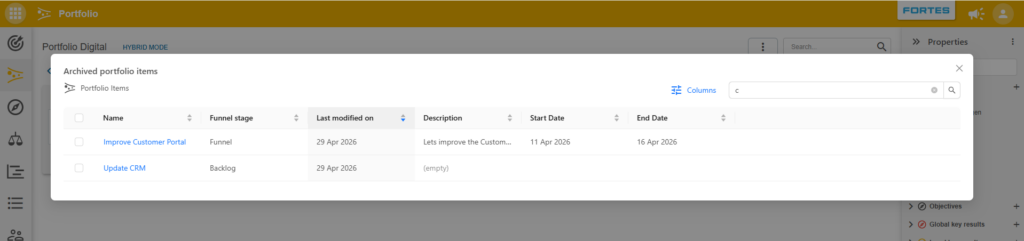
What's new
The archive dialog now includes:
- Search: find archived items by name
- Default columns: Name, Funnel stage, and Last modified
- Sorting: sort by any column; newest modified first by default
- Pagination: large archives load in pages
Customizing columns
Select Edit columns from the column selector drawer to choose which columns to display. The Name column is always visible. Column preferences are saved in the browser for future sessions.
Bulk operations
Use checkboxes to select one or more items. Use Select all to select everything on the current page; the number of selected items is shown above the list. Then perform a bulk action:
- Restore: return selected items to the portfolio
- Remove: permanently delete selected items
A confirmation dialog shows exactly which items will be affected before deletion is final.
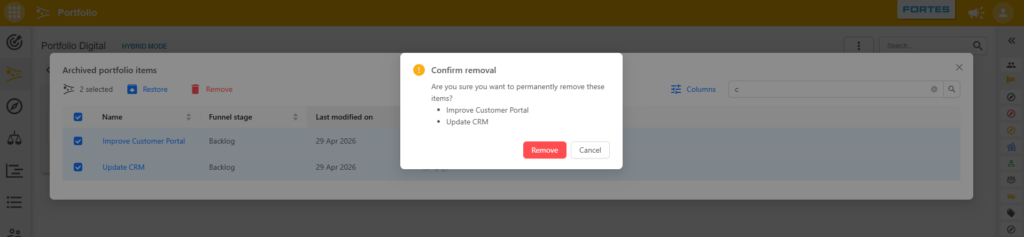
The archive list updates immediately after each action, and bulk actions are processed in a single request rather than individually.
Viewing archived item details
Click an item name to open a read-only detail page showing the archived canvas layout.
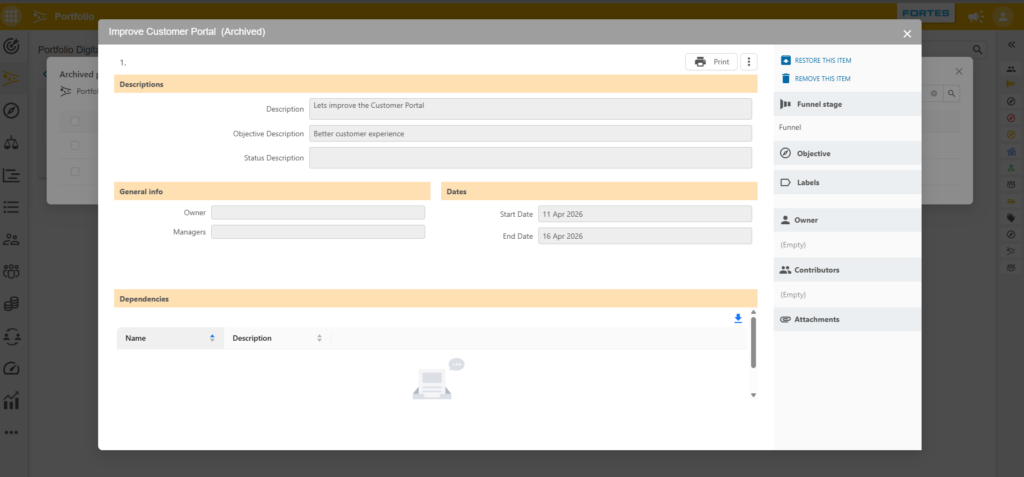
Key characteristics of the detail page:
- Grey header with an "(Archived)" label
- All content is read-only: fields cannot be edited
- The side panel shows only two actions: Restore and Remove
- External links (projects, Jira, Azure DevOps) are visible but not editable
Notes
- Archive access is limited to portfolio managers, administrators, and support users.
- The Last modified date updates when an item is archived or restored, so you can sort by recency.
- When you restore an item whose funnel stage was also archived, the stage is automatically restored too and the item returns to its original position.