Kanban
Introduction
What is the tab?
The Kanban tab visualizes work as cards flowing through lists (columns). Each card represents a task or item. Cards can show extra information through canvases—compact panels rendered on the card itself.
Who uses it?
Project managers, team leads, and team members who plan, prioritize, and track work. Permissions determine who can configure the board (e.g., manage canvases) and who can only use it.
What value does it deliver?
- Clear overview of status and flow (from left to right).
- Canvases bring the right information onto the card (fields, lists, formatted notes/images).
- Fewer clicks: key context is visible where you need it, improving speed and consistency.
Working with canvases on the Kanban board
Canvases are card panels you make available per list. You attach existing canvas templates to one or more lists.
If a canvas is not attached to a list, it won’t show on cards in that list.
If you remove a canvas from a list later, previously entered information on existing cards remains stored; it’s just hidden until the canvas is re-attached.
Add a canvas to a list
- Click Configure Canvasses (top-right on the Kanban).
- Select + Add canvas configuration.
- Choose the canvas template you want to use.
- Adjust the Type (layout) and settings of the template if applicable.
- Select the lists where this canvas must appear.
- Click Create. The canvas is now visible on cards in the selected list(s).
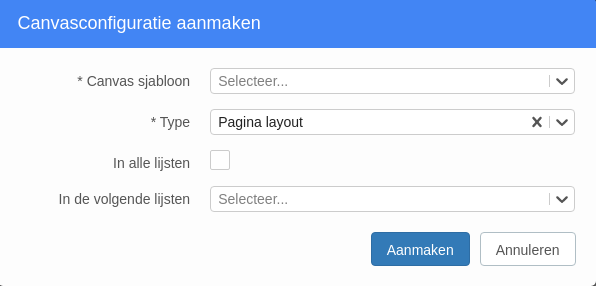
Manage canvas configurations
- Reorder canvases to control display order on cards.
- Edit a configuration to change lists or settings.
- Remove a canvas from a list if it’s no longer needed (data on existing cards remains stored).
Visibility rules (quick reference)
- A canvas appears on a card only if its configuration includes that card’s list.
- The same template can be attached to multiple lists.
- Removing a canvas from a list hides it; re-attaching shows stored data again.
Canvas segment types (what you can show on a card)
Each canvas consists of one or more segments. Common segment types:
Fields
Show key fields like start/end dates, rank/priority, or custom fields. Use this for concise, structured metadata on the card.
List
Display a simple list (columns) inside the canvas—useful for goals, actions, or a lightweight checklist scoped to the card.
Text with formatting
Add formatted text and images for short instructions, definitions, or visual cues directly on the card.
:::tip Choosing the right segment Use Fields for metadata, List for checklists/mini-overviews, and Text for explanations or visuals. :::
Best practices
- Start lean. Only show the fields users actually need; too much detail creates noise.
- Template once, reuse everywhere. Keep canvas templates centralized so teams stay consistent.
- Order matters. Place the most important canvas at the top.
- Don’t fear removal. Removing a canvas from a list doesn’t delete existing card data—it only hides it.
- Review periodically. As processes evolve, revisit which canvases/segments still add value.
FAQ
Can I add the same canvas to multiple lists?
Yes. When creating or editing the configuration, select all lists where the canvas should appear.
What happens if I remove a canvas from a list?
It disappears from cards in that list, but previously entered information on those cards remains stored. Re-attach the canvas to make it visible again.
Which segment should I use for a checklist?
Use a List segment for lightweight checklists or mini overviews.
Can I include images on a card?
Yes. Use a Text with formatting segment to add images and formatted text.
Who can configure canvases?
Users with the appropriate permissions for the project/board (typically project managers or admins). Team members without configuration rights can still view and use canvases.
Need more support?
Contact your Fortes Change Cloud administrator or consult the online knowledge base for more step-by-step configuration guides.
TODO: translate this document (user-docs/projects/kanban.md).
Source: C:\Users\MilanOzinga\Development\fcc\knowledge-base\docs\user-docs\project\kanban.md