Documents
Introduction
What is the tab?
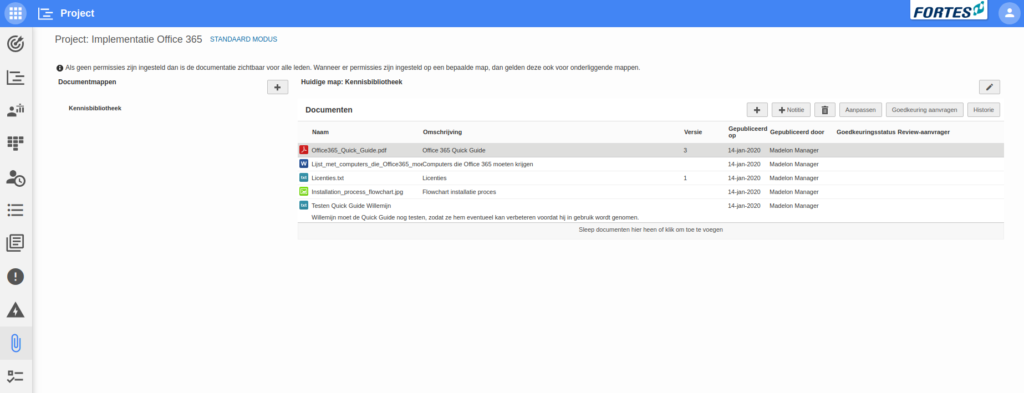
The Documents tab lets you store and update all project-related documents in one place so everyone with access to the project can find and open them.
Who uses it?
Project managers and team members who upload files/links, add notes, organize folders, and manage approvals.
What value does it deliver?
- Central place for all project documents.
- Folder structure for clarity, history for version tracking, and approval to request reviews with a deadline.
What is the goal of the documents tab?
The document tab can contain all documents relevant to a project. It is easy to structure the documents by creating different folders. In addition, Fortes Change Cloud keeps track of the history of each document, so you can check previous versions at any moment. Furthermore, it is possible to ask for approval for the documents belonging to a project, such that others have to do a revision of the document(s).
How do I use the documents tab?
-
Add a document to the current folder
Click + in the current folder. Upload a file or enter a URL to an online file, then add a description and version number.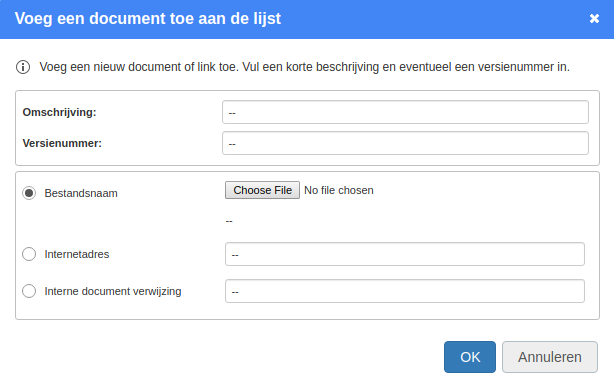
-
Add a note
Click + Note to add information or annotations to the document list. -
Create folders
Click + next to the Document folders header, enter a name, and confirm with OK. Use multiple folders when many documents are needed. -
Check version history
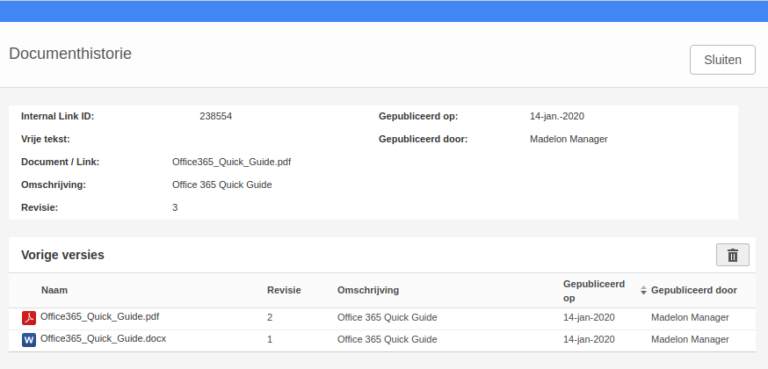
Select a document and click History to see previous versions of this document that were uploaded to Fortes Change Cloud.
-
Request approval
Select a document and click Request approval. Choose the approver(s) and set a deadline.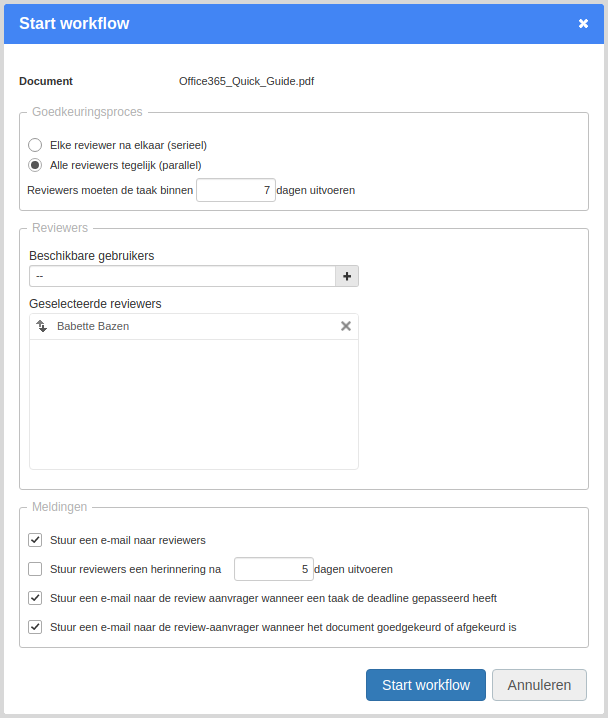
Best practices
- Use folders to keep larger collections clear (e.g., by phase or deliverable).
- Enter a short description and version number when adding documents so history stays meaningful.
- Prefer a URL when the source lives online and must remain up to date.
- Use Request approval with a clear deadline to drive timely reviews.
- Before replacing a file, quickly check History so you understand what changed.
FAQ
Who can see documents in this tab?
Anyone who has access to the project can see and open them.
Can I link to online content instead of uploading a file?
Yes—when adding a document, you can provide a URL to an online file.
How do I organize many documents?
Create multiple folders and place documents accordingly.
How do I view older versions?
Select a document and click History to see previous versions.
How do I request a review?
Select the document and click Request approval, choose approver(s) and set the deadline.
Need more support?
Contact your Fortes Change Cloud administrator or consult the online knowledge base for more step-by-step configuration guides.
TODO: translate this document (user-docs/projects/documents.md).
Source: C:\Users\MilanOzinga\Development\fcc\knowledge-base\docs\user-docs\project\documents.md